You can scan multiple pages into one PDF using built-in tools like iOS Notes, Google Drive, Windows Scan, or macOS Preview without installing additional apps.
Start by selecting PDF as the output format and scan all pages in a single session, adding each page one after another to keep everything in one file.
Align, crop, and review each page during scanning to avoid blurred text, missing pages, or incorrect page order.
Before saving, check the page sequence and remove or rescan any incorrect pages, as fixes are faster at this stage than later.
Once saved, upload the final multi-page PDF directly to your contract or signing tool to avoid extra conversions or duplicate versions.
Once scanned, uploading PDFs to content management tools like Signeasy keeps documents ready for signing, sharing, and storage without extra conversion steps.
You rarely receive documents as one neat, ready-to-upload PDF. More often, a single contract arrives as a stack of printed pages — all related but physically split.
Manually scanning, organising, and stitching these pieces together adds to a broader productivity drag in knowledge work. According to a survey report, 22.34% of respondents spend about half a working day a week on information searches, and 10.47% spend 1.5 working days a week on them.
That time cost carries into later stages of contract workflows, too.
Hence, scanning multiple pages into a single PDF is a practical habit for contract teams, rather than just a technical step.
This guide includes:
How to scan multiple pages into one PDF using iOS, Android, Windows, and macOS built-in tools
Step-by-step guides for scanning on mobile devices and desktop scanners
Tips for avoiding common issues
How to easily upload, sign, and share multi-page PDFs with Signeasy
Can you scan multiple pages into a single pdf?
Yes. Whether you're using a smartphone, tablet, desktop scanner, or computer, you can scan multiple pages into one PDF. Both iOS and Android devices include built-in scanning tools that combine multiple pages into a single PDF without needing extra apps.
On iOS: Apple’s Notes app lets you scan documents page by page and save them as one PDF in a single session.
On Android: Most Android phones support multi-page scanning through Google Drive or the default camera scanner, allowing you to capture several pages and save them as one file.
We’ll explore the steps to do so for both devices later in the article.
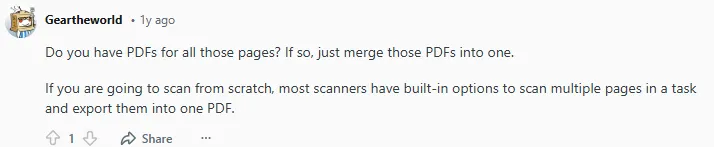
Bonus tip: A common tip echoed across this Reddit thread is to scan all pages in one go and take time aligning each page properly. Doing this reduces rework and avoids issues like missing pages or split files later on.
Reddit user sharing their opinion on scanning all pages in a task
Scanning multiple pages into one PDF with desktop scanners
If you’re dealing with thick contracts or large batches of paperwork, desktop scanners are the fastest option. The good news is that most systems already handle multi-page PDFs just fine.
On Windows
Most Windows machines can scan multiple pages into one PDF using built-in tools or the scanner’s default software. You don’t always need paid PDF apps to combine pages into a single file.
How it works
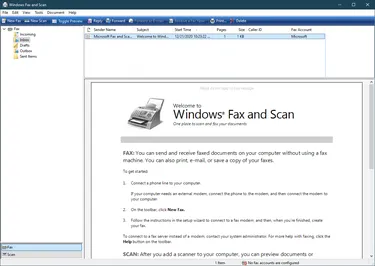
Connect your scanner and open Windows Scan or Windows Fax and Scan
Windows Fax and Scan application window
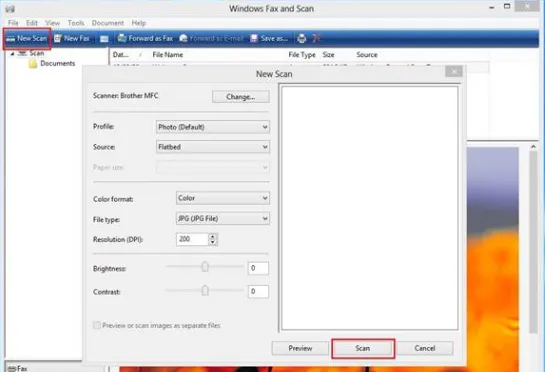
Select PDF as the file format
Place the first page on the scanner and click Scan
Use the Windows Fax and Scan tool to scan documents
After the first scan, choose Scan more pages
Once all pages are scanned, click Save → Save as PDF
Tip: Usethe Automatic Document Feeder (ADF) feature to automatically pull in multiple pages at once, so you can scan an entire document in one continuous pass.
Once your multi-page PDF is ready, tools like Signeasy make it easy to sign, annotate, and securely share the document without exporting or converting it again.
On macOS
For macOS users, Preview and Image Capture offer simple, built-in tools to scan multiple pages into a single PDF.
Preview App:
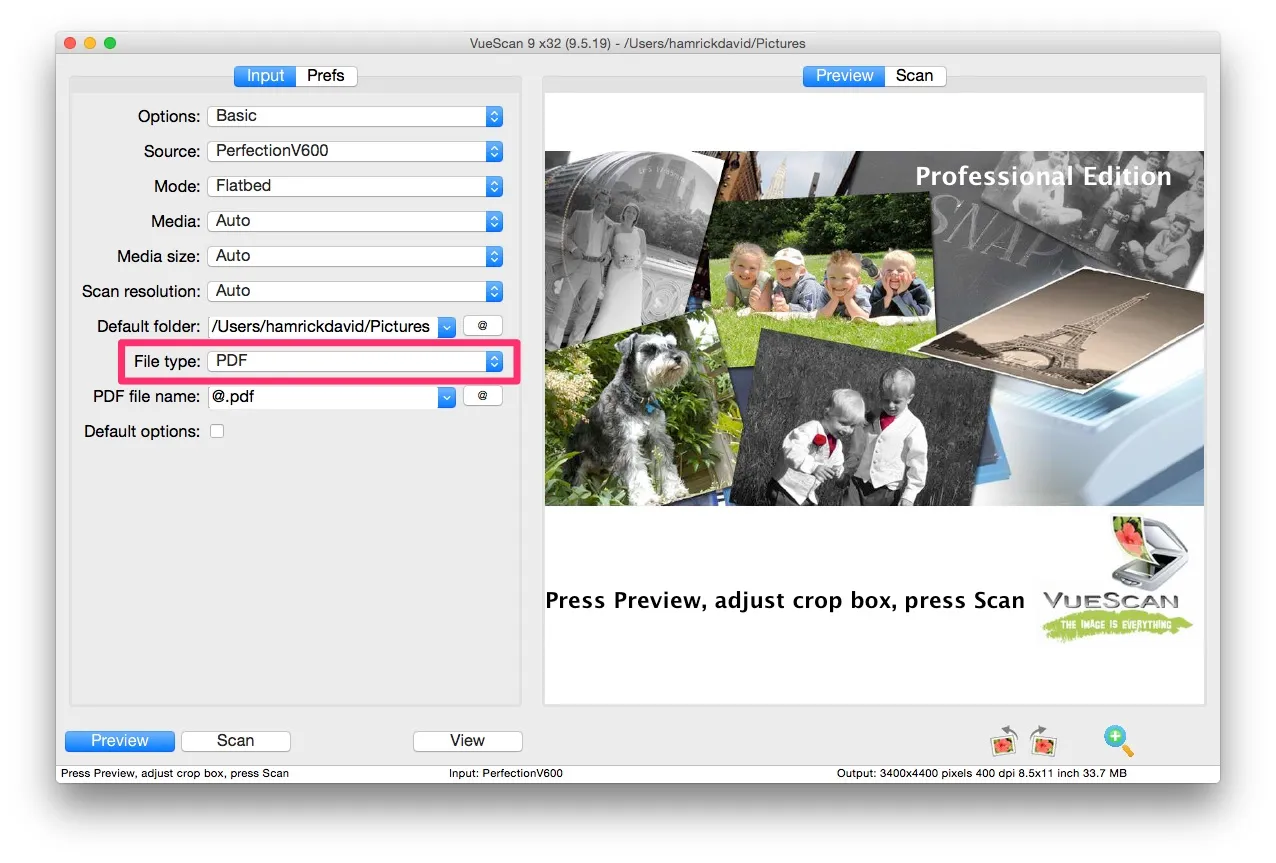
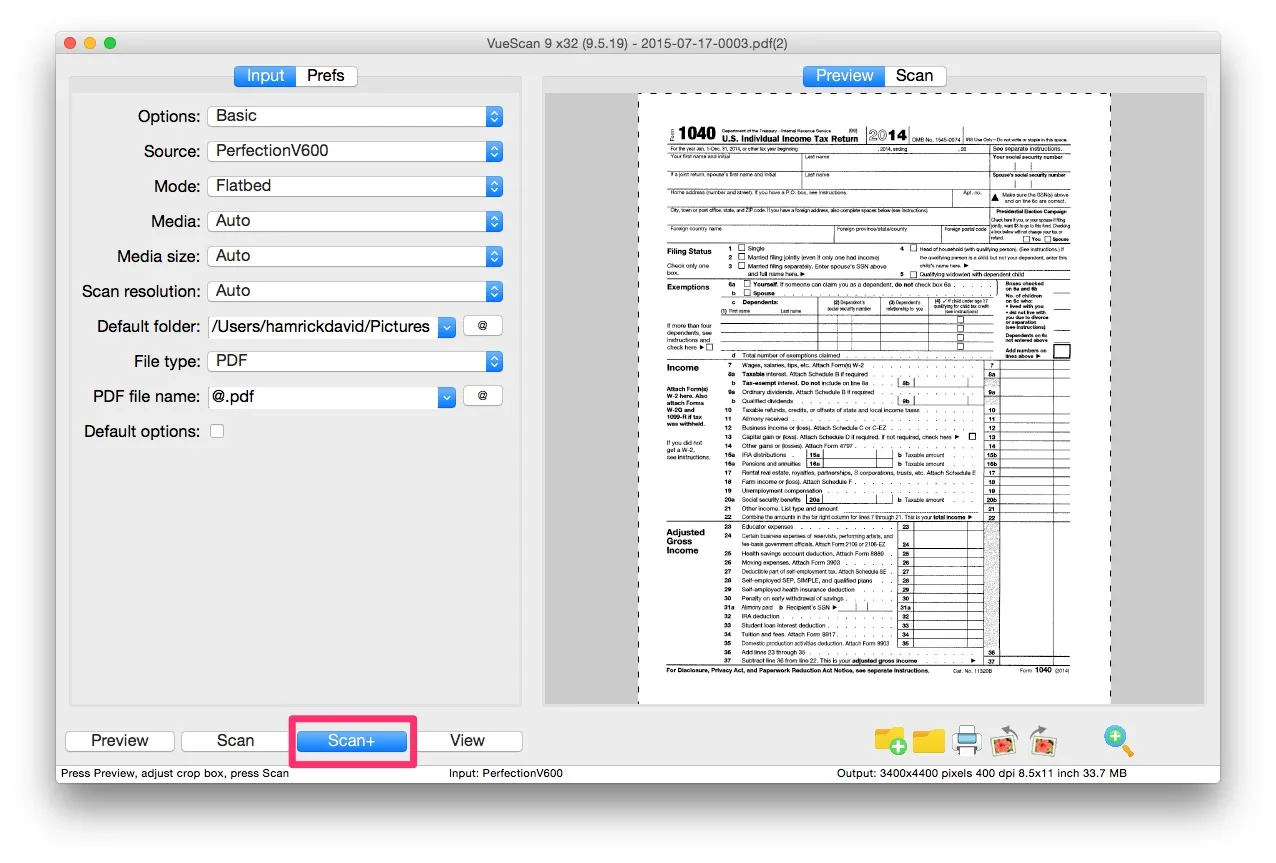
Use Preview to Import from a Scanner, and ensure you select PDF as the output format.
Using Preview to select PDF as the file type before scanning documents, ensuring multi-page PDFs are saved in one file
After the first page is scanned, keep the scanning window open and add subsequent pages so they all end up in a single file.
Use Preview to select PDF as the file type before scanning documents
Use it on your Mac to import items — like images or videos — from a camera, iPhone, iPad, scanner, or other device to your Mac.
Here’s how to do it
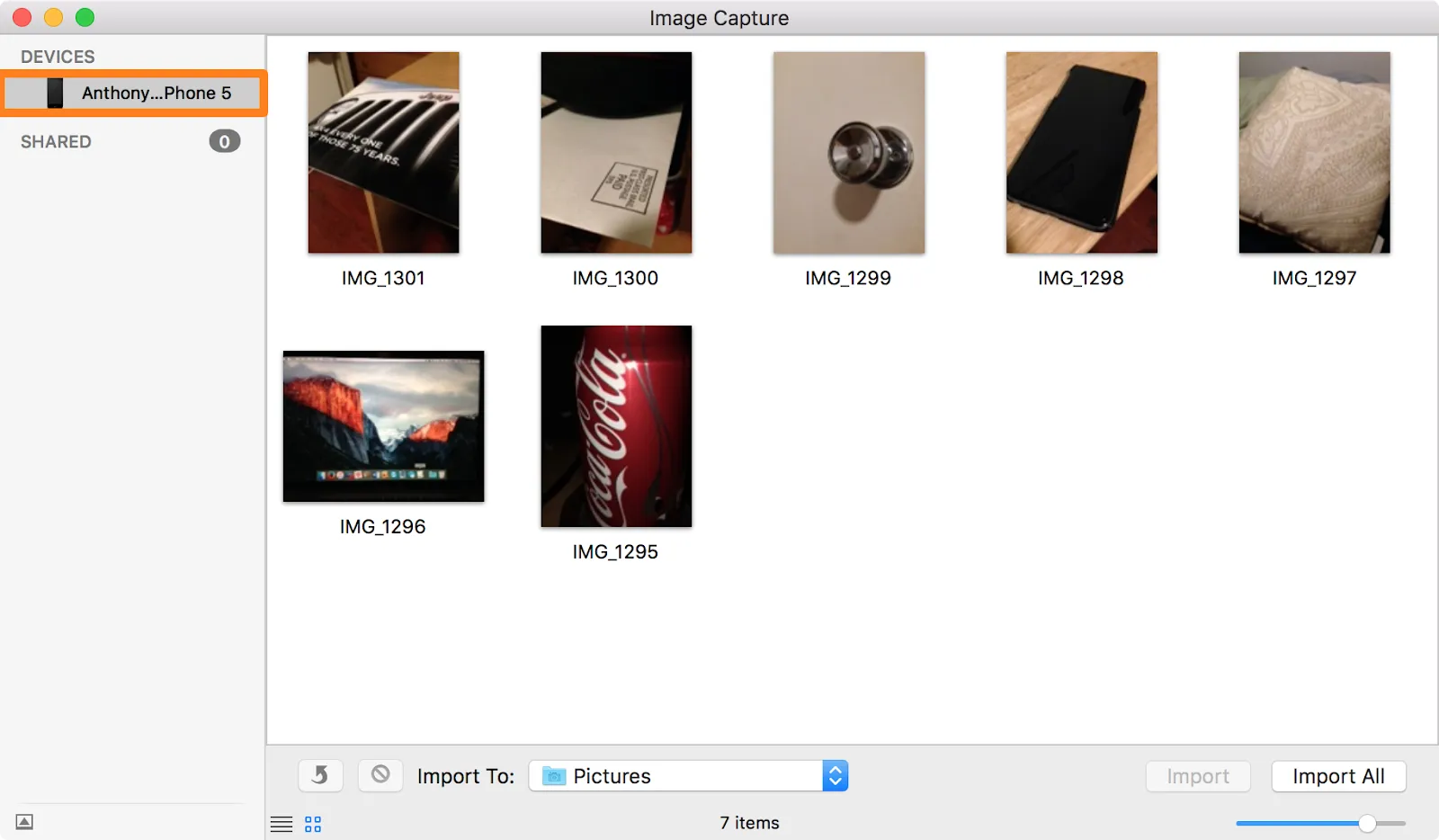
Open the Image Capture app on your Mac
Connect your scanner, camera, iPhone, or iPad using a cable and unlock the device if prompted
Select the connected device from the sidebar
Image Capture app on macOS showing photos from an iPhone ready to be imported into the Pictures folder
Choose the pages or images you want to import
From the Import To menu, select Make PDF
Choose a save location if needed
Click Download (or Download All) to create a single PDF
Here’s a detailed guide that includes troubleshooting steps in case you fail to scan the images.
Tips to avoid issues:
Align pages carefully on the flat glass surface where you place documents face down to avoid crooked scans
Preview pages before saving so you don’t miss a page or save a blurred scan
Scan all pages in one session to avoid splitting the contract into multiple files
Scanning multiple pages into one PDF with a mobile phone
If you’re working on the go, your phone can handle multi-page scanning just as well as a desktop scanner. This makes it easy to combine documents into a PDF without slowing your workflow.
Here’s how:
On iOS
Native Notes app
Apple’s built-in Notes app lets you scan multiple pages into a single PDF without installing anything extra.
Here’s how to do it
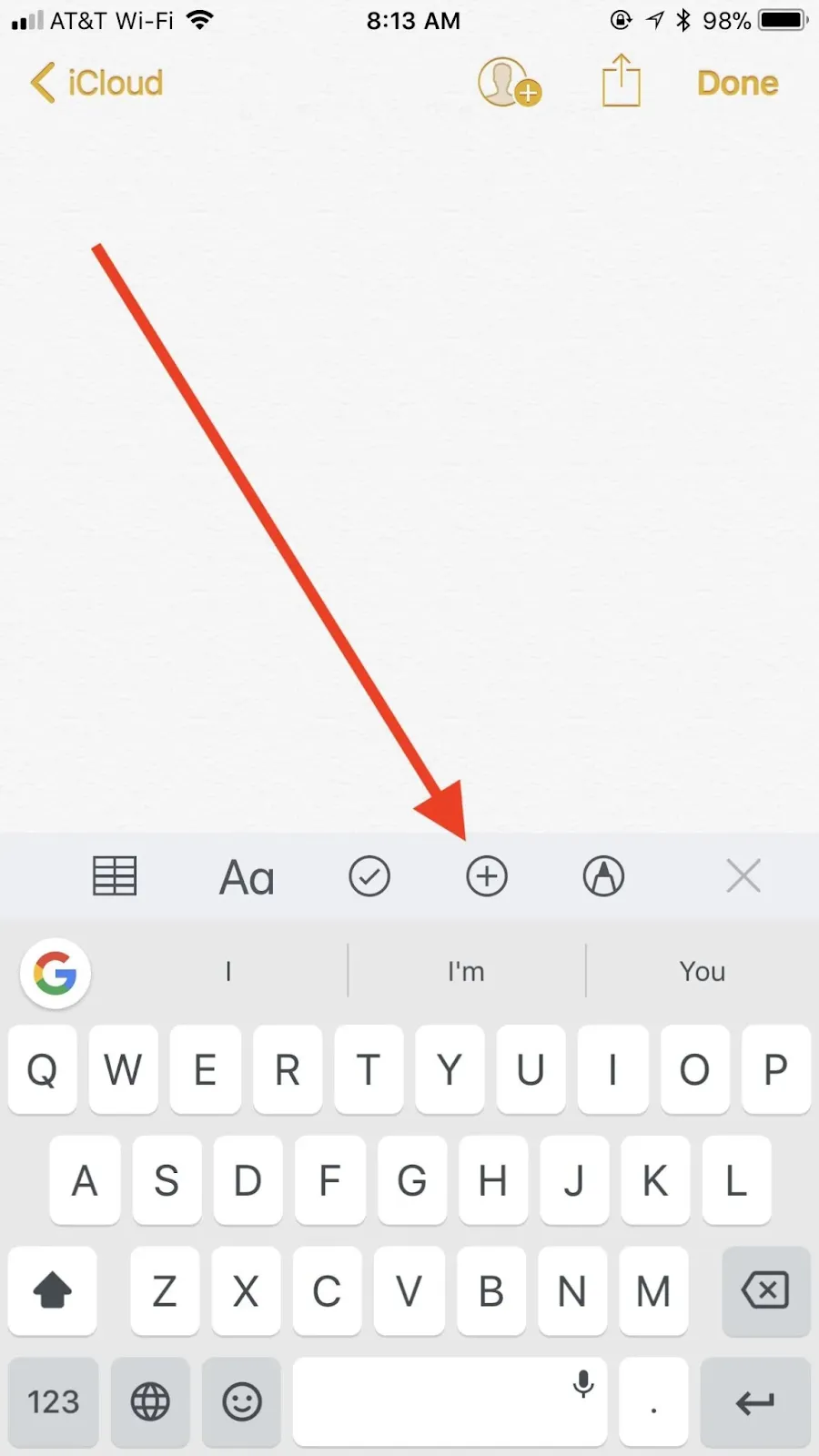
Open Notes and select a note or create a new one
Create a new note from the Notes app
Tap the Attachment button, then tap Scan Documents
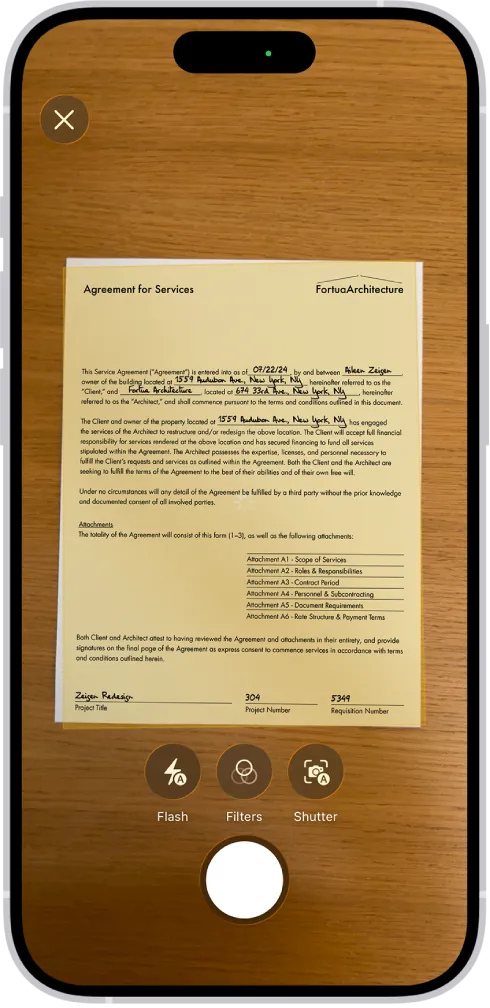
Place your document in view of the camera
Place the document in the view of the camera
If your device is in Auto mode, your document will automatically scan. If you need to capture a scan manually, tap the Shutter button or press one of the Volume buttons. Then drag the corners to adjust the scan to fit the page, then tap Keep Scan
Bonus tip: Once your multi-page PDF is created, you can upload it to Signeasy to sign, annotate, and send the document directly from your iPhone, without exporting files or switching tools. It’s the most loved eSignature app for iOS, and has been installed 7 million times!
On Android
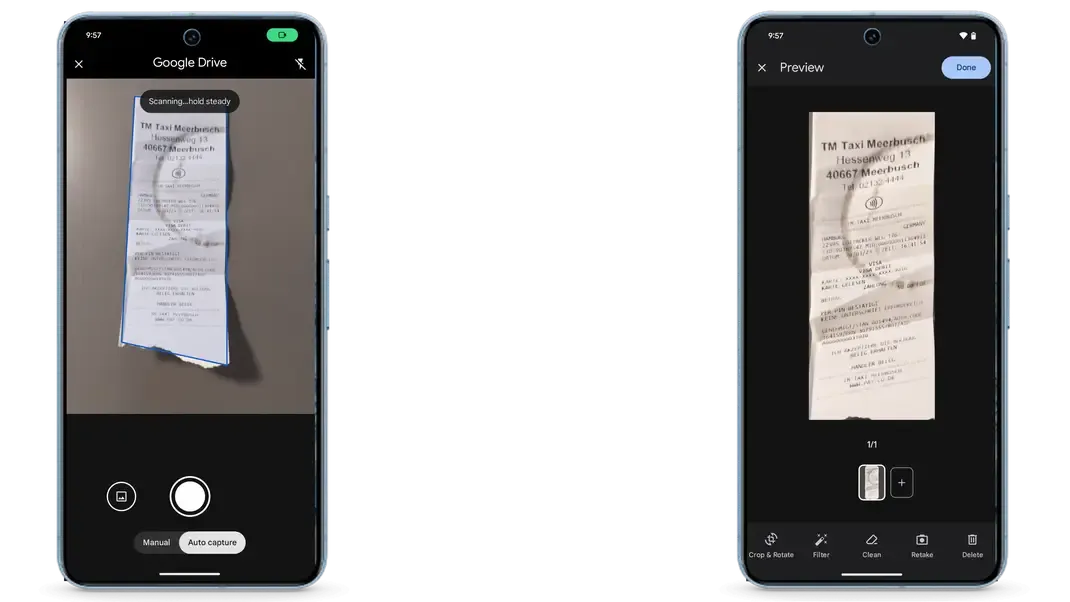
Google Drive scanner
Most Android users rely on Google Drive’s built-in scanner to combine pages into one PDF.
Here’s how to do it
Google Drive protects your privacy and doesn’t use Drive content for advertising
Open the Google Drive app and tap Camera
Point your camera at the document and capture the page (a blue outline shows the crop area)
Capture the document when the blue outline shows
Switch between Auto and Manual capture if needed
Adjust the scan using Crop, Filter, or Clean
Tap Add (+) to scan additional pages
Tap Done when finished
Name the file, select PDF, choose a folder if needed, and tap Save
If you need more control, apps like CamScanner, Genius Scan, or SwiftScan help with:
Auto-cropping and background cleanup
Reordering pages before saving
Contrast correction for clearer text
Bonus tip: After scanning, Android users can upload the PDF to Signeasy to sign and send it directly from their phone. The Signeasy guide on how to sign a PDF on Android walks through the process step by step, showing how scanned documents move from upload to signature without extra conversions or rework.
Tips for best results when scanning multiple pages
When pages aren’t scanned cleanly or kept in order, contract teams risk missing clauses, reviewing the wrong version, delaying approvals, and running into audit issues later.
These problems often start with what seems like a small scanning mistake, but can cost you a lot of time, versions, and eventually ROI.
Follow these tips for the best results, especially when scanning multiple pages:
Scan in one session: Add all pages in a single scan flow to avoid missing pages or mismatched files later.
Keep pages flat, aligned, and well-lit: Place pages on a flat surface, align them properly, and scan in good lighting. Shadows, folds, or angled pages often lead to cut text and re-scans.
Set the correct page order before scanning: Arrange pages in the right sequence beforehand. This reduces reordering work later and prevents errors in signed or archived versions.
Use the right resolution: Select 300 DPI when available. This keeps text sharp for reviews, approvals, audits, and long-term storage.
Crop out unnecessary background: Remove table edges, shadows, or surrounding surfaces so only the document content remains visible and readable.
Check page order before saving: Review the scan while still in the scanner view. Reordering or removing pages at this stage is faster than fixing them later.
Check page order before saving: Reorder or remove pages while you’re still in the scanner view, as fixing it later takes up more time.
Name files clearly: Use contract name, version, and date so the file is easy to find in a contract repository. When stored in an intelligent contract management system like Signeasy, clear naming works alongside metadata, search, and access controls to help your team quickly locate the right agreement without opening multiple files.
Avoid extra conversions: Once your multi-page PDF is ready, skipping export or reconversion steps saves time. With a contact management tool like Signeasy, you can upload the scanned file and sign, annotate, and email it directly from your desktop or mobile, without breaking your workflow.
Once your multi-page PDF is ready, the next step is getting it into your contract system without creating duplicate files or a new version.
Uploading PDFs to your contract repository
Uploading the document in its final format keeps the workflow clean and avoids confusion later.
With Signeasy, you can upload documents directly in PDF format and keep them ready for signing, review, or sharing without additional conversion steps. Scanned files from mobile devices or desktop scanners can be integrated directly into your contract workflow.
How Signeasy turns scanned contracts into signed agreements
Scanning multiple pages into a single PDF is simple. Whether you’re using your phone, a desktop scanner, or built-in tools on Windows or macOS, the goal is the same: keep every page of an agreement together from the start.
Once your multi-page PDF is ready, the next step is just as simple. With Signeasy, you can upload your document, add signatures, annotate pages, and share it securely from desktop or mobile without breaking your flow.
Request demo to see how Signeasy helps you turn those contracts into signed agreements!
Frequently asked questions
Is it free to scan multiple pages into one PDF?
Yes. Most phones and computers let you scan multiple pages into a single PDF at no cost using built-in tools like iOS Notes, Google Drive, or Windows Scan.
Can I rearrange pages after scanning them into a PDF?
Yes. Most scanner apps let you reorder pages before saving. After scanning, you can drag pages into the right order or delete and rescan specific pages if needed.
How do I maintain page order when scanning multiple pages?
Scan pages in sequence and add them in one session. If you’re using a desktop scanner or ADF, place pages in the correct order before scanning to avoid manual fixes later.
How do I make sure my multi-page PDF is high quality?
Scan in good lighting, keep pages flat, select a higher resolution (300 DPI if available), and preview pages before saving to catch blurs or cut-offs early.
Can I scan multiple pages into one PDF without a scanner?
Yes. Your phone works well. Built-in scanning features on iOS and Android automatically combine multiple photos into a single PDF.