A signature scanner converts a handwritten signature into a reusable digital asset that can be used consistently across contracts, forms, and approvals.
Phone-based scanning is convenient, while scanners and computers offer more control but require additional manual steps.
Most tools scan documents that happen to include signatures, rather than treating signatures as assets meant for reuse and protection.
Scanned signatures can be legally accepted, but their validity, security, and privacy depend on how and where they’re used.
Signeasy stands out by combining signature scanning with contract execution in one system, making it well-suited for teams that sign frequently and at scale.
There’s something inherently empowering about wielding a pen, as it brings your signature to life. The result is a wet-ink fingerprint – a symbol that is unique to you.
Stylus-and-screen tools have made digital signing feel more natural, but they don’t fully address the need to manage handwritten signatures consistently across repeated workflows.
This drive to replicate authenticity digitally is essential as more professionals need to quickly sign documents online to meet business demands.
That’s why understanding how signature scanning works is important. From phones to computers, the tools and practices used to scan and manage signatures directly influence trust and reliability.
In this article, you’ll learn:
What signature scanners are and how they differ from electronic signatures
How to scan handwritten signatures using phones, scanners, and computers
How leading tools compare on signature scanning and reuse
What legal, security, and privacy factors apply after scanning
How Signeasy combines signature scanning, secure reuse, and signing in one workflow for frequent business use
There’s something inherently empowering about wielding a pen as it brings your signature to life. The result is a wet ink fingerprint – a symbol that is entirely unique to you. While the stylus-and-screen combo has gotten us closer than ever to the real deal, Signeasy’s pursuit of honoring and perfecting your personal trademark is never-ending. This drive to replicate authenticity digitally is essential as more professionals need to quickly sign documents online to meet business demands.
We recently set off on a quest to further polish our e-signature solution, with the aim of promoting an even greater sense of trust and authenticity with each completed document and transaction. Get ready to scan your signature.
What is a signature scanner?
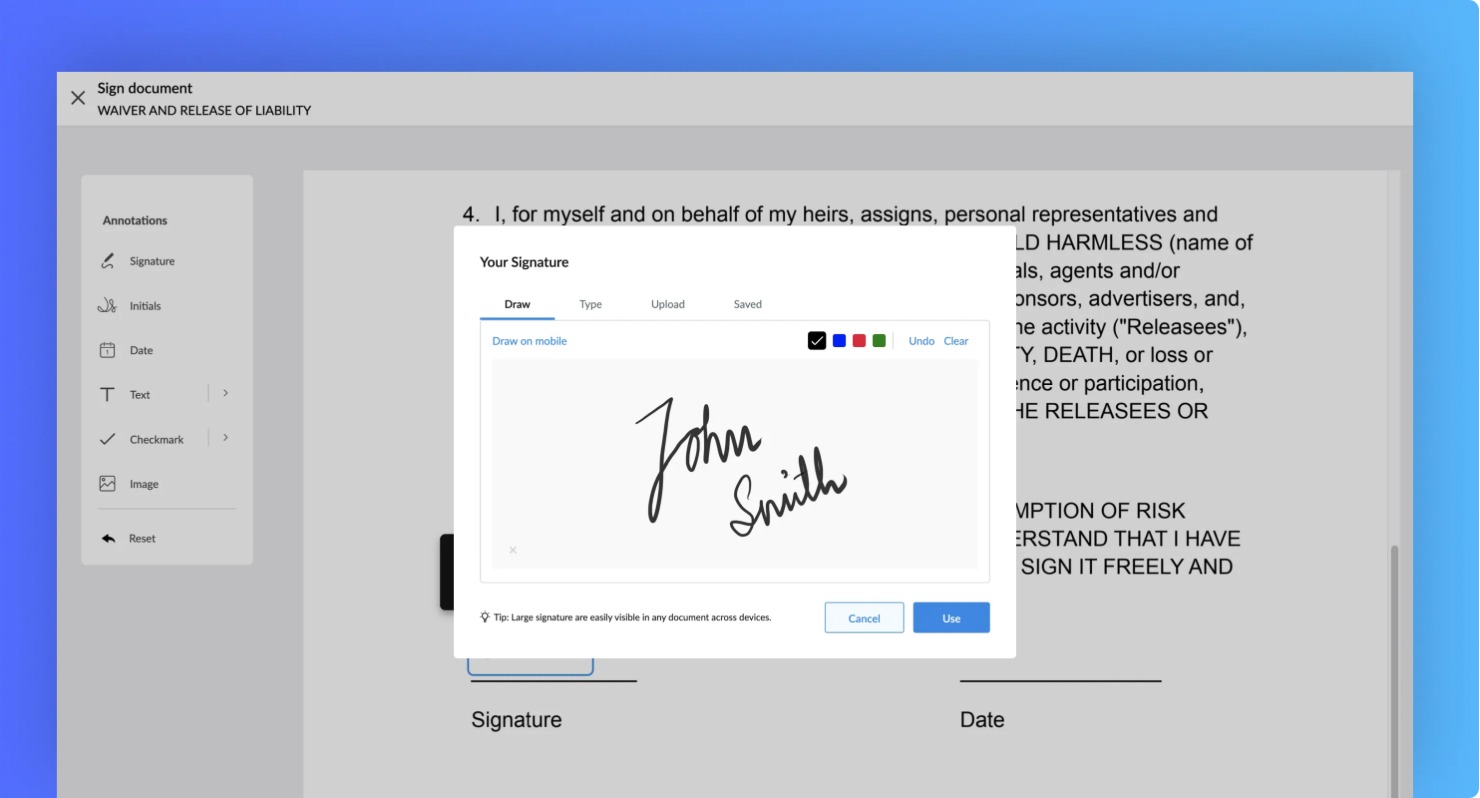
Scan and save a handwritten signature directly inside Signeasy
A signature scanner is a tool that captures a handwritten signature and converts it into a digital format. Instead of signing documents again each time, you scan your signature once and reuse it across files.
Signature scanners are available as :
Mobile apps
Desktop software, or
Dedicated hardware devices.
That simplicity makes scanners useful, but it also creates confusion about how they differ from eSignatures.
Signature scanner vs eSignature
A signature scanner digitizes a handwritten signature. It simply creates an image file that represents your physical sign-off. An eSignature, on the other hand, captures consent electronically within a document. It records signer identity, timestamps, and audit trails.
If your goal is to reuse a signature image, scanning is sufficient. However, if you need legal proof, tracking, or compliance support, an eSignature solution like Signeasy is the better fit.
How to scan a signature on your phone
You can scan your signature using just your phone. The process takes a few minutes and works on both iOS and Android. Here’s how to do it correctly.
1. Scanning signature on iOS
Apple offers built-in tools that work well for scanning a signature:
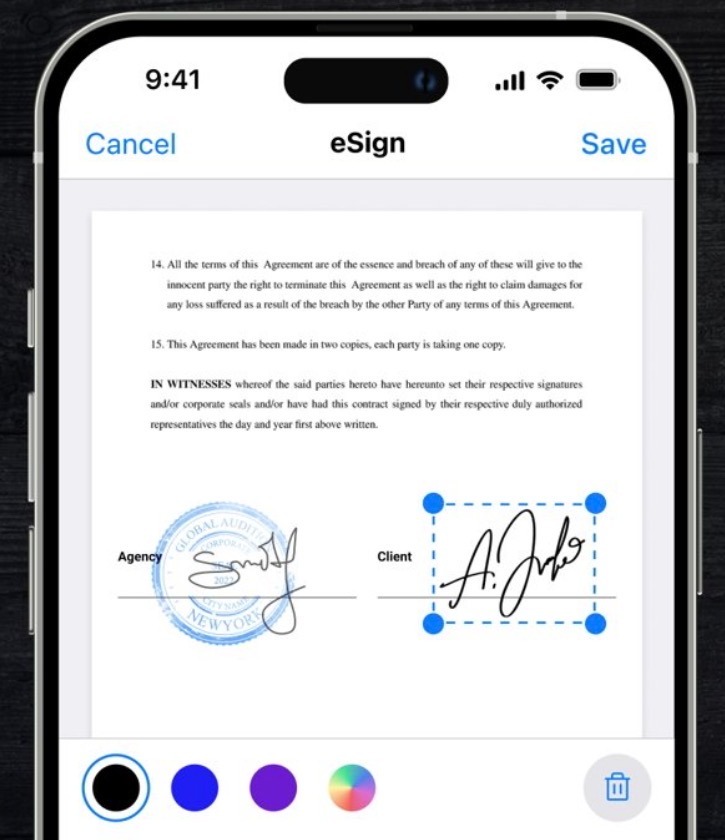
Signature scanning on iOS is quick and easy Source
Using the Notes app
Write your signature on clean white paper. Open the Notes app, create a new note, and tap the camera icon. Choose Scan Documents. Capture the signature and crop tightly around it. Save it as an image or PDF.
Using the Files app
Open the Files app, tap the three-dot menu, and select Scan Documents. Scan the page, adjust edges, and save it directly to iCloud or local storage.
Using the Signeasy app on iPhone & iPad
Open Signeasy and choose the option to add or upload a signature. You can scan your handwritten signature using your camera, clean the background, and store it securely. You can then insert it directly into documents without exporting files manually.
2. Scanning signature on Android
Android devices offer multiple ways to scan a signature:
Using Google Drive
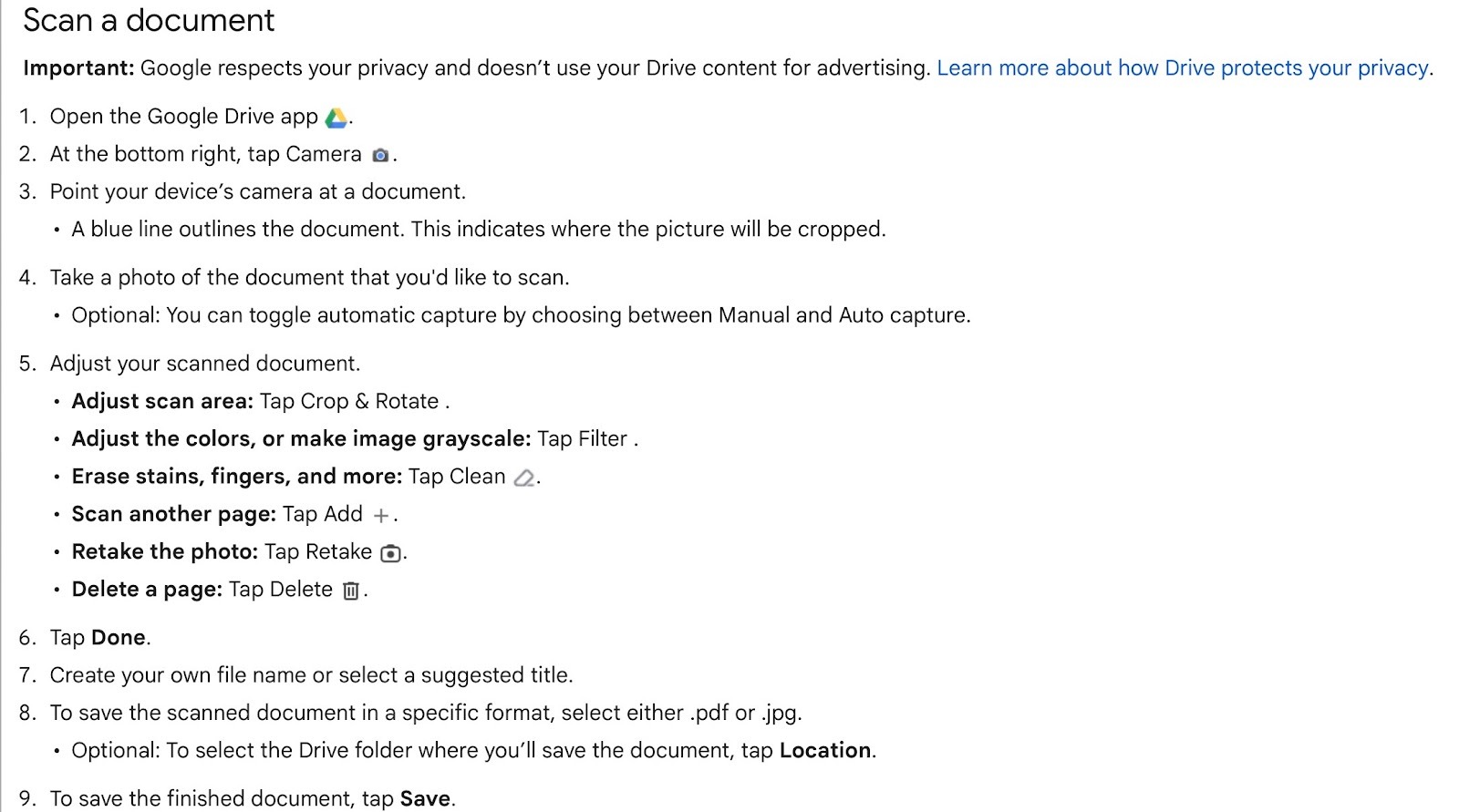
Android users can scan signatures using Google Drive Source
Open Google Drive and tap the plus icon. Select Scan. Capture your signature, crop the image, and save it as a PDF or image file.
Third-party apps for Android
Several scanning apps support background removal and image cleanup. These are useful if you want more control over contrast and edges.
Using Signeasy on Android devices
Open the Signeasy app and scan your handwritten signature directly from your phone. The app helps you clean the background and place the signature into documents without switching tools.
File management on Android
Save signature files in a dedicated folder. Name files clearly so you can reuse them when you need to scan your signature again for another document.
The best practices for signature scanning
Let's take a look at some of the best ways in which we can ensure a top quality scan for a signature:
1. Ensure a well-lit environment:
A well-lit environment ensures optimal visibility, legibility, contrast, and image quality when scanning a signature. It plays a crucial role in obtaining a clear and accurate representation of the signature, enhancing the overall scanning process.
2. Cleaning the phone's camera lens:
cleaning the phone's camera lens before scanning a signature helps ensure image sharpness, reduce distortion, improve clarity, maintain an accurate representation, and establish consistent results. By keeping the lens clean, you optimize the scanning process, resulting in high-quality signature scans.
3. Positioning the signature properly:
By positioning your signature properly before scanning, you ensure that it is captured accurately, maintains legibility, aligns with the document, remains consistent, and enhances the overall appearance of the scanned document. These considerations are essential for maintaining the integrity and validity of your electronic signatures.
4. keeping backup copies of scanned signatures:
Keeping backup copies of scanned signatures provides peace of mind, protects against data loss, offers convenience and accessibility, and facilitates document retrieval and reference. It is an important practice for maintaining the integrity and availability of your signature files.
How to scan a signature using a scanner or computer
You should use a scanner or computer when you need precise output and better control over image quality. This approach works well with printers, desktops, and signature scanning software.
1. Scanning with traditional scanners
Steps to scan a handwritten signature using a flatbed scanner
Step
What to do
Why it matters
1. Prepare the signature
Sign on plain white paper using black or dark blue ink
Reduces background noise during signature scanning
2. Place on scanner
Use a flatbed scanner or an all-in-one printer
Ensures even capture
3. Set resolution
Scan at 300–600 DPI
Keeps strokes sharp without large file sizes
4. Adjust settings
Increase contrast slightly, avoid heavy sharpening
Preserves natural handwriting
5. Choose file format
Save as PNG or JPG
PNG supports transparent backgrounds
6. Edit after scan
Crop tightly and remove shadows
Creates a clean signature scan
2. Computer methods (No scanner required)
Common computer-based ways to capture a signature without using a scanner
Method
How it works
Best use case
Webcam capture
Photograph the signed paper using your computer camera
Occasional scanning signatures
Drawing tablet
Sign directly on the screen with a stylus
Paper-free signature scanning
Stylus devices
Use tablets or touch laptops
Quick and controlled signature scan
Microsoft Word
Insert a scanned image into a document
Signing Word files
macOS Preview
Capture signatures using a camera or trackpad
Reusing signatures across PDFs
Both methods give you control over resolution and clarity, and work well for occasional use. However, they fall short when you have frequent signing needs.
Instead of cropping images and managing files each time, tools like Signeasy let you scan once and apply the signature wherever it’s needed. For teams and individuals who sign regularly, this approach reduces effort while keeping results consistent.
Best signature scanner apps (2026 comparison)
Some tools focus on signature-first scanning and reuse, while others treat signatures as part of broader document workflows.
Signeasy stands out for dedicated handwritten signature capture and reuse. Adobe Sign fits PDF-heavy enterprise environments, and DocuSign excels at routing scanned paper documents into structured eSigning workflows.
The rest of the tools below primarily support general document scanning with limited signature-specific capabilities.
Signature scanner apps comparison at a glance
Comparison of signature scanner apps based on scanning, cleanup, reuse, and ideal use cases
Tool
Signature isolation
Background cleanup
Signature reuse
Scanning focus
Best for
Signeasy
Yes
Yes (automatic)
Yes (stored and reusable)
Designed specifically for scanning handwritten signatures from paper
Enterprises that need repeatable signature scanning, centralized contract execution, and shared visibility across departments
Document scanning with signatures added during signing
Organizations that need basic scanned signature reuse within document signing workflows
Native apps (iOS Notes, Google Drive)
No
Basic
No
Occasional document scanning
One-off or casual document scanning with minimal reuse
Here is a detailed look at each signature scanner tool’s top features, pros, and cons:
1. Signeasy
eSign and manage contracts in one secure platform
Signeasy’s signature scanner app is built for mid-sized and large organizations that manage high volumes of business documents. It supports teams that need consistent signature capture, secure storage, and controlled document workflows across departments.
Instead of treating signature scanning as a one-off task, Signeasy integrates it directly into enterprise document signing and management.
Teams can scan signatures using the in-app camera, automatically remove backgrounds, and store signatures securely for reuse.
These signatures can then be applied directly to contracts, forms, and PDFs without exporting files or relying on manual workarounds.
This reduces operational friction and keeps signing workflows standardized across the organization.
Unlike basic scanning apps that stop at image capture, Signeasy extends scanning into a complete signing workflow. It combines signature capture, document execution, access control, and audit-ready document handling in one system.
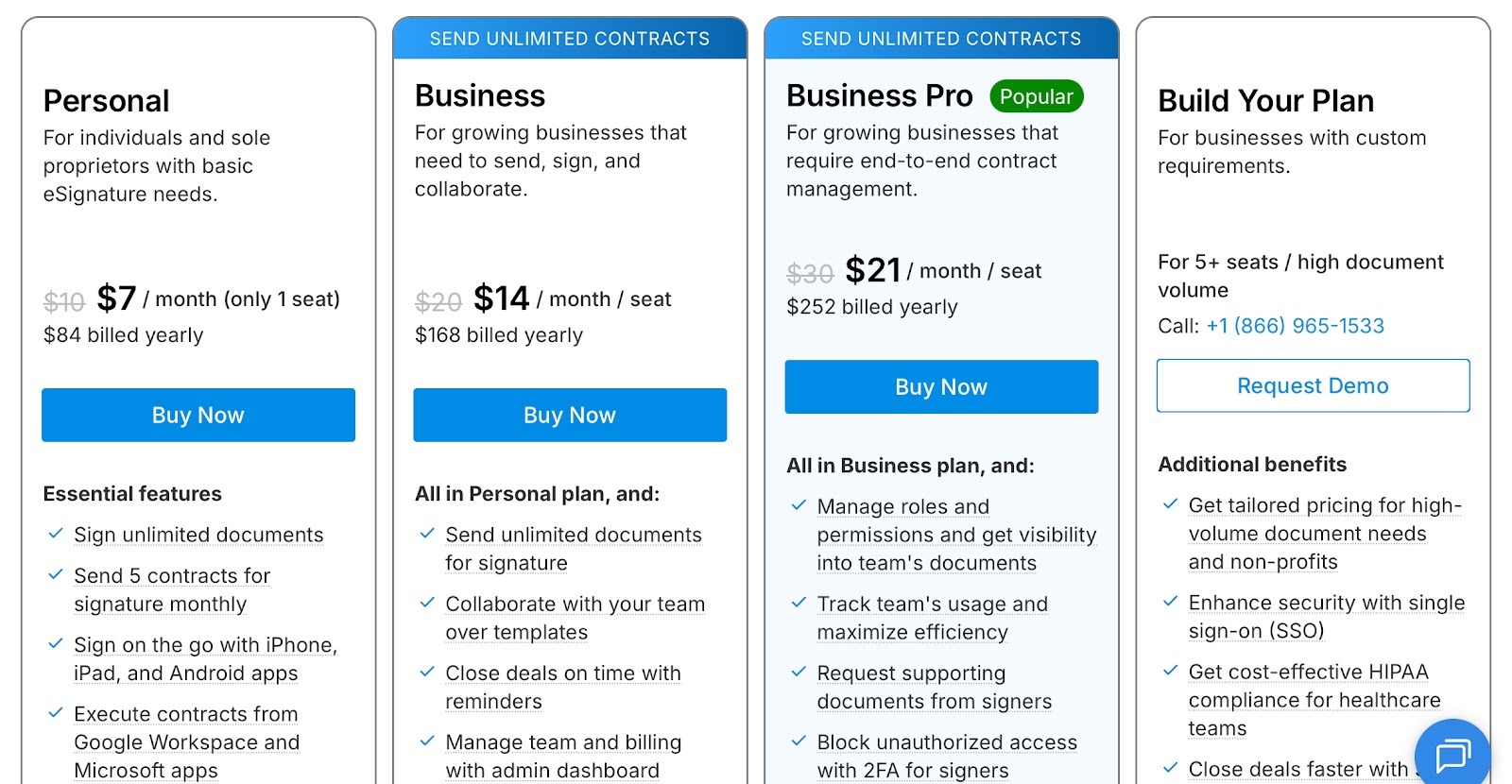
Flexible pricing plans for individuals, teams, and enterprises
From a pricing standpoint, Signeasy follows a subscription model aligned with business usage. Plans are designed for teams and growing organizations that require shared access, cross-device syncing, offline signing, and document management.
For mid-sized and large teams, this approach is more predictable and cost-effective than relying on multiple consumer tools that don’t scale.
Core features of Signeasy related to signature scanning
Camera-based signature capture, designed specifically for handwritten signatures, not general document scanning
Automatic background removal that preserves natural pen pressure and stroke edges
Storage for multiple signatures and initials, which helps when different documents require different signing styles
Built-in document signing tools that allow placement, resizing, and reuse of scanned signatures
Cross-device syncing that keeps signatures available on mobile, tablet, and web without manual transfers
Offline scanning and signing, allowing you to work without connectivity and sync later
Document management features that help organize unsigned drafts, signed files, and completed documents in one place
Signeasy signature scanner app pros
Consistent output quality, ensuring scanned signatures look uniform across PDFs and forms
Minimizes handling errors, as signatures are applied directly without exporting, re-uploading, or reformatting image files
Prevents version drift, avoiding multiple slightly different scans of the same signature across documents
Mobile-optimized scanning flow, reducing reliance on scanners, printers, or external image tools
Signeasy signature scanner app cons
Signature scanning is app-based, so desktop-only users must use mobile or tablet devices for capture
Best results depend on camera quality, making lighting and device hardware more important than with flatbed scanners
2. Adobe Sign
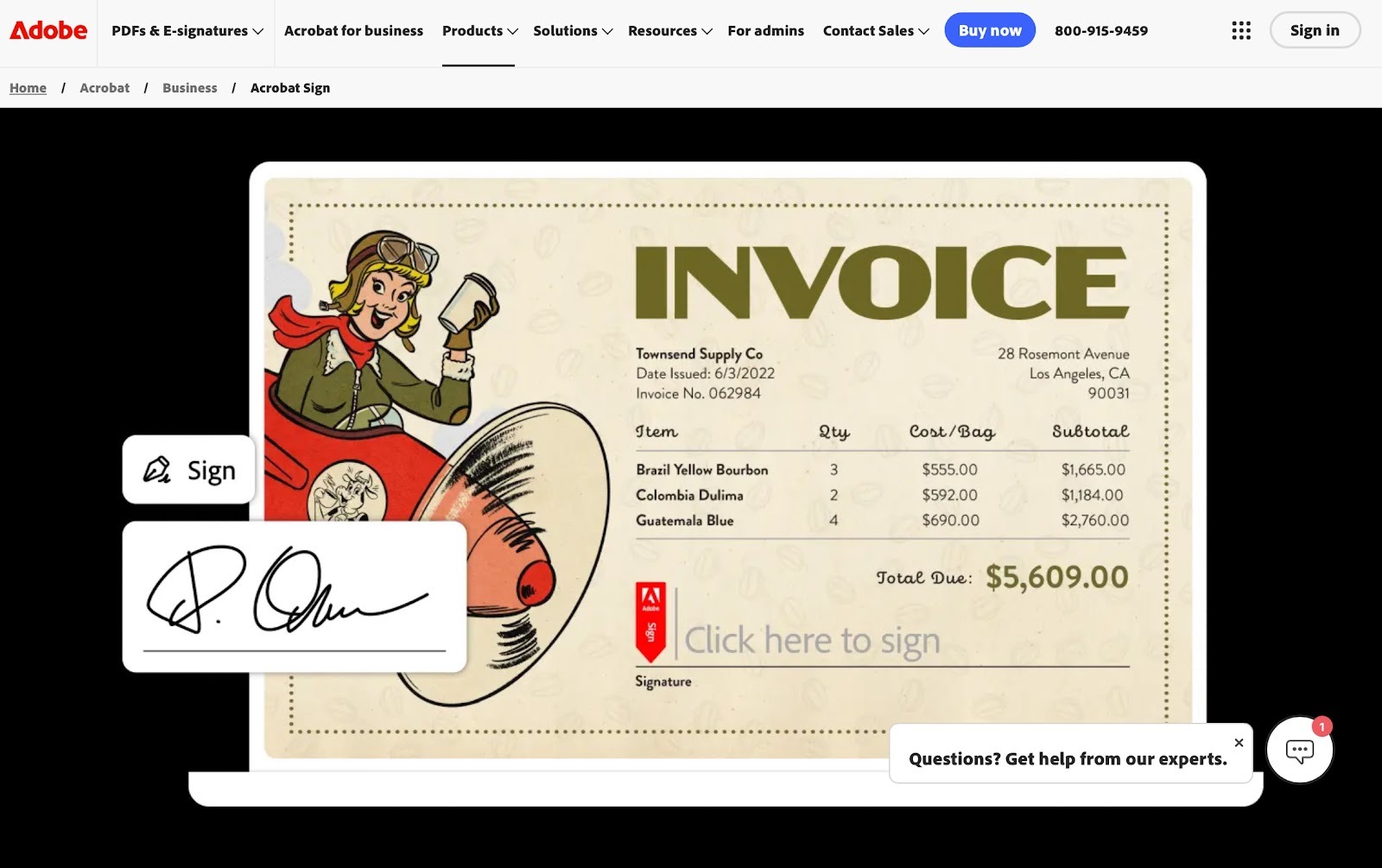
Adobe Sign adds signatures to scanned documents
Adobe Sign is centered on electronic signatures and controlled approval flows. It is not designed as a dedicated signature scanning tool, but it does allow limited use of scanned handwritten signatures within PDF workflows.
Adobe Sign’s core features related to signature scanning
Signature image upload support for adding pre-scanned handwritten signatures to documents
PDF-based signature placement tools designed for controlled signing within Adobe workflows
Integration with Adobe Acrobat for manual image cleanup and editing
Stored signature images that can be reused across multiple documents
Typed and drawn eSignature options alongside uploaded handwritten signatures
Adobe Sign signature scanner app pros
Works well for teams already using Adobe Acrobat and PDF workflows
Suitable for regulated documents that require traceability
Adobe Sign signature scanner app cons
Signature image cleanup and adjustments rely on Acrobat tools rather than a dedicated signature scanning flow
Camera features are optimized for document intake, not signature-specific workflows
3. Docusign
Docusign digitizes paper agreements and routes them for eSigning
Docusign’s mobile apps include a built-in camera feature that lets users scan physical paper documents and convert them into digital agreements. These scanned documents can then be routed through Docusign’s electronic signing workflows.
Docusign’s core features related to signature scanning
Camera-based document scanning in mobile apps to digitize paper agreements
Uploaded handwritten signature image support for reuse during signing
Reusable signature profiles stored at the account level
Signature placement tools within structured agreement workflows
Drawn and typed signature options as alternatives to scanned images
Docusign signature scanner app pros
Strong signing workflows once documents are scanned
Widely adopted for enterprise and regulated use cases
Docusign signature scanner app cons
Pricing and plans are geared toward larger organizations
Setup and configuration can be complex for smaller teams
No automatic background cleanup
4. CamScanner
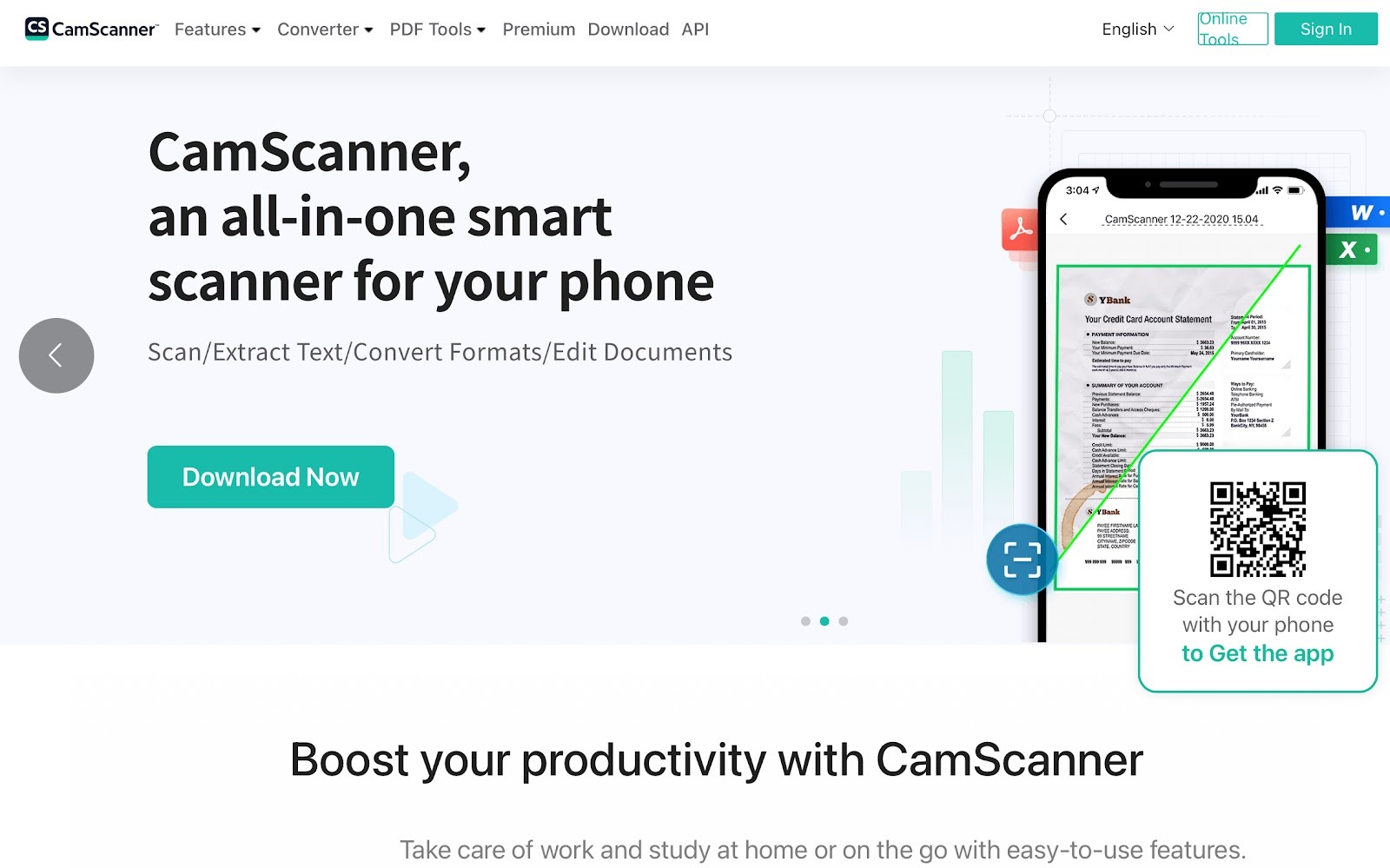
CamScanner captures signatures as part of full document scans
CamScanner focuses on scanning paper documents and enhancing their readability. Handwritten signatures can be captured when scanning documents and added to files using annotation tools.
CamScanner’s core features related to signature scanning
Camera-based document scanning that captures handwritten signatures as part of full-page scans
Automatic edge detection and image enhancement to improve signature visibility
In-app signature annotation tools for placing signatures on scanned documents
Document-level signature reuse within files handled inside the app
PDF and image export options for sharing or storage
CamScanner signature scanner app pros
Strong document scanning and image enhancement
Simple way to add signatures to scanned files
CamScanner signature scanner app cons
No signature-first capture flow, since signatures are scanned as part of full documents, not isolated by default
Manual signature isolation, which means users must crop and adjust signatures themselves after scanning
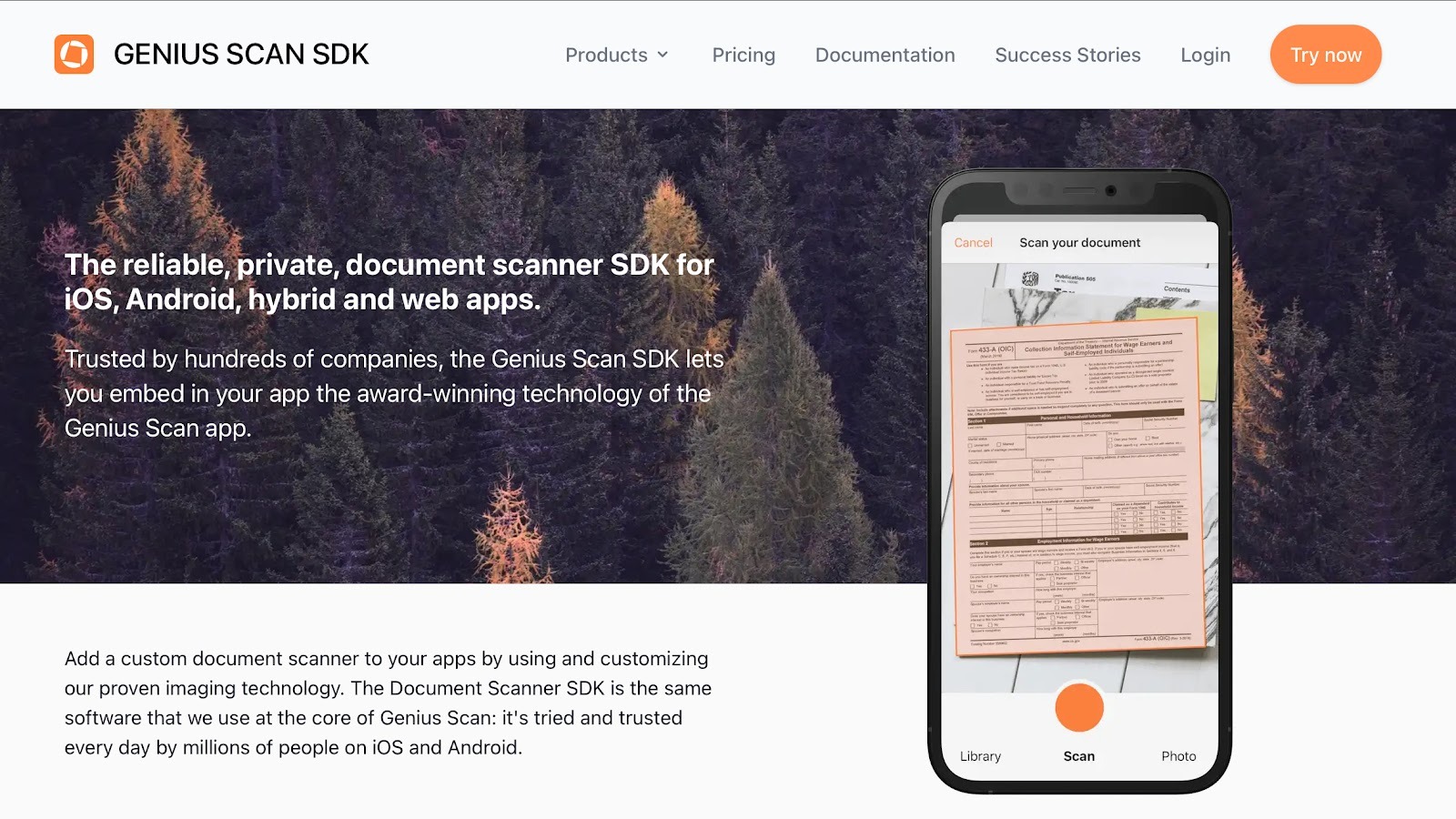
5. Genius Scan SDK
Scan paper documents using a mobile camera
Genius Scan SDK is positioned as a quick, privacy-focused document scanning app. Its core purpose is to digitize paper documents cleanly and reliably. Signature handling exists only in the context of scanned documents, not as a dedicated signing workflow.
Genius Scan SDK’s core features related to signature scanning
Camera-based document scanning optimized for speed and clarity
Automatic background cleanup, applied at the page level
Batch scanning and export for multi-page documents
Local-first storage options with optional cloud backups
Genius Scan SDK’s signature scanner app pros
Produces clean, high-quality scans with minimal setup
Works well for capturing already-signed paper documents
Genius Scan SDK signature scanner app cons
Does not offer signature-specific capture or reuse features
No in-app signing or signature placement workflow
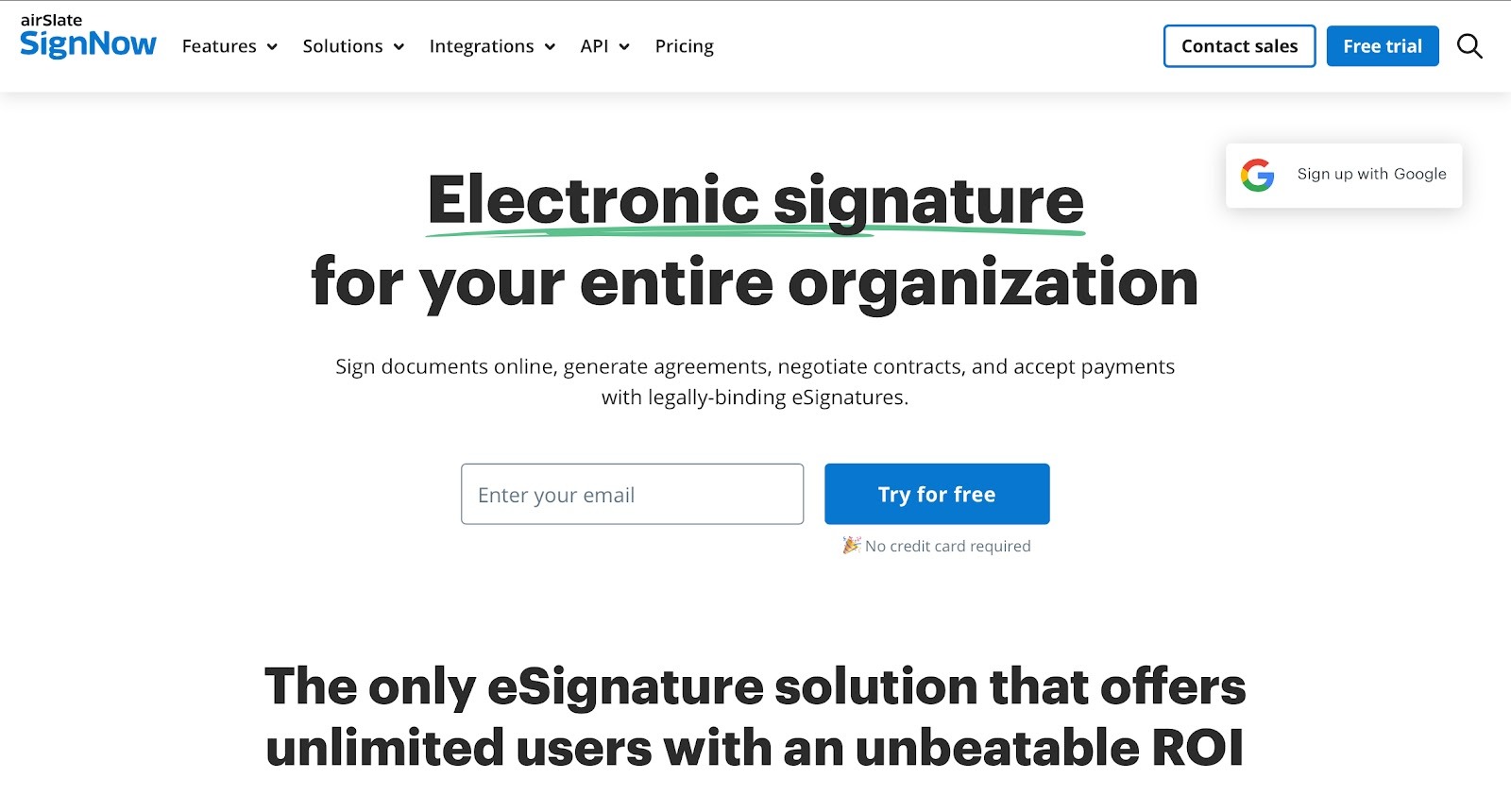
6. SignNow
SignNow focuses on organization-wide electronic signing workflows
SignNow approaches signature scanning from a signing-first perspective. It supports the use of scanned handwritten signatures within its platform, but scanning itself is handled as an input step rather than a primary workflow.
SignNow’s core features related to signature scanning
Uploaded handwritten signature image support for adding scanned signatures to documents
Camera-based document upload to digitize paper forms before signing
Reusable signature storage within the user account
Signature placement tools inside PDFs and documents
Typed and drawn signature options alongside uploaded images
SignNow signature scanner app pros
Allows the reuse of scanned handwritten signatures once uploaded
Works well for adding signatures to existing digital documents
SignNow signature scanner app cons
No signature-only scanning flow designed specifically for paper signatures
Background cleanup depends on how the signature image is prepared before upload
7. Native phone apps (iOS Notes, Google Drive)
Built-in phone apps offer basic scanning for quick, occasional needs. They can capture signatures incidentally when scanning documents, but they are not designed for signature-focused scanning.
Native phone apps core features related to signature scanner
Camera-based document scanning, built into the operating system
Automatic page detection and cropping for basic scans
Light annotation and markup tools for simple edits
Direct cloud storage saving for quick access
Native phone signature scanner app pros
Always available and easy to use
No setup or additional cost
Suitable for one-off document scans
Native phone signature scanner app cons
Signatures are captured only within full document scans
Limited control over isolating or refining signature images
No dedicated options for managing or reusing scanned signatures
Are scanned signatures secure and legally valid?
Scanned signatures can be legally accepted, but their validity depends on a few core factors. Courts and regulators typically look at signer intent, document risk level, and the strength of verification, rather than geography alone.
1. What determines legal acceptance
Signer intent and consent: A scanned signature is more likely to hold up when all parties clearly intend to sign electronically and agree to use electronic records.
Document type and risk level: Low-risk agreements (internal approvals, routine vendor contracts) are more accepting of scanned signatures than regulated or high-value documents.
Verification and audit evidence: The presence of audit trails, timestamps, and identity verification plays a major role in whether a scanned signature is defensible in disputes.
2. How this applies across regions
United States: Under the ESIGN Act and UETA, scanned signatures are generally valid when the intent to sign is clear and electronic records are mutually accepted.
European Union: Under eIDAS, scanned signatures are treated as simple electronic signatures. They may be accepted, but carry lower evidentiary weight than advanced or qualified signatures.
Other jurisdictions: Acceptance varies by country and sector. Many allow scanned signatures for low-risk use cases but impose stricter requirements for regulated agreements.
3. Where scanned signatures fall short
Notarized or highly regulated documents: These often require stronger identity verification or certified signing methods.
High-value or disputed contracts: Scanned signatures alone may not provide sufficient proof of signer identity or intent without supporting audit data.
How do you protect a scanned signature?
Protect signatures at rest and in transit to reduce interception risk.
Limit who can view, download, or reuse scanned signatures.
Tie signatures to specific documents or workflows to prevent misuse.
Track where signatures are applied to detect unauthorized changes.
How do you protect privacy when using scanned signatures?
Data location: Know where scanned signatures are stored and which laws apply.
GDPR and similar regulations: In many regions, scanned signatures require clear access controls, retention limits, and purpose restrictions.
Business vs personal use: Business use demands stricter safeguards than occasional personal signing.
Safe sharing: Avoid sharing signature files directly. Use controlled systems instead.
Why Signeasy fits organizations that manage contracts at scale
For enterprises, signature scanning is rarely a one-off task. Contracts move through drafting, review, signing, storage, and audits. Signeasy supports that entire flow, while still making it easy to scan handwritten signatures when paper is part of the process.
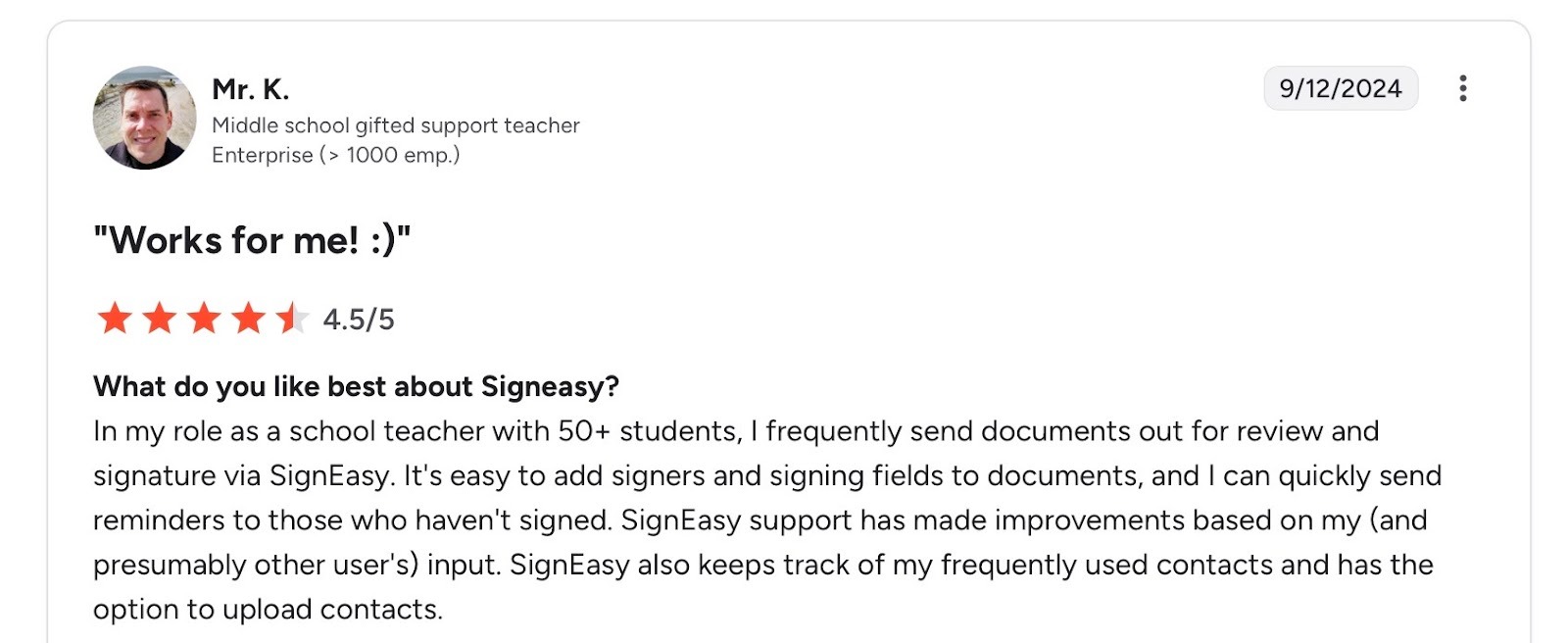
User review highlighting how Signeasy simplifies document sharing and signer management for educators. Source
Instead of treating scanned signatures as loose images, Signeasy keeps them tied to contracts, users, and workflows. This reduces risk, duplication, and manual handoffs across teams.
What makes Signeasy stand out:
Signature-first scanning within contract workflows: You can scan a handwritten signature from paper and immediately use it inside an active contract. The signature stays connected to the document, not stored as a random image file.
Reusable signatures with centralized control: Scanned signatures are saved securely and reused across contracts. Teams avoid repeated scanning, inconsistent quality, and version confusion.
Integrated eSigning and contract execution: Once scanned, signatures work seamlessly with electronic signing flows. Contracts move forward without switching tools or re-uploading assets.
Supports mixed signing scenarios: Organizations can handle both handwritten and electronic signatures within the same contract system, which is common in regulated or hybrid workflows.
Audit-ready execution records: Signed contracts retain execution context, including when and how signatures were applied. This simplifies internal reviews and external audits.
Scales with vendor and customer volume: The platform handles repeated contract execution without creating duplicate workflows or manual cleanup as volume grows.
Start free trial to see how Signeasy reduces rework and execution risk across contracts.
Frequently asked questions
Can a scanned signature be rejected during audits or disputes?
Yes. If the document lacks clear signer intent, access controls, or execution context, a scanned signature may face scrutiny during audits or legal reviews.
Does signature quality affect acceptance or trust?
Yes. Poor resolution, visible backgrounds, or distorted strokes can raise questions about authenticity, especially in business or regulated documents.
How often should a scanned signature be refreshed or updated?
Update it when your signing style changes, when quality degrades across documents, or when switching roles that require different signature formats.
Is Signeasy's signature scanner free to use?
Yes, if the signature is stored securely, access is controlled, and usage is tied to approved signing workflows rather than shared as a loose image file.





.png)

