Insert a scanned signature in Word by opening the Insert tab, choosing Pictures, selecting a JPG or PNG, and cropping it to fit the document.
The Draw tab lets you sign Word documents without scanning paper. The handwritten mark becomes part of the document but does not provide certificate-backed digital signature verification.
Word for Windows supports certificate-backed digital signatures. A Microsoft Office Signature Line displays a visible signing area, while an invisible digital signature provides certificate-based verification without displaying a signature line.
Quick Parts and AutoText help you reuse signatures across Word documents. Save your signature image, name, and title as a reusable block instead of inserting them separately each time. The available options differ between Windows and Mac.
Signeasy helps teams collect signatures on Word documents without chasing signed files over email. Upload a Word file, assign signature fields to recipients, set the signing order, and use automated reminders and completion records to track agreements through signing.
To insert signature in Word, start with the document's signing requirements. Use an image or the Draw tab for visible handwriting, AutoText to reuse a signature block, or Word's certificate-backed options for digital signing. If someone else must sign, Signeasy handles signature requests, assigned fields, and completion records. The steps below explain all six methods.
Insert signature in Word using a handwritten image
A photo or scan retains the handwritten look of your signature on a form or letter. Word treats it as an image, so you can resize and position it after inserting it. To add it:
Create the signature image. Sign a clean sheet of paper, then scan it or take a photo of your signature. Save the image file as a PNG or JPG.
Place the cursor. Open Word and click where your signature belongs.
Add the picture. In Word for Windows, choose Insert > Pictures > This Device. On Mac, use Insert > Pictures > Picture from File. Select your saved image.
Crop and resize. Select the image, open the Picture Format tab, and choose Crop to trim blank space. Drag a corner handle to resize it without stretching the lettering.
Move it into place. Use Wrap Text > In Front of Text if you need to move the signature independently of the paragraph, then save the document.
If the photo has a white rectangle behind your handwriting, choose Picture Format > Remove Background in a supported desktop version of Word and check that the letters remain intact. PNG supports transparency, but simply renaming a JPG to PNG will not remove its background. For tips on using a signature image in documents, see the picture-signing example.
Insert signature in Word with a reusable AutoText block
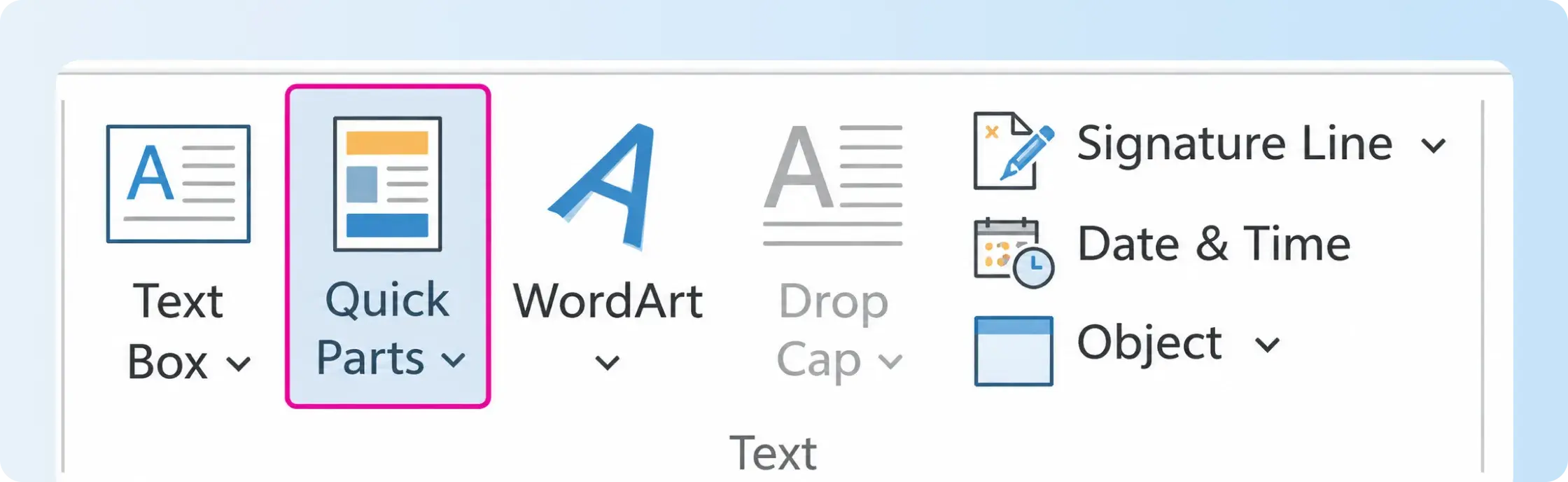
Once the image looks right, save it with your name or title as a professional signature block for future use. Word for Windows calls this a Quick Part or AutoText entry.
Insert the signature picture and type any text you want to keep with it, such as your name and job title.
Select the image and the accompanying text.
Choose Insert > Quick Parts > Save Selection to Quick Part Gallery.
Name the block, set Gallery to AutoText, and select OK.
In another document, choose Insert > Quick Parts > AutoText, then select the saved signature block.
On a Mac, select the signature image and accompanying text, then open the Insert menu and choose AutoText > New. Name the entry and retrieve it later through Insert > AutoText > AutoText. This keeps a consistent handwritten look across documents, but it does not establish who signed. If you do not have a signature image, Word also lets you draw directly on the page.
How to insert signature in Word with the Draw tool
Word's Draw tab lets you add a real handwritten signature directly to the page with a stylus, finger, or supported trackpad. It is useful insert signature in Word when you have no scanner or saved signature image. Microsoft makes different ink tools available depending on the Word version and device.
The process on supported versions is:
Open the document and select Draw on the ribbon.
Choose a pen and set its color and thickness.
Write the signature where you need it with a stylus, finger, or supported pointing device.
Adjust the ink if necessary and save the file.
On a Mac with a supported trackpad, Draw > Draw with Trackpad lets you write with your finger. The resulting ink is a visible signature, not proof of who signed. If you want to draw once and download the result as an image, Signeasy's online signature generator provides type and draw options. You can also create an electronic signature online and apply it when signing a document. A drawn mark is useful for showing handwriting; the next method covers certificate-backed signing in Word.
How to add signature in Word using Signature Line
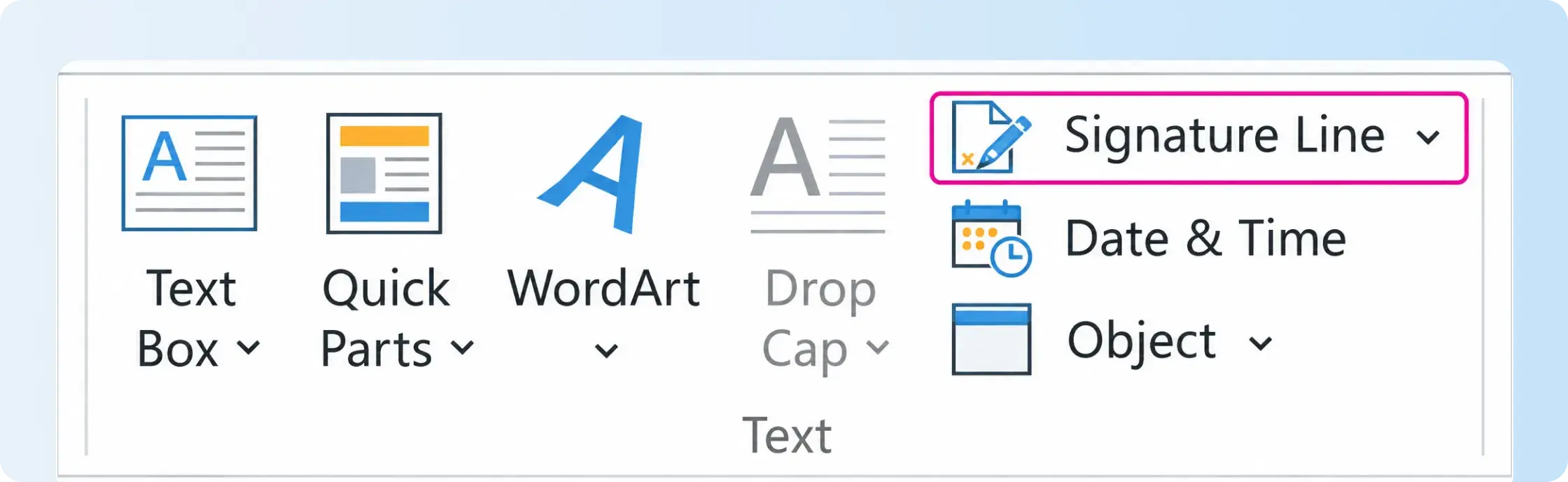
Insert signature in Word using Microsoft Office Signature Line when the document needs a visible, certificate-backed digital signature. The command adds an X and identifies where the signer should sign. The signer then signs the line in Word for Windows desktop; this is different from inserting a picture and is not available in Word for the web.
To prepare a line for the signer:
Place your cursor where the signature is needed.
Select Insert > Signature Line > Microsoft Office Signature Line.
In Signature Setup, enter the signer’s name and, if useful, their title, email, and instructions.
Select OK. Word inserts the line with the X marking the signing area.
The signer right-clicks the line, chooses Sign, adds typed text, draws a signature, or selects an image, and completes the certificate-backed signing prompt.
The signer needs a suitable digital certificate. If the document only needs a blank space for a handwritten signature after printing, add a line or a bottom border instead of setting up certificate-based signing. You can also insert signature in Word as a digital signature without a visible signature line.
How to create an electronic signature in Word with a digital certificate
A digital signature is a type of electronic signature that uses a certificate and cryptography to detect changes to a document after signing, including unauthorized edits.. It is useful when the recipient needs to verify the document rather than only see a signature image. This explains how to create an electronic signature in Word using Microsoft's certificate-backed method.
On supported desktop Word versions, follow these steps:
Open the final document and choose File > Info.
Select Protect Document > Add a Digital Signature.
Add a purpose for signing if Word requests one.
Select an appropriate signing certificate or follow Word's prompt to obtain a digital ID, then choose Sign.
Word marks the document as digitally signed and read-only. Changing the signed content invalidates the signature, allowing recipients to detect unauthorized edits. To understand how that differs from a signature image, see electronic signature vs. digital signature.
You can insert signature in Word using a certificate, but Word does not provide a dashboard for sending requests to other people, assigning recipient fields, or tracking unsigned agreements. An eSignature platform handles those tasks when a customer or colleague needs to sign.
How to electronically sign a Word document with Signeasy
Signeasy lets you insert signature in Word files: upload a DOC or DOCX file, place an eSignature, and download the signed document in PDF format. The free Word document signing tool is useful when you need to sign your own file once. An account provides a separate workflow for saved documents and signature requests sent to other people.
How to electronically sign a Word document for free
To insert signature in Word files through Signeasy without paying for a subscription, use its free Word signing page. Upload the DOC or DOCX file, add your signature, and download a signed PDF. The steps are:
Open the free Word signing page and upload the DOC or DOCX file.
Enter your email address and select Start Signing.
Place the Signature field where your signature belongs, and add date or text fields if needed.
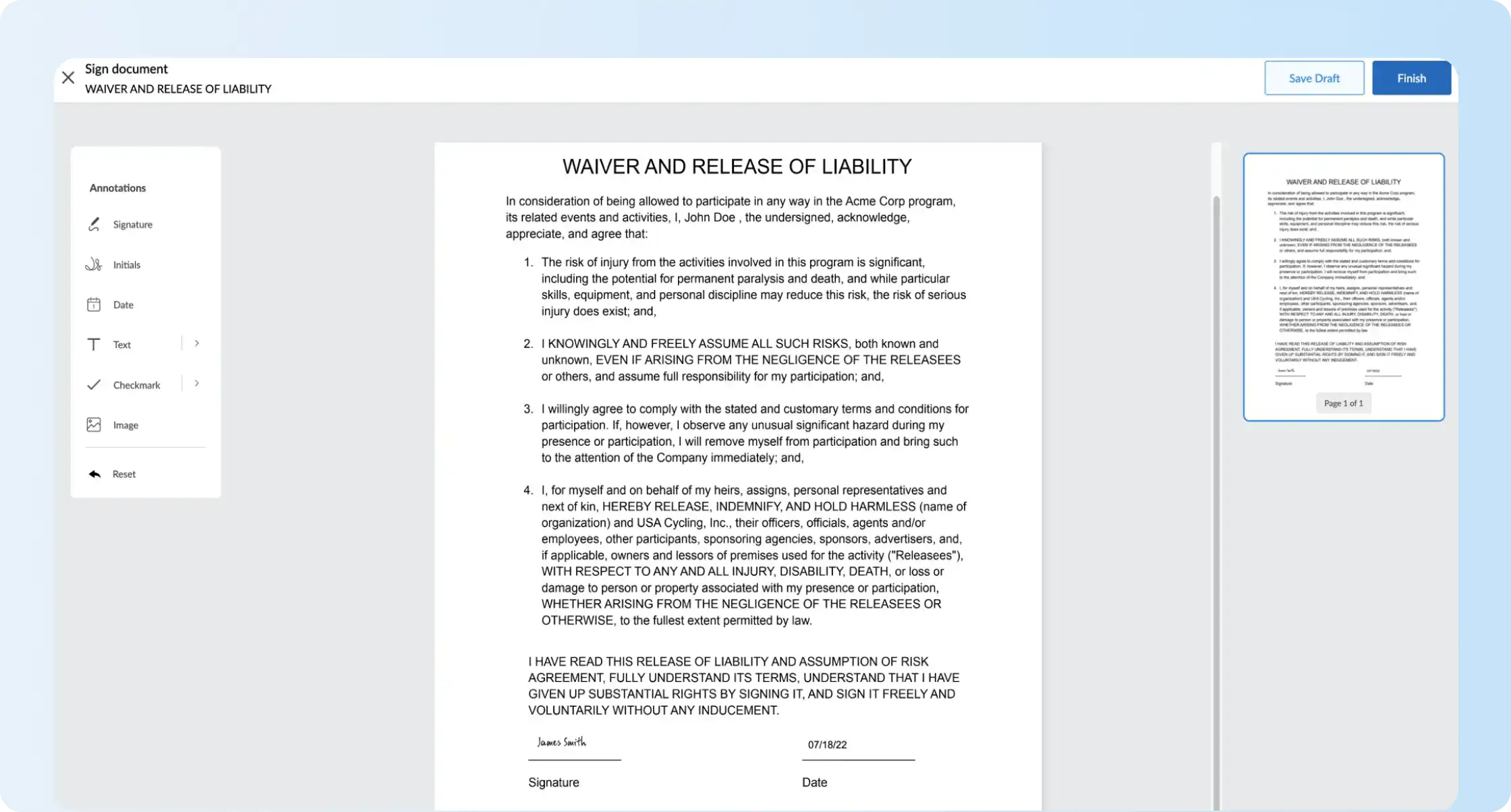
Finish signing, complete the email verification prompt, and download the signed document.
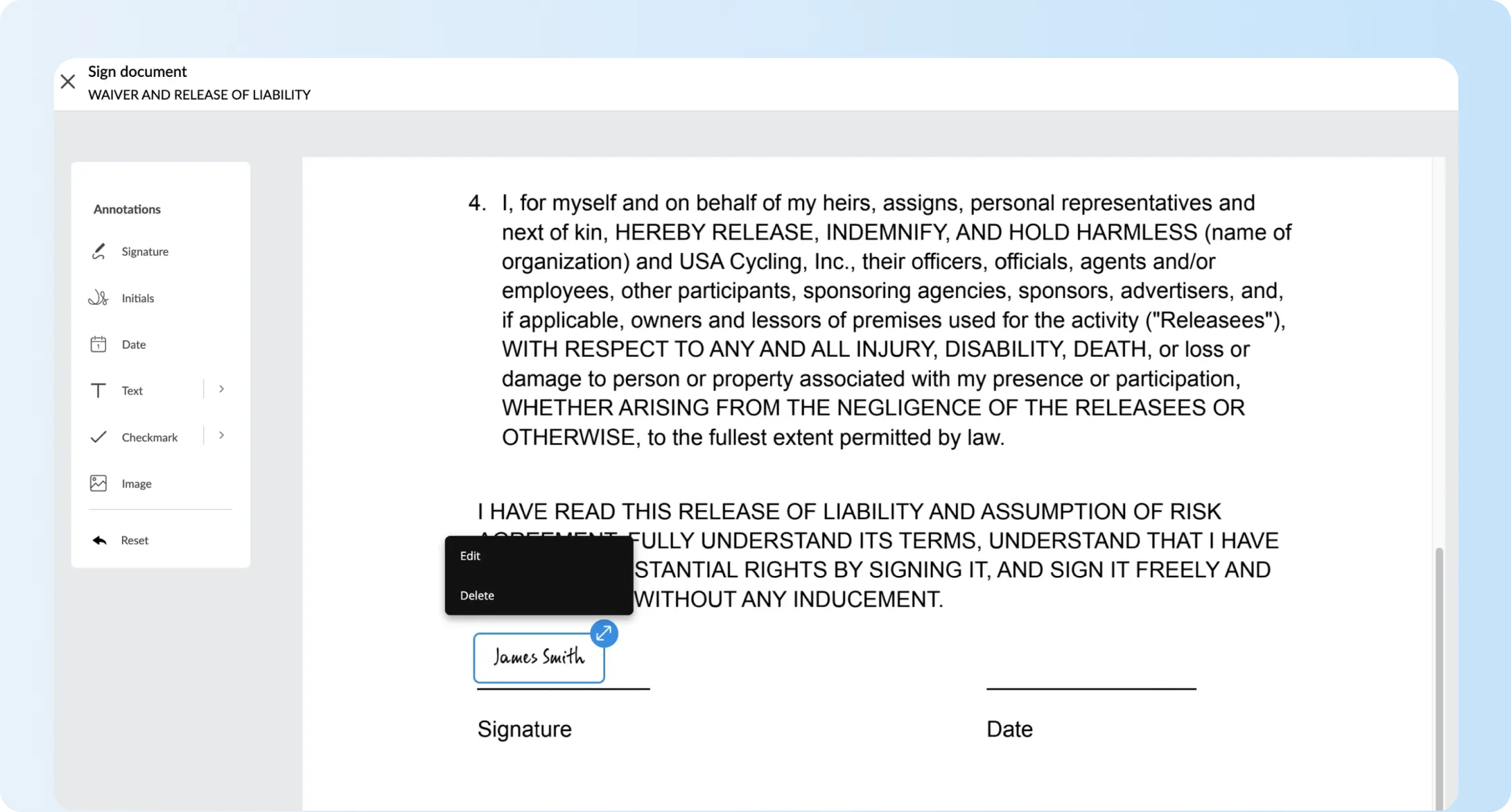
For a visual example of placing a signature field, Signeasy's online document-signature walkthrough shows the available fields and the Finish Signing control. Signeasy delivers the signed file in PDF format; it does not edit the original Word document in place.
How to sign a Word file from your Signeasy account
To insert signature in Word files through your Signeasy account, use the web app's self-sign workflow. It stores completed documents in your account and is separate from sending a signature request to someone else.
Log in to Signeasy and open the menu beside Send for Signature.
Choose Sign Document and upload the Word file.
Use the Signature option to draw, type, or upload your signature, then place it where you need it.
4. Add other fields such as name, initials, or date if the document requires them.
5. Select Finish Signing to finalize, then download or share the signed copy.
How to send Word documents to other people for signature
Placing your own signature in Word does not collect approval from someone else. If a customer, candidate, or vendor needs to sign, an eSignature software workflow provides a request addressed to that recipient and a record of the completed action.
In Signeasy, a typical request follows this process:
Choose Send for Signature and upload the Word agreement.
Add each recipient's name and email address.
Place the required signature and date fields, assigning each to the appropriate person.
Use a sequential order when one recipient must finish signing before the next is notified.
Send the request, watch its status, and download the completed document and audit trail when everyone has signed.
For instance, an HR coordinator preparing an offer letter in Word can assign a signature field to the candidate and follow the request without repeatedly emailing an unsigned attachment. When the same offer template is used again, reusable Signeasy templates keep signer roles and fields ready for the next candidate. The audit-trail instructions show how to retrieve the completion record. That history is useful if a candidate later asks which version they approved; a signature picture in Word alone does not preserve the request trail.
Need multiple people to sign the same Word agreement? Review recipient fields, signing order, and completed-document records with our team.
Different signing needs call for different methods. An image displays handwriting, while a digital certificate supports document verification. For shared business agreements, sending and tracking can be as important as the signature itself. Compare them using the same document scenario:
Method
Best for
What it adds
What it doesn't do on its own
Scanned JPG or PNG
Letters and forms requiring visible handwriting
A resizable signature image
Verify who inserted the picture
Draw in Word
Pen or touchscreen signing
Digital ink on the document
Provide a signing certificate or activity record
Quick Parts / AutoText
Reusing a signature and contact details
A saved image-and-text block
Verify the signer
Microsoft Office Signature Line
Visible certificate-backed signing in desktop Word
A signature line and digital signature when signed
Track emailed signing requests
Invisible digital signature
Certificate-backed signing without a visible signature
A digital signature that helps detect document changes
Display handwriting or collect signature requests
Signeasy
Signing Word files online or collecting signatures from others
Signature fields, requests, signing order, and completion records
Edit the original DOCX in place after signing
To insert signature in Word for a one-off form, an image or the Draw tab is enough when visible handwriting meets the document's requirements. Signeasy's eSign a document walkthrough demonstrates the equivalent self-signing process online. For agreements involving several recipients, use the signature-request workflow described above to assign signer fields and track completion.
Insert signature in Word without formatting problems
After you insert signature in Word as an image, adding text or opening the file on another device can shift its position. Check the placement and saved format before sharing the document.
Common issues are straightforward to fix:
White background around the signature: Use Picture Format > Remove Background where supported. Choose a transparent PNG after cleaning the picture.
Signature overlaps a paragraph: Select the picture, inspect Wrap Text, and move it away from text or use a more stable placement inside a table cell.
The Draw tab is missing: Check whether your Word version supports ink tools and whether Draw is enabled in the ribbon.
The Signature Line is unavailable: Use the Windows desktop version for Microsoft's certificate-backed Signature Line, or choose a picture or signing service for your task.
A signature disappears or the layout changes when sharing: Inspect the saved file before sending. For an agreement signed through Signeasy, download and distribute the finalized PDF instead of asking recipients to keep editing the Word version.
If you need a reusable way to show where the signature belongs, place that area in the original Word template before sending it for signature. The signer will then know which part of the document needs attention. Layout is only one part of the decision; agreements may also require evidence of who signed.
Are signatures inserted in Word legally binding?
Electronic signatures on digital documents, including Word files, can be legally binding when the applicable requirements are satisfied. In the United States, laws such as the ESIGN Act and the Uniform Electronic Transactions Act recognize electronic signatures, but the signing process still needs to demonstrate intent and connect the signature to the relevant document.
Even an image of an actual signature does not establish who inserted it or whether that person approved the final wording. A Word certificate-based digital signature provides cryptographic evidence about the signed file. An eSignature platform adds records of a signing request and completion activity. For the legal context, see when electronic signatures are legally binding.
The right method is the one that meets the document's signing requirements, not simply the one that looks closest to ink on paper.
Frequently asked questions
How do I add a handwritten signature to a document?
To add a handwritten signature to a document in Word, sign a sheet of paper and scan or photograph it. Save the image as a JPG or PNG, then open Word and select Insert > Pictures. Choose the image, crop the blank space, and resize it to fit. You can also use the Draw tab to write directly on the page with a supported pen or touchscreen.
How do I create a digital signature in Word?
To create a digital signature in Word, open the document in Word for Windows desktop and select File > Info > Protect Document > Add a Digital Signature. Choose a suitable signing certificate and follow the prompts to sign. The certificate-backed signature helps recipients detect changes made after signing. You can also sign a Microsoft Office Signature Line using a digital certificate.
How do I copy and paste a signature in Word?
To copy and paste a signature in Word, open a saved image of your handwritten signature and copy it. Press Ctrl + V on Windows or Command + V on Mac to insert it into the document. Resize the image using a corner handle and adjust Wrap Text if it overlaps other content. Store the original signature image securely to prevent unauthorized reuse.
How do I create a fillable signature in Word?
To create a fillable signature area in Word, select Insert > Signature Line > Microsoft Office Signature Line in Word for Windows desktop. Enter the signer's name and any relevant instructions, then select OK. The signer completes the line using a digital signing certificate. For a document that will be printed and signed by hand, insert a blank line or a table cell with a bottom border instead.
How do I insert a signature in a Word document?
To insert a signature in a Word document, select Insert > Pictures and choose a JPG or PNG of your handwritten signature. Crop, resize, and position the image where you need it. You can also use the Draw tab or Microsoft Office Signature Line on supported Word versions. To collect another person's signature and track completion, upload the Word file to Signeasy and send it for signing.
Can I create a free digital signature in Word?
Yes, you can create a digital signature in Word without an additional signing fee if you already have a suitable digital certificate. Obtaining a certificate may involve a cost. If you only need a visible electronic signature, use Word's Draw tab or insert a saved signature image. Signeasy also offers a free online Word signing tool that lets you add an eSignature and download the signed PDF.
How do I add a pen signature in Word?
To add a pen signature in Word, open the Draw tab, select a pen, and write your signature using a stylus, touchscreen, or supported input device. Adjust the ink's position and save the document. On supported Word for Mac versions, Draw with Trackpad lets you write using your finger. A pen signature creates a visible handwritten mark, not a certificate-backed digital signature.









.webp)

