



According to Adobe, 25% of major customer losses have been linked to document process failures Adobe, and combining or organizing documents ranks among the most common PDF tasks employees struggle with daily.
For operations, finance, legal, and HR teams, this compounds quickly. A single vendor agreement might live across three separate attachments, sent by two different people, saved in inconsistent formats. Finding, compiling, and sharing that document correctly takes longer than it should — every single time.
When merging files takes more effort than the task they support, every downstream workflow slows down with it.
In this guide, you will learn:
- Why traditional PDF merging methods fall short and what that costs your team
- The four capabilities that make document combining reliable and repeatable
- A step-by-step approach to merging PDF files quickly, across any device or tool
- Features to look for when evaluating tools for ongoing document management
Why traditional PDF merging methods fail
For years, combining PDFs was a frustrating experience. For many users who still rely on outdated workarounds, it remains one. Understanding where those methods break down helps explain why choosing the right tool matters.
- The desktop Adobe Reader still lacks merging capability. The free Adobe Reader app installed on most computers functions as a viewer only. Its menus offer no merge option, which catches a lot of users off guard. The merging capability lives in Adobe's online tool and in the paid Acrobat Pro, while the desktop Reader most people have simply leaves it out.
- Printing to PDF strips out interactivity. A common DIY workaround involves printing multiple files to a virtual PDF printer. This often destroys hyperlinks and form fields, along with any bookmarks in the original. The result is a flat, degraded document with little of its original functionality intact.
Suggested read: How to add or create a hyperlink in a PDF document
- Copy-pasting between PDFs destroys formatting. Manually copying content from one PDF into another rarely preserves the original layout. Fonts shift and images lose resolution, producing a result that looks entirely different from the source.
- Random free tools carry privacy and security risks. Many third-party PDF merger sites upload your documents to unknown servers. For anything sensitive or confidential, this is a real concern. Most users are unaware that their files may be stored or processed externally.
- Outdated desktop utilities are unreliable. Many free PDF tools have gone years without an update, making them incompatible with modern operating systems or newer PDF standards. Downloading them from unverified sources introduces additional risk.
What starts as a minor workflow gap quietly becomes a document quality problem.
🚩🚩Red flags that your PDF merging process is broken
- You regularly download and re-upload the same files because your usual tool failed partway through.
- It takes more than 10 minutes to produce a single clean, correctly ordered merged PDF.
- Team members use different tools for the same task, producing inconsistent output.
- Sensitive documents have been uploaded to a free online converter without a clear understanding of how that platform handles data.
What makes PDF merging effective?
Effective PDF merging relies on four core capabilities. Here is a closer look at each.
1. Tool reliability and access level clarity
The foundation of a good merging process is using a tool that actually supports the task at the level you need it. This means understanding upfront what your current software can and cannot do, so you are not discovering limitations mid-task.
Free tools often cap file sizes, restrict page counts, or require an account to retrieve output. Paid tools offer more control but require licensing. The right setup is one where the tool matches the volume and sensitivity of documents your team handles regularly.
When teams are unclear about what their tools support, they improvise. Improvised workflows produce inconsistent results and introduce avoidable risk — especially when documents contain sensitive information.
2. File preparation before combining
How files are prepared before merging directly determines the quality of the output. A merged PDF is only as clean as the individual files that go into it.
Preparation includes checking that all source files are the correct version, removing any blank or duplicate pages, confirming page orientation is consistent across documents, and deciding on the final order before combining. Doing this before merging — rather than after — saves significant time and avoids the need to redo the process.
Skipping preparation is the most common reason a merged PDF needs to be redone. Teams that treat merging as a one-click action often end up with a final file that requires manual correction.
3. Formatting and structure preservation
A merged PDF should read as one coherent document, not a collection of files that happen to be stapled together. Formatting preservation means font rendering stays consistent, embedded images retain resolution, hyperlinks remain active, and page numbering flows logically across the combined file.
Tools that flatten documents during merging — such as the print-to-PDF approach covered in the previous section — sacrifice this integrity. The file looks complete but loses the metadata and structure that make it usable and professional.
For documents that will be signed, submitted to a regulator, or shared with a client, formatting errors are not cosmetic issues. They affect credibility and, in some cases, legal validity.
Suggested read: How To Combine PDF Files on a Mac
4. Secure handling of sensitive documents
Most PDF merging happens in the context of documents that contain confidential information — contracts, financial records, HR paperwork, compliance certificates. The tool used to combine them needs to handle that data securely.
Free online converters rarely publish clear data retention policies. Many store uploaded files on their servers for a period after processing. For teams in regulated industries or those handling client data, this is an unacceptable risk that is easy to overlook when the priority is simply getting the task done.
A tool that is free to use but unclear about how it stores your data is not a neutral choice. It is a liability.
How do you merge PDF files in Adobe Acrobat Pro? Step-by-step
The five steps below walk you through combining multiple PDF files into one clean, correctly ordered document using Adobe Acrobat Pro.
step 1: Open Adobe Acrobat Pro and access the combine files tool
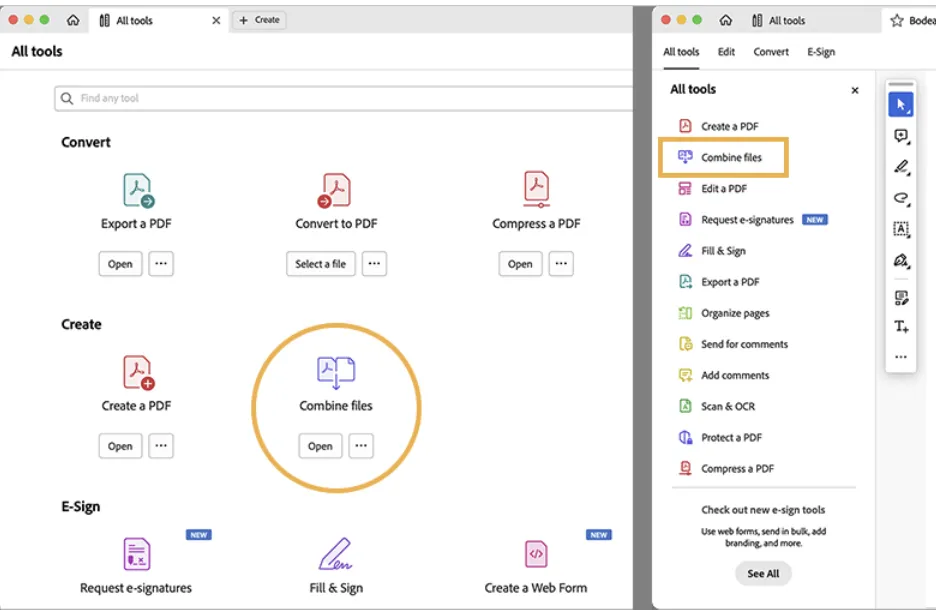
Open Adobe Acrobat Pro on your desktop. From the home screen, click on Tools in the top navigation bar. Scroll through the tools panel until you see Combine Files and click on it. This opens the Combine Files interface, which is where all merging happens.
If you use this feature regularly, click the star icon next to Combine Files to pin it to your toolbar. This saves you from navigating through the Tools panel every time.
Step 2: Add your files to the merge queue
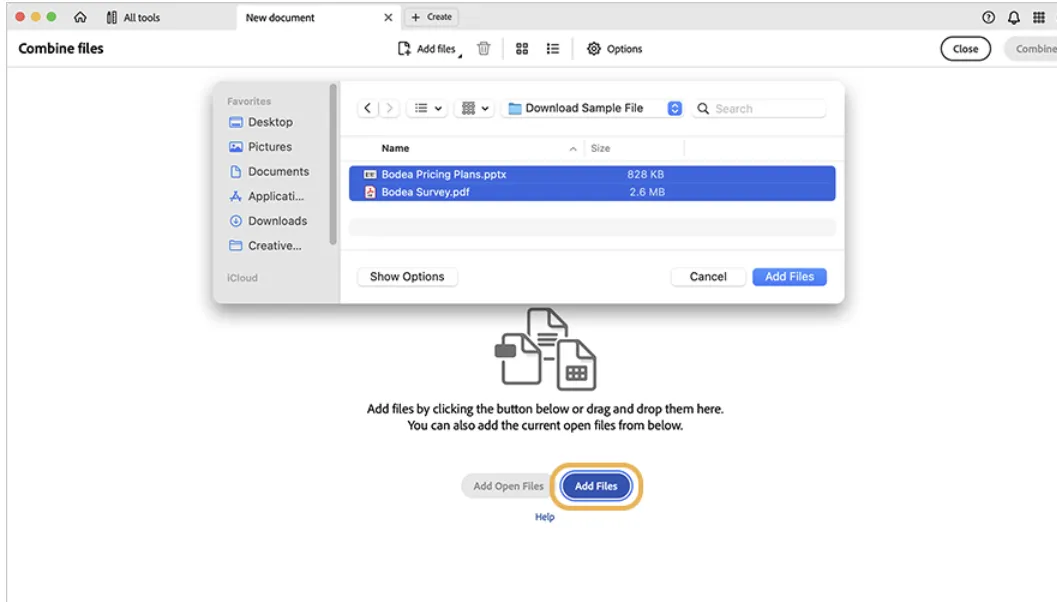
Click Add Files in the top left of the Combine Files interface. A file browser opens — navigate to the location of your PDFs and select all the files you want to combine. You can select multiple files at once by holding Ctrl on Windows or Command on Mac while clicking.
Acrobat Pro also accepts other file types at this stage, including Word documents, Excel spreadsheets, and PowerPoint files. It converts them to PDF automatically before merging. If your source files are in mixed formats, you can add them all in one go rather than converting them separately first.
Step 3: Arrange files in the correct order
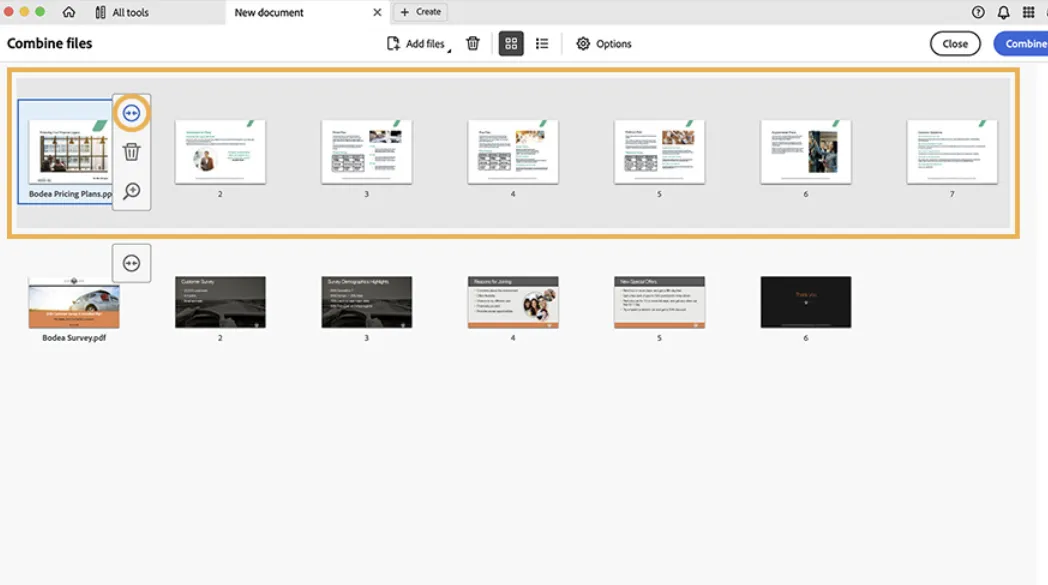
Once your files appear in the Combine Files panel, drag and drop them into the sequence you want them to appear in the final document. The file at the top of the list becomes the first section of the merged PDF.
Click the small expand arrow on any file thumbnail to see individual pages within that document. This lets you reorder or remove specific pages without leaving the interface. If a file contains pages you do not need in the final output, delete them here rather than after the merge.
Take an extra minute at this stage to confirm the order is correct before proceeding. Reordering after merging is possible but adds unnecessary steps.
Step 4: Run the merge and review the output
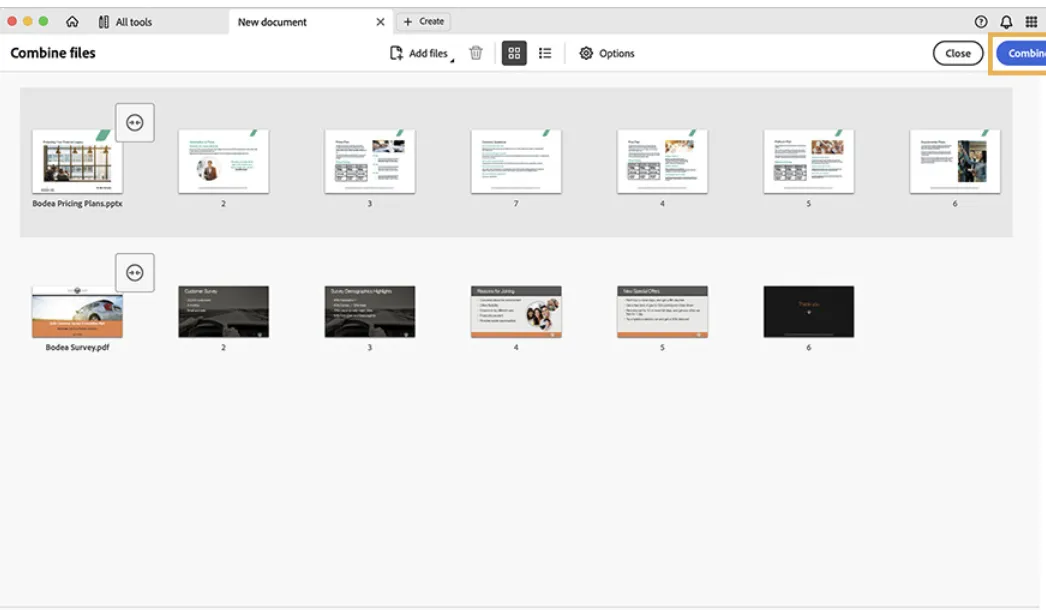
Click Combine in the top right corner of the interface. Acrobat Pro processes the files and opens the merged document in a new tab. The merge typically completes in under a minute for standard file sizes.
Once the merged file opens, scroll through the entire document before saving it. Check that all pages are present, the order matches what you set in Step 3, formatting has been preserved across all sections, and any hyperlinks or embedded elements are intact. Pay particular attention to the join points between files — this is where page numbering inconsistencies and formatting shifts most commonly appear.
If anything looks wrong, close the merged file without saving and return to the Combine Files interface to adjust.
Step 5: Save and name the final file
Once you are satisfied with the output, press Ctrl + S on Windows or Command + S on Mac to save. Choose your destination folder and rename the file before confirming.
A clear, consistent naming convention makes the file retrievable later without relying on memory. A reliable format to follow is: YYYY-MM_DocumentType_Subject_Version — for example, 2025-06_VendorAgreement_AcmeCorp_Final.pdf.
Avoid generic names like "Merged" or "Combined_Final_v2". These create retrieval problems when document volume grows and the person who created the file is no longer available to remember what it contains.
Once your merged PDF is ready, the next step is getting it signed, approved, and filed without losing the momentum you have built.
Signeasy connects directly to that next stage, sends the combined document for legally binding eSignature, routes it through an approval workflow, and stores the executed file in a secure, searchable repository, all from one platform.
Suggested read: Adobe Sign migration: A complete guide to switching platforms
Essential features for PDF merging tools
Choosing a PDF merging tool requires evaluating capabilities that directly impact output quality, document security, and how well the tool fits into your existing workflow.
The table below outlines the core features to assess when comparing platforms.
Common PDF merging mistakes to avoid
Even with the right tools in place, certain habits undermine the quality and security of your merged documents. Avoiding these mistakes ensures your merging process delivers clean, reliable output every time.
1. Merging files without reviewing them first
The most common merging mistake is also the most avoidable. Teams that skip the pre-merge audit — checking versions, page order, and formatting, regularly produce combined files with blank pages, duplicated content, or sections in the wrong sequence. By the time the error is noticed, the document has often already been sent. Going back to fix and resend costs more time than the audit would have taken in the first place.
.gif)
Signeasy's structured document storage means files are organized and versioned before they ever reach the merging stage, reducing the likelihood of pulling the wrong file into a combined document.
2. Using unverified free tools for sensitive documents
Free online converters are convenient, but convenience is not the only variable worth evaluating. Many of these platforms do not publish clear data retention policies, which means uploaded files may remain on their servers after processing. For documents containing contract terms, financial figures, personal data, or compliance records, this is a risk that is easy to overlook and difficult to undo.
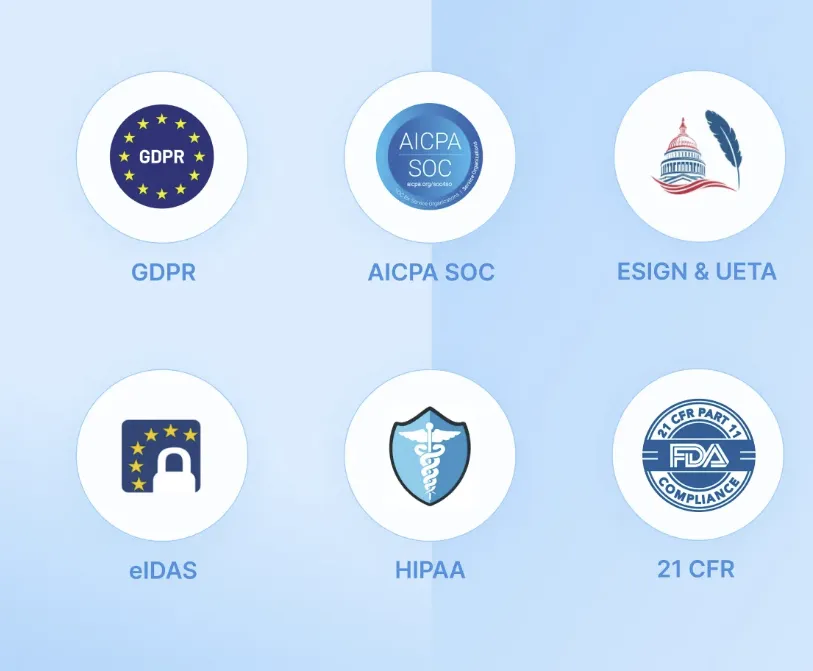
Signeasy's SOC 2 Type 2 certification, GDPR compliance, and role-based access controls ensure that documents are handled within a security framework that meets enterprise and regulatory standards, so your team is never trading convenience for compliance.
3. Saving merged files without a consistent naming convention
A merged PDF saved as "Final_v3_ACTUAL_revised.pdf" is not retrievable without memory. Teams that skip naming discipline at the point of saving create retrieval problems that compound over time. The issue is rarely noticeable with low document volumes, but it becomes a genuine operational problem as the number of merged files grows and the people who created them change.
Signeasy's searchable repository lets teams locate documents by sender, content, date, and folder, providing a retrieval safety net even when naming conventions have not been applied consistently.

4. Treating the merged file as the end of the workflow
A merged PDF is a means to an end, not a finished task. Teams that save the combined file to a desktop or personal folder and plan to route it later create the conditions for documents to stall, get lost, or miss deadlines. The moment a merged document leaves an organized system, it loses traceability.
igneasy connects the merging output directly to the next step. Send the combined document for eSignature, route it through an approval workflow, or file it in a secure repository — all from within the same platform, with every action logged and every deadline tracked.
%2520(1).gif)
Merge, sign, and move on in minutes
Every hour your team spends wrestling with the wrong merging tool, fixing a badly ordered file, or tracking down a document that was saved in the wrong place is an hour not spent on the work that actually moves things forward.
The path to a reliable PDF merging process starts with auditing your files before you begin, continues with choosing a tool that matches the sensitivity and complexity of your documents, and accelerates when signing, approval, and storage are handled in the same workflow rather than across separate platforms.
Signeasy is built for exactly this. Its secure document repository keeps files organized and retrievable before the merge begins. Its eSignature capabilities let you send the combined document for legally binding signature the moment it is ready. Its sequential and parallel signing workflows ensure approvals move in the right order without manual chasing.
And its audit trails, role-based access controls, and compliance with ESIGN, eIDAS, HIPAA, and GDPR mean every document your team produces meets the standards required, without adding complexity to the process.
Start your Free Trial and stop losing time to document workflows that were never designed to scale.