



You have a contract ready to send, a client waiting for approval, or a deadline approaching, and Docusign decides it is not working.
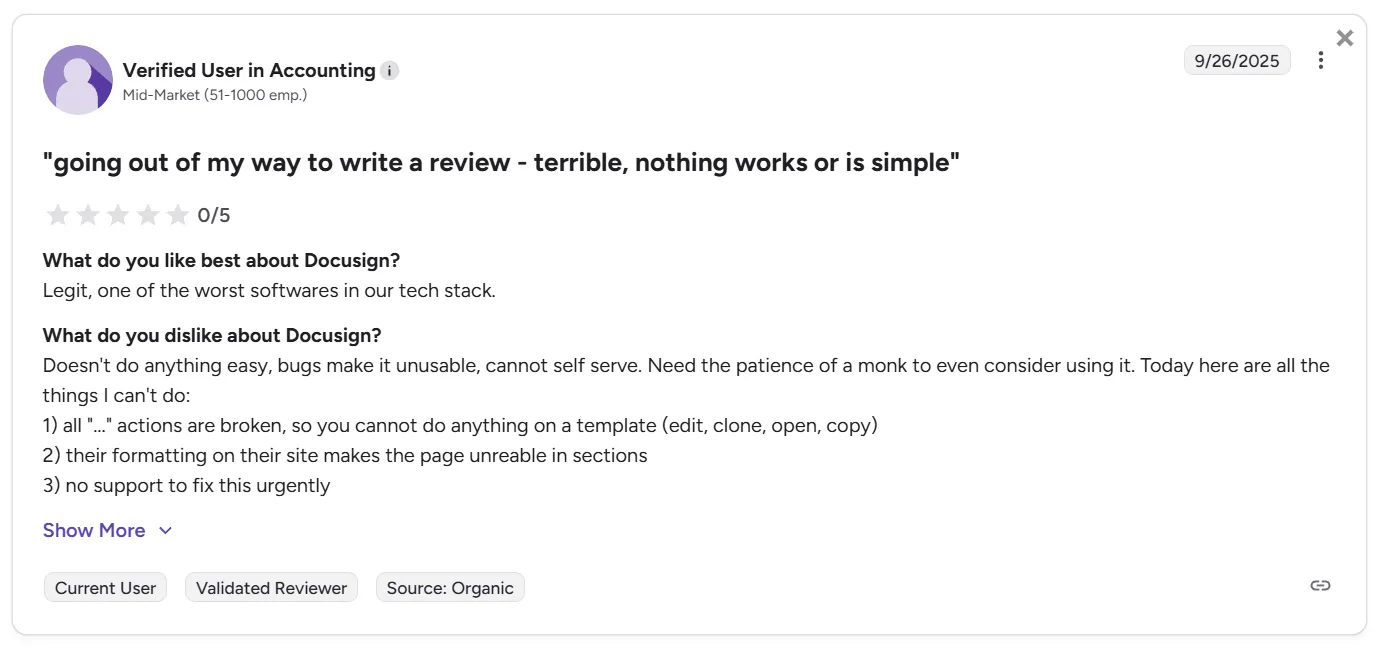
The frustration is more common than you might think. Reviews on platforms like G2 reveal that users frequently report issues ranging from slow load times and login failures to mobile app crashes and documents that simply refuse to upload.
Source
In this guide, you will learn:
- Ways to diagnose and fix Docusign login and sign-up issues
- Solutions for document upload errors and signing failures
- Troubleshooting steps for the Docusign mobile app
- Fixes for hyperlinks and document visibility not working
- When to contact support and switch to Signeasy
Quick checklist before troubleshooting Docusign issues
Before diving into specific fixes, run through this basic checklist.
☐ Internet connection is stable: Open another website or run a speed test. If pages are slow or fail to load, signing sessions may freeze or uploads may fail.
☐ Browser and device are up to date: Install any pending updates for your browser, app, or operating system to avoid performance, security, or compatibility problems.
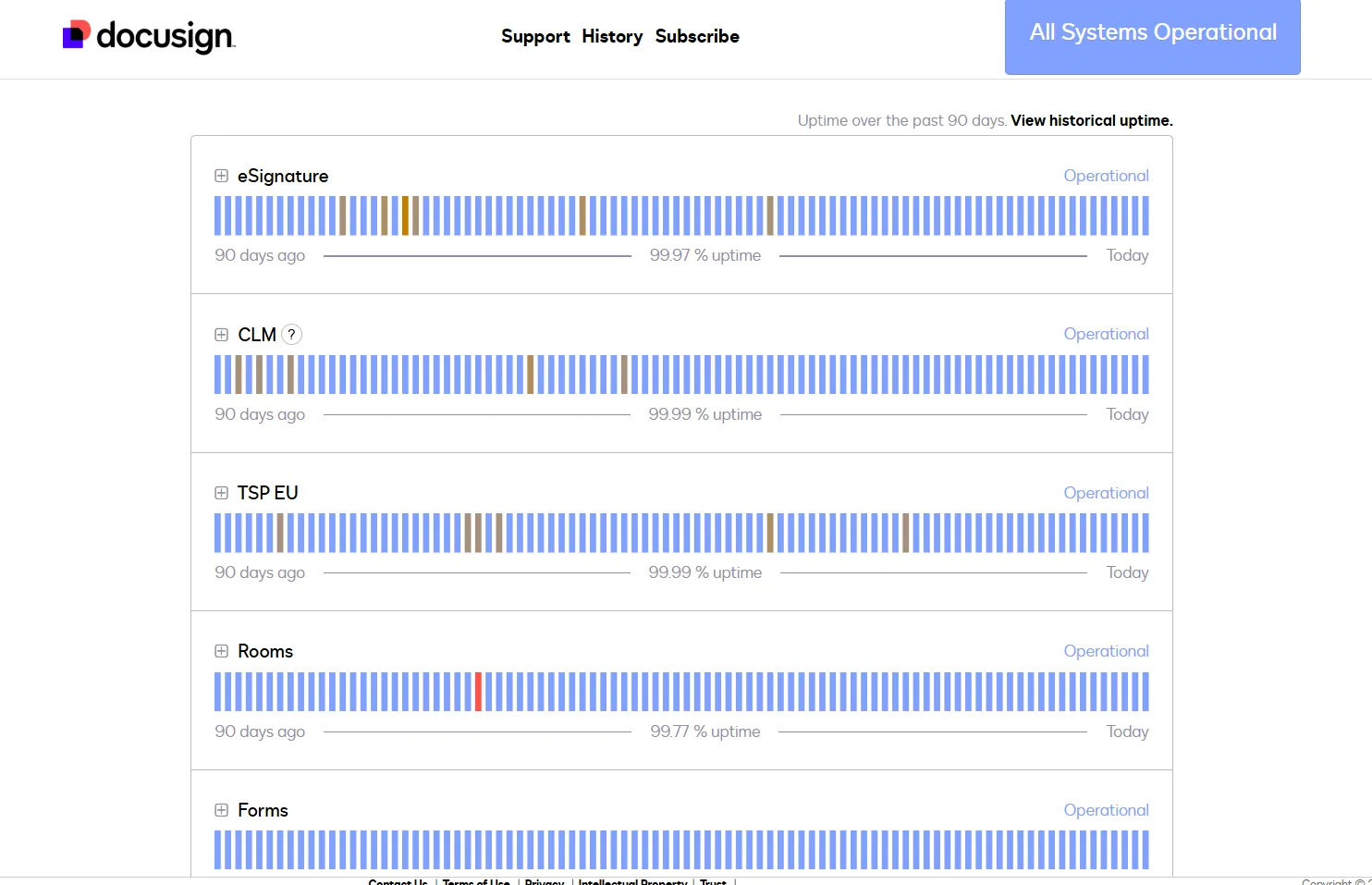
☐ Docusign system status is normal: Check the Docusign status page for outages or incidents. If there’s an active issue, troubleshooting won’t help until it’s resolved.
Understanding how Docusign works can also help you identify where an issue is occurring, whether it’s during document upload, recipient setup, signing, or completion.
Suggested read: Docusign eSign API features: A detailed guide for developers
Source
How to fix Docusign login and sign-up problems
Login and sign-up problems are among the most common Docusign frustrations. These fixes address the most frequent causes.
1. Sign-up not working
- Use Forgot Password to check if an account already exists for your email
- Confirm your browser isn’t auto-filling an incorrect or outdated email
- Check with IT to see if your account was pre-created through SSO
2. Login credentials not working
- Clear browser cache and cookies, then fully restart the browser
- Try logging in using an incognito or private window
- For SSO users:
- Verify your SSO credentials are active
- Check with IT for recent identity or configuration changes
- Test logging in via the direct Docusign URL to isolate the issue
3. Password reset issues
- Check spam or junk folders for the reset email
- Confirm you’re using the correct registered email address
- If your account is organization-managed, ask your admin or IT team to reset or unlock it before contacting Docusign support
What to do when Docusign documents won't upload
These are the most common causes and how to fix them.
1. File size and format limits
Complex files and files larger than 50 MB often fail without clear errors, you should:
- Compress or split the document into smaller files
- Convert Word, Excel, or PowerPoint files to PDF which uploads more reliably
2. Password-protected or encrypted files
Protected documents cannot be processed. Try uploading an unprotected file.
3. Documents with active form fields
Interactive PDFs can conflict with Docusign’s field system and cause failures.
- Flatten the PDF to turn form fields into static content (Print to PDF works well)
- Remove existing form fields if you plan to rebuild them inside Docusign
4. Upload timeouts or server errors
Connection issues or temporary platform load can interrupt uploads.
- Retry after a few minutes or switch to a stable wired connection
- Upload during off-peak hours to avoid timeouts with larger files
How to resolve Docusign signing errors
Signing errors are particularly frustrating because they often occur at the final step of a transaction.
1. Signature fields not appearing or clickable
Start by disabling browser extensions, especially ad blockers and privacy tools. These frequently interfere with Docusign's JavaScript-based field rendering.
If the problem persists, the issue may be with how the document was prepared:
- Verify that signature fields were properly assigned to the correct recipient during document setup.
- Check that required fields are marked as required. Optional fields can be easy to miss visually.
- Re-upload the document and recreate the fields if they were placed on a flattened or corrupted PDF.
2. Session timeout during signing
To avoid timeout issues:
- Complete signing in one session whenever possible. If you need to step away, finish signing first.
- Intermittent connections can cause session drop off, check it again.
- Request a new signing link from the sender if your session expires. The original email link may no longer work.
3. Error messages during signing
Work through these troubleshooting steps:
- Copy the signing link and open it in a different browser or incognito window.
- Check if the signing deadline has passed. Expired envelopes generate errors but do not always explain that the deadline was the issue.
- Ask the sender to verify the envelope status. The document may have been voided or modified after the signing link was sent.
If you see specific error codes, note them down before contacting support which will help the support team identify the issue quicker.
4. Completed signature not saving
If your signature did not save:
- Check if you received a confirmation, if you did, the sign was saved.
- Check your completed documents folder in Docusign.
- Contact the sender to verify the envelope status on their end before re-signing. Signing twice can create duplicate or conflicting records.
Why is the Docusign mobile app not working?
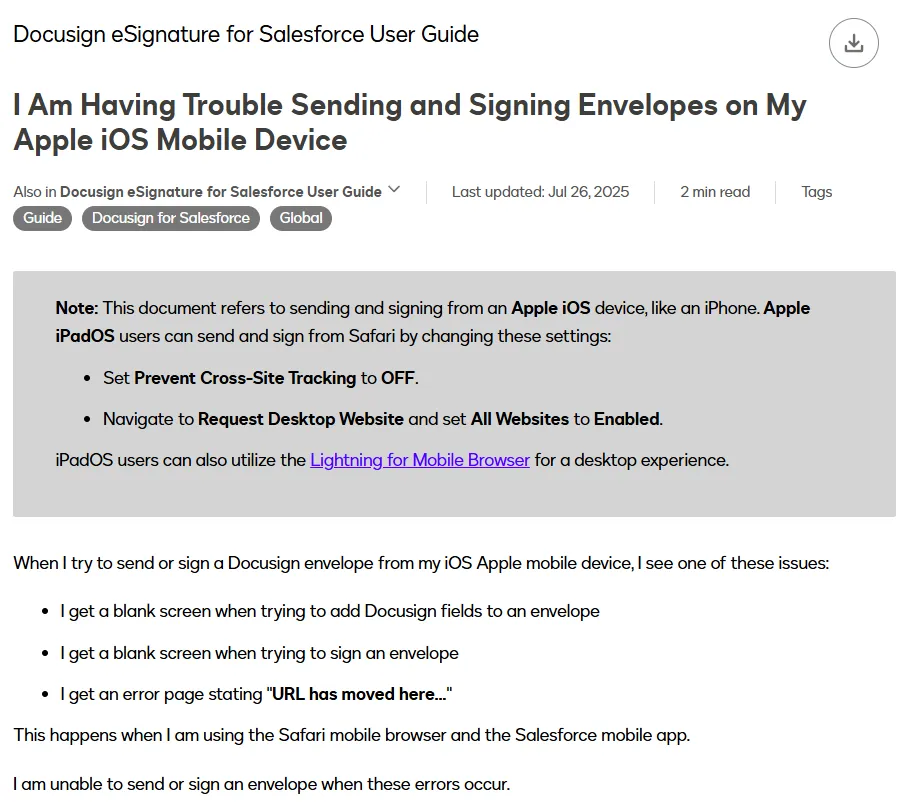
If the Docusign app is not working on your iPhone or Android device, these fixes address the most common causes.
1. App not responding on iOS
Start with these basic fixes:
- Close the app from the app switcher and reopen it.
- Restart your iPhone to resolve temporary memory issues that cause app instability.
- Update the app to resolve bugs that newer releases have fixed.
Source
2. App freezing or crashing on Android
Try these steps to resolve Android app issues:
- Clear cache: Settings > Apps > Docusign > Storage > Clear Cache.
- Free up storage on your device. Apps behave unpredictably when storage runs low.
If the issue persists, uninstall and reinstall it from the Google Play Store.
3. Documents not syncing to mobile app
Use these steps to find missing or outdated documents:
- Pull down on the document list to force a manual refresh. Automatic syncing sometimes stalls without showing an error.
- Verify you are logged into the correct account if you have multiple accounts.
- Check your internet connection. A weak connection will cause incomplete updates.
For persistent issues, log out of the app completely and log back in.
How to fix Docusign document visibility not working
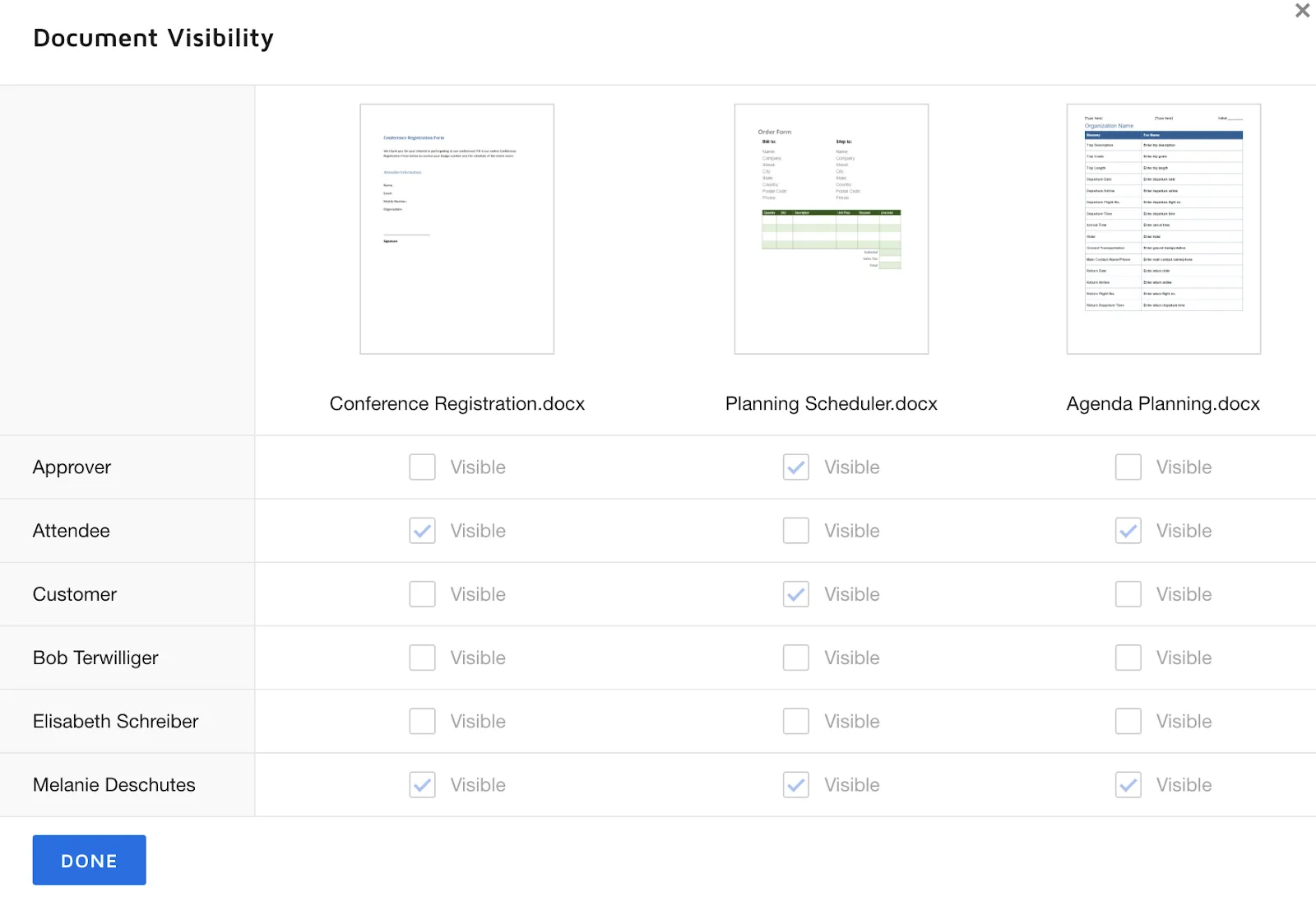
Document visibility controls which recipients can see which documents in a multi-document envelope. When these settings fail, signers may see files they should not or lose access to documents they need.
1. Understanding document visibility settings
Document visibility lets senders control who can access each document in a multi-file envelope.
Key limits to know:
- Applies per document, not per page
- Only signers or viewers can be assigned visibility
- Must be set during envelope setup, before sending
Source
2. Common visibility problems and fixes
Why Docusign hyperlinks are not working and how to fix them
Recipients click on links expecting to open a webpage, only to find nothing happens. Here is why that occurs and what you can do about it.
1. Why hyperlinks stop working during signing
During signing, Docusign converts documents into static images, so hyperlinks aren’t clickable. The links reappear and work normally in the final completed PDF after signing.
2. How to create clickable hyperlinks in Docusign
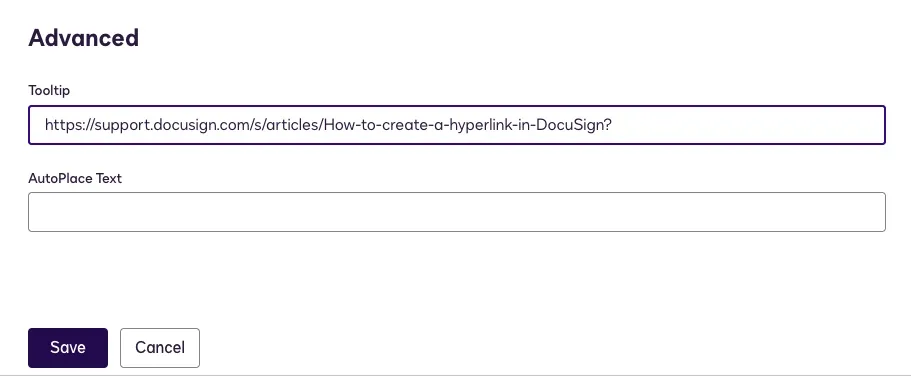
Source
To add a clickable hyperlink field:
- Open the document in the Docusign editor
- Go to Fields and select Hyperlink
- Add it to the desired location
- Enter the URL and display text in the field properties
3. Alternative approaches for sharing links
When hyperlink fields are not practical, consider these workarounds:
When to contact Docusign support and what to expect
Here is what you need to know about contacting support:
1. How to open a support case
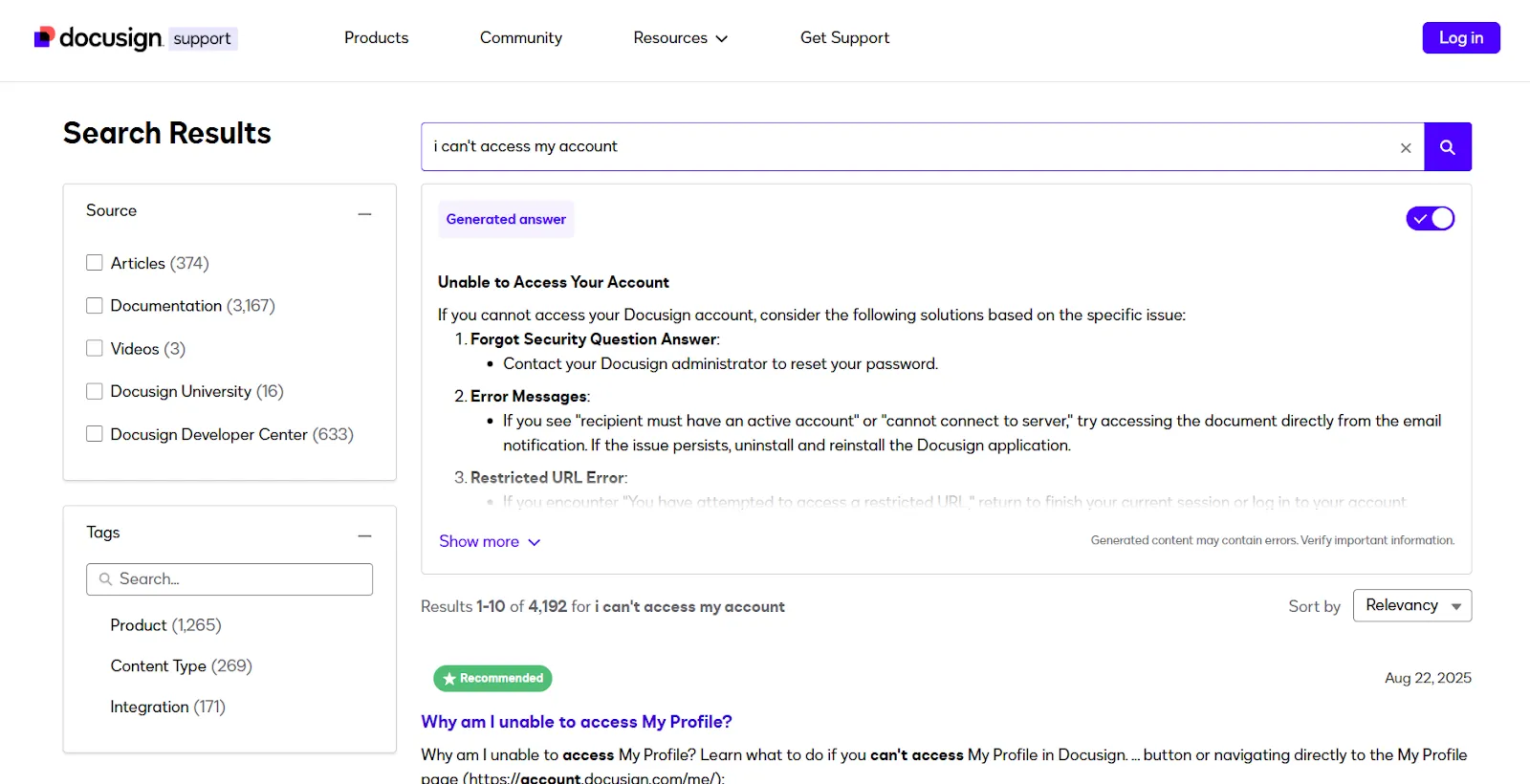
Only paid users can create a ticket through support.docusign.com in the support center with details of your issue.
You will need your error details, envelope IDs, steps tried, and plan information to create a ticket.
If locked out of your account, use “I can’t access my account” to submit a request without logging in
Source
2. Common support response challenges
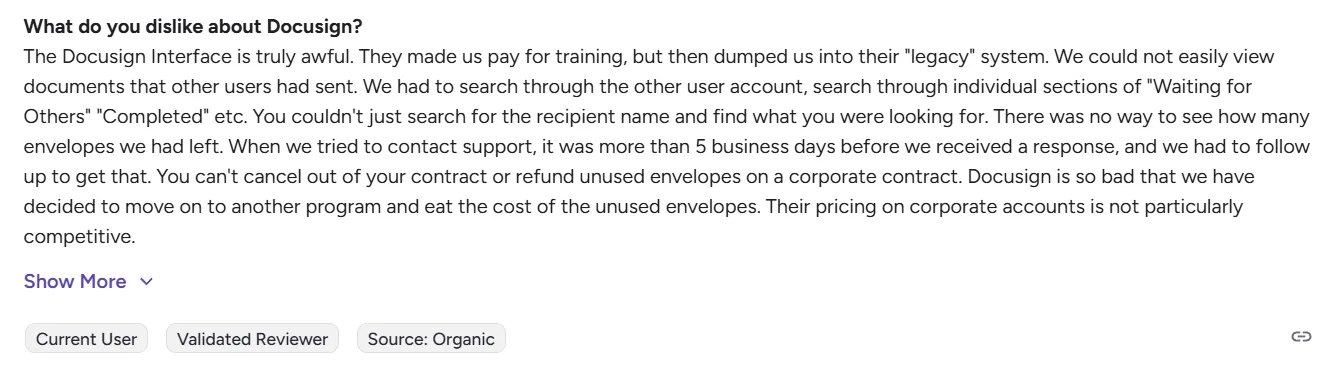
Response times and support quality vary widely based on your plan level and the complexity of your issue.
Docusign reviews reveal recurring frustrations.
Source
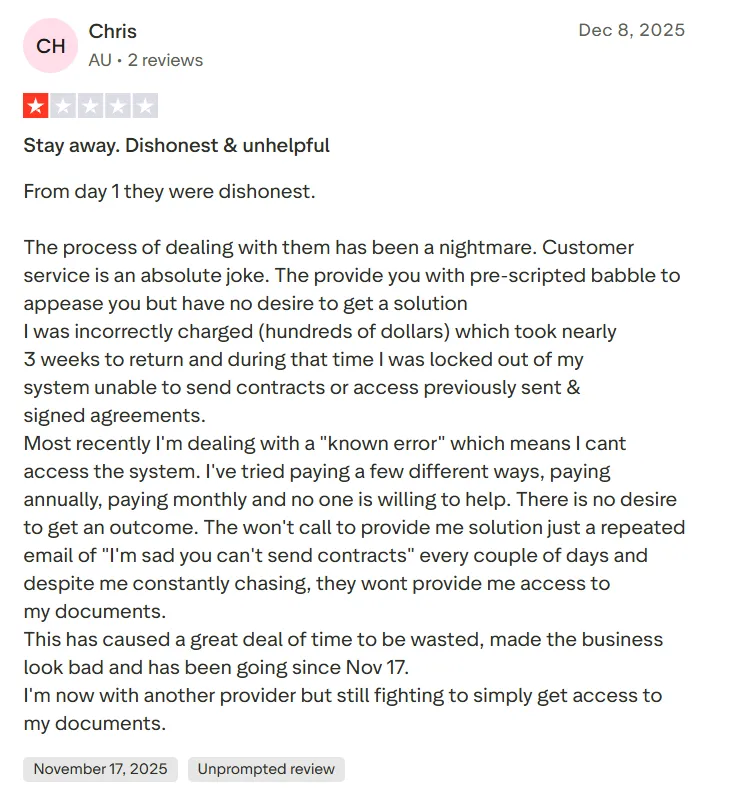
Some users report being locked out of their accounts entirely while waiting for support to respond, losing access to critical business documents in the process.
Source
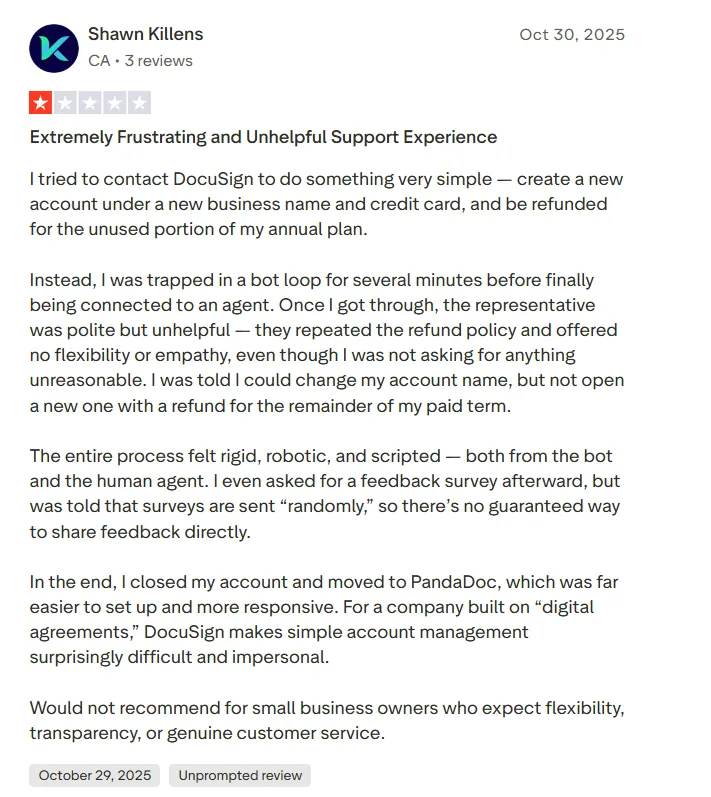
Other users report that even when they do reach a human agent, the support experience feels impersonal and inflexible.
Source
Also read: 15 Best Docusign Alternatives and Competitors in 2026
How Signeasy addresses common eSignature pain points
If the issues covered in this guide feel like daily frustrations rather than rare exceptions, Signeasy offers a more straightforward approach to contract management.
Here is how the contract management software addresses the most common pain points.
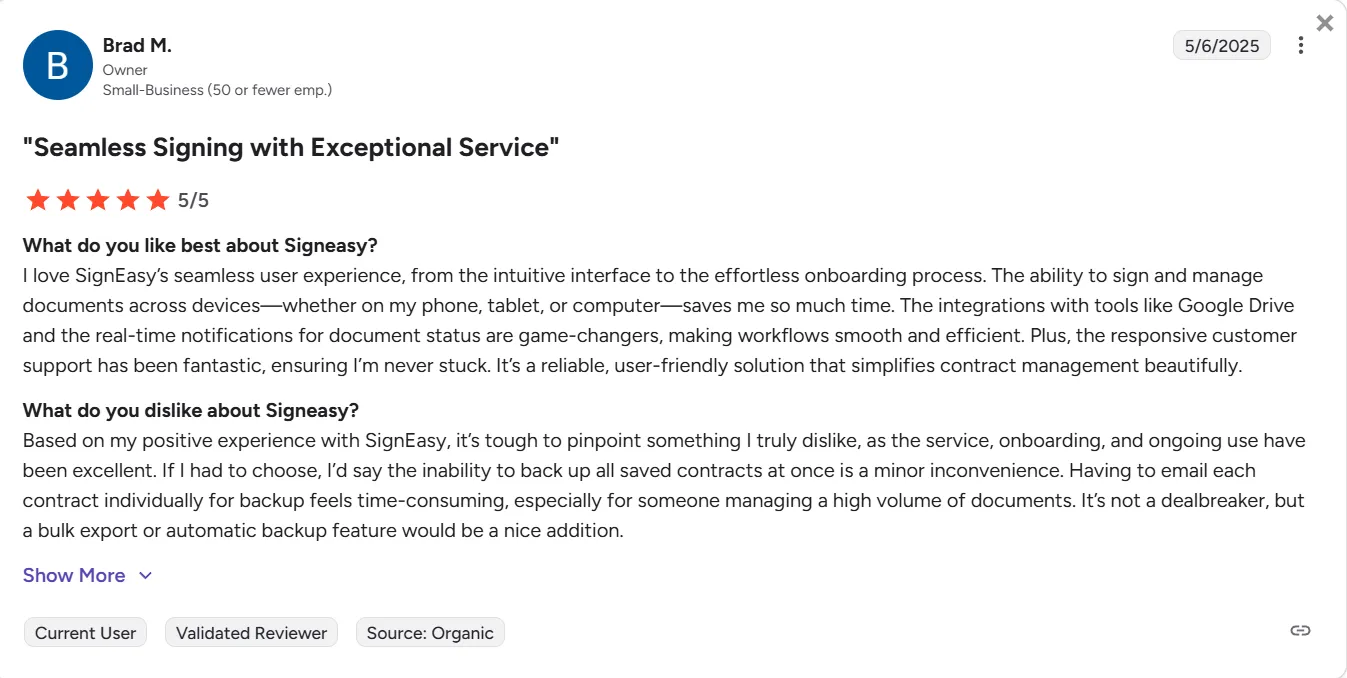
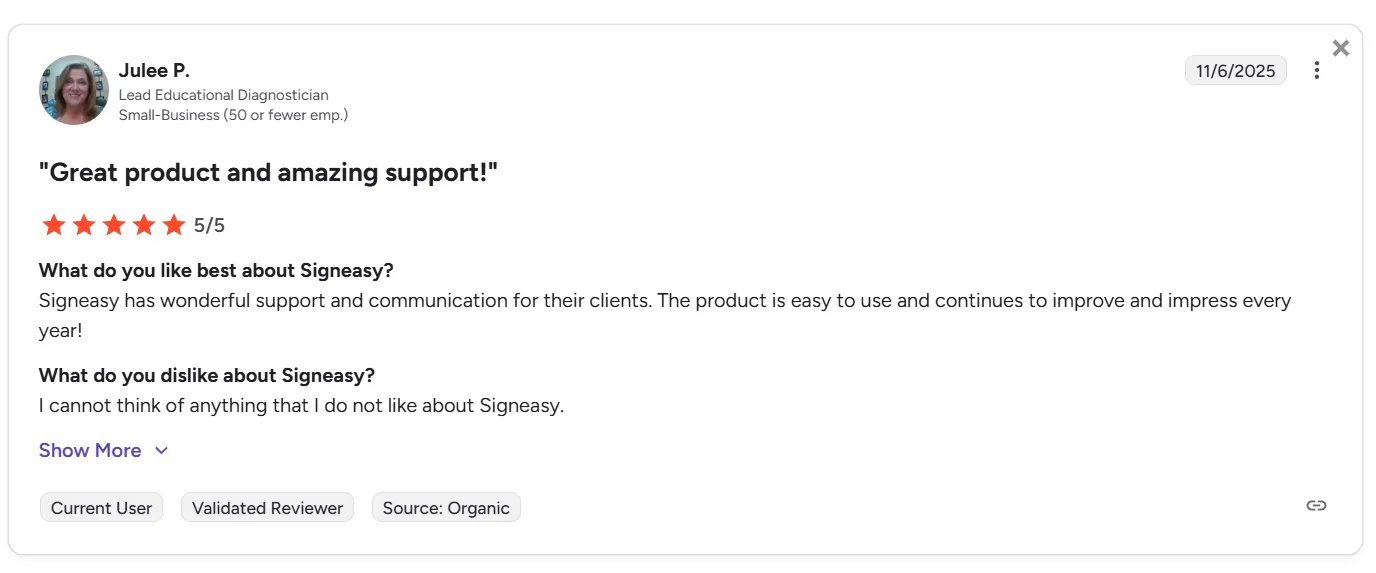
1. Support that actually responds
Signeasy offers responsive, human support on all plans, with faster replies and more helpful responses than the often delayed, scripted support reported by many DocuSign users
Signers offers responsive, human support on all plans with quick response times and genuine helpfulness that the often delayed, scripted support reported by many Docusign users.
Source
Signeasy supports self-service with a searchable helpdesk and interactive demos for common troubleshooting guides. So whether you want to talk to someone or figure it out yourself at 11 pm, both options are available
Source
Suggested read: Why customers choose Signeasy over Docusign
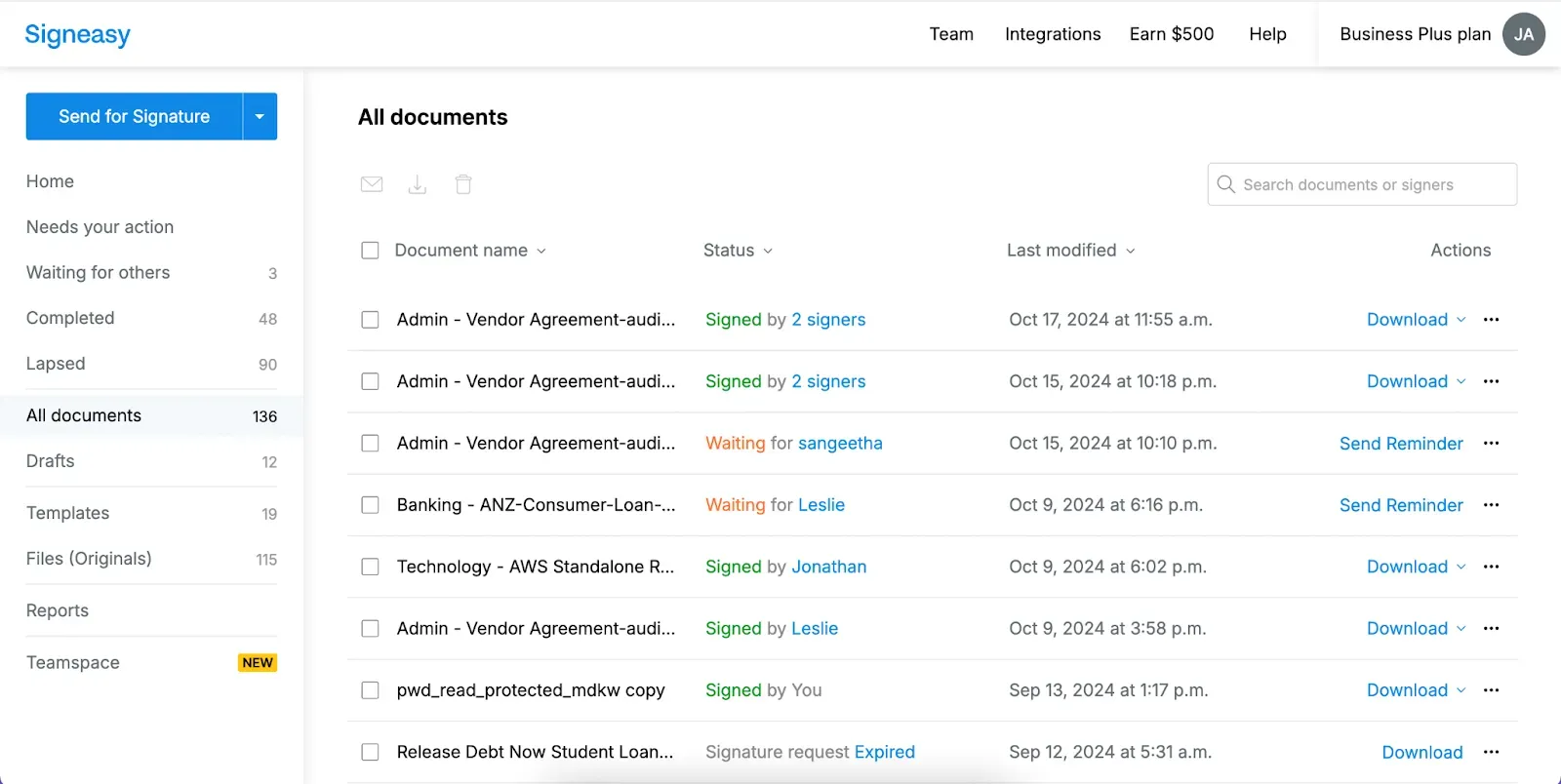
2. Start signing in minutes with no learning curve
Signeasy is built for speed and simplicity, letting teams create and send their first document within minutes of signing up.
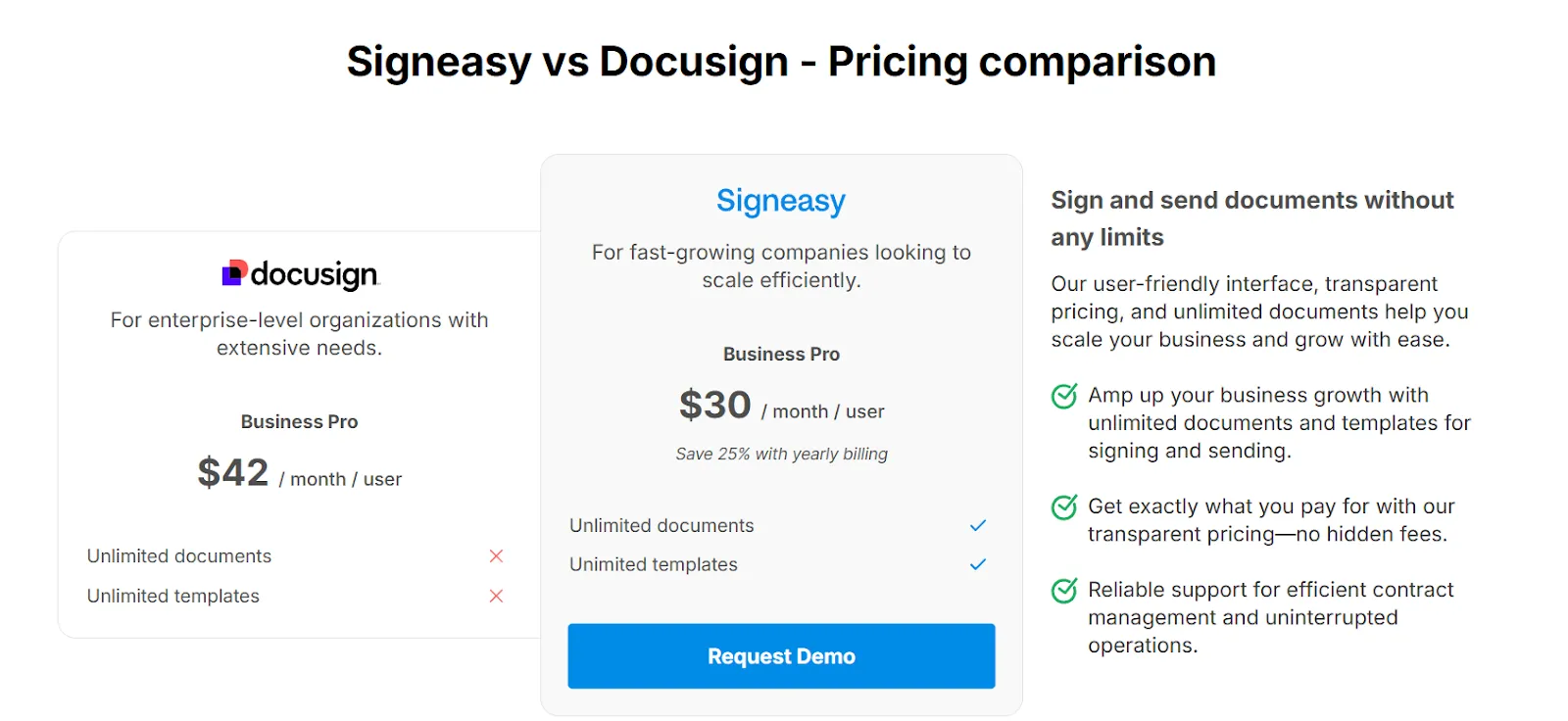
3. Transparent pricing with no hidden fees
What you see is what you pay.
Signeasy's pricing is straightforward, with no surprise charges for features that should be standard.
4. Reliable and native mobile apps
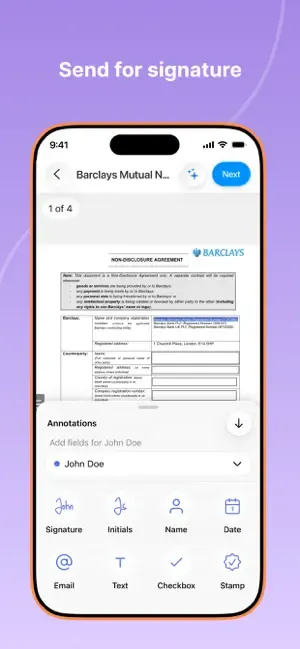
Signeasy offers native mobile apps for iOS, Android, and iPad, built from the ground up for mobile signing.
Features like offline signing and biometric authentication make it easy to close deals from anywhere, without the freezing, crashing, and sync issues that plague other platforms.
Source
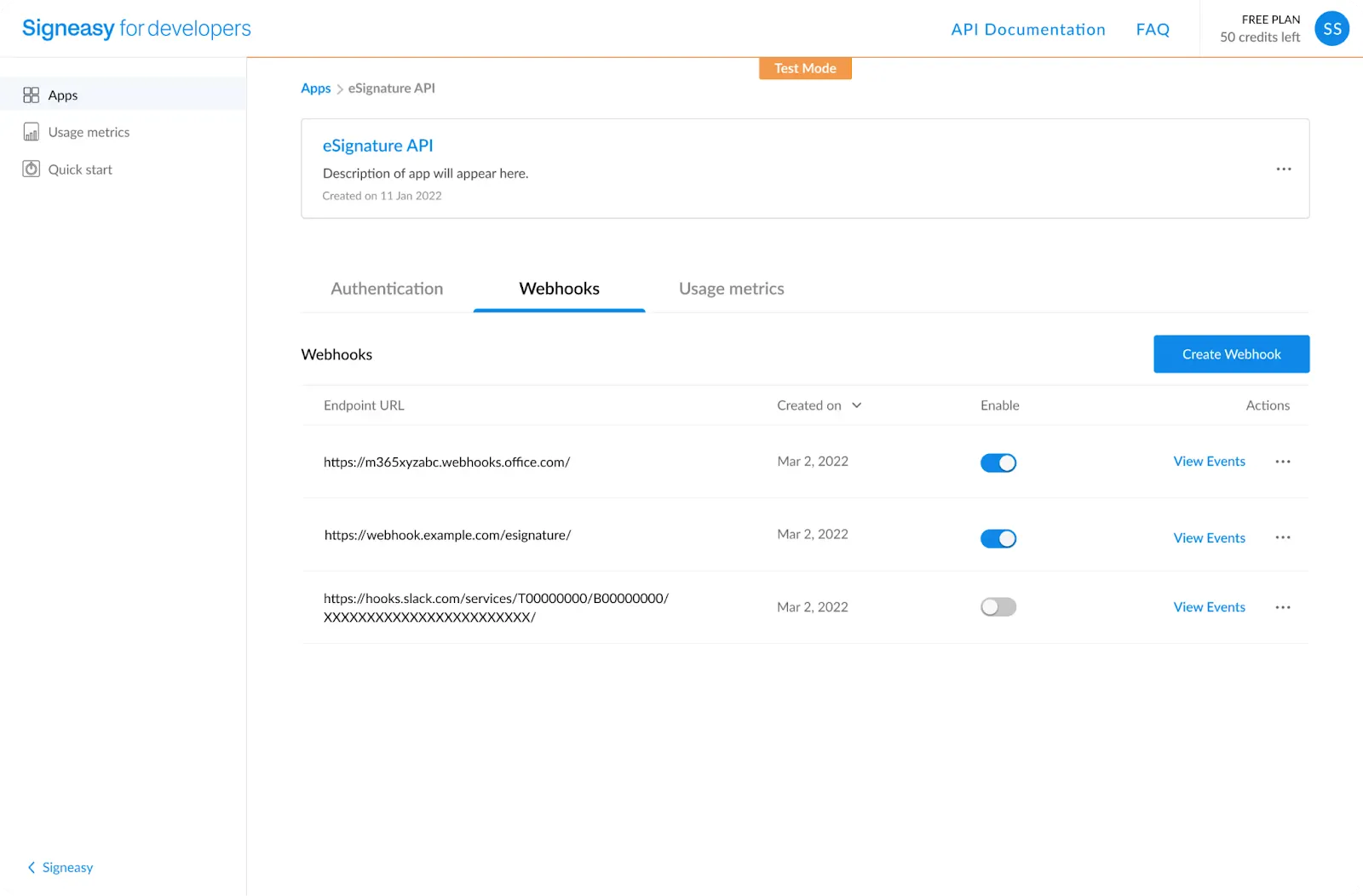
5. Developer-friendly API for custom workflows
For teams building custom workflows or embedding signing into their own applications, Signeasy's eSignature API provides flexibility without complexity.
7. AI-powered contract intelligence
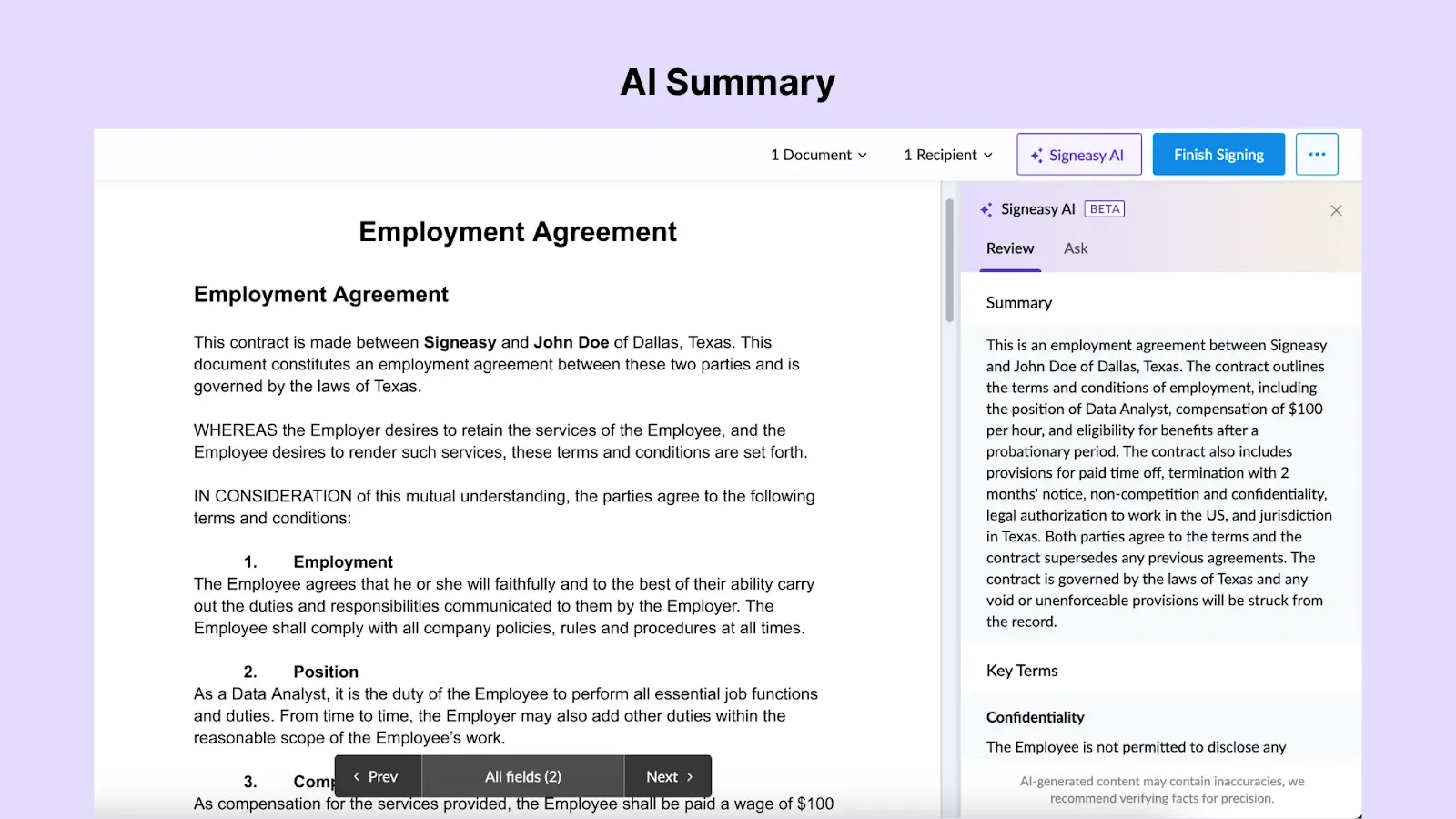
Signeasy’s AI-powered capabilities help teams work quicker:
- AI Summary: Generates concise overviews of long contracts, saving time on initial reviews.
- Key Terms Extraction: Automatically identifies critical clauses like payment terms and renewal dates, with links to locate them in context.
- Smart Q&A: Ask questions in natural language (e.g., "When is the renewal date?") and get answers pulled directly from the document.
- Contract Renewal Reminders: Detects upcoming dates and lets you set reminders with calendar integration for Google, Apple, or Outlook.
All AI features are available on mobile apps for on-the-go contract reviews, with a privacy-first architecture that ensures no document content is used to train AI models.
Stop troubleshooting and start signing with Signeasy
A good platform is invisible. Only when there are consistent issues do you end up noticing the tool. The platform ends up consuming more time than it saves.
This guide will help with occasional hiccups. But if your team is spending more time fixing than sending documents, it may be time to explore the best Docusign alternative for a simpler signing experience with unlimited documents, transparent pricing, reliable mobile apps, and support that actually supports.
Start a free trial to experience the difference.