

.png)


If your team already uses SharePoint to store and manage documents, adding eSignatures to the mix feels like the obvious next step. Getting there, though, involves more decisions than most teams expect: which tool to use, how much it costs, and whether it actually fits the way your team works day to day.
Microsoft offers a built-in eSignature feature, which costs $2 per request. But for teams sending dozens of contracts a month, that cost can turn into a large expense. There are also other ways to handle document signing in SharePoint, which are more affordable and offer better customization to enterprises.
This guide walks through:
- How SharePoint's native eSignature feature works and what it costs
- Where the native feature starts to fall short for growing teams
- How do third-party integrations like Signeasy, Docusign, and SignNow compare
- Which option fits your team's signing volume and workflow needs
What are your options for electronic signatures in SharePoint?
SharePoint supports eSignature in two ways. Microsoft offers a native eSignature feature built directly into the platform, and third-party integrations like Signeasy connect to SharePoint to handle the same workflow with a broader set of tools.
Both options let you sign documents in SharePoint without pulling files out of the platform. Where they differ is in cost structure, setup complexity, and how well they scale as your team's contract volume increases.
Microsoft's native feature requires no additional software. SharePoint integrations install as an add-in and bring templates and contract management into the same workflow.
Before deciding which option works for your team, it helps to understand exactly what you're working with. See the top SharePoint alternative options available now.
How SharePoint's native eSignature feature works
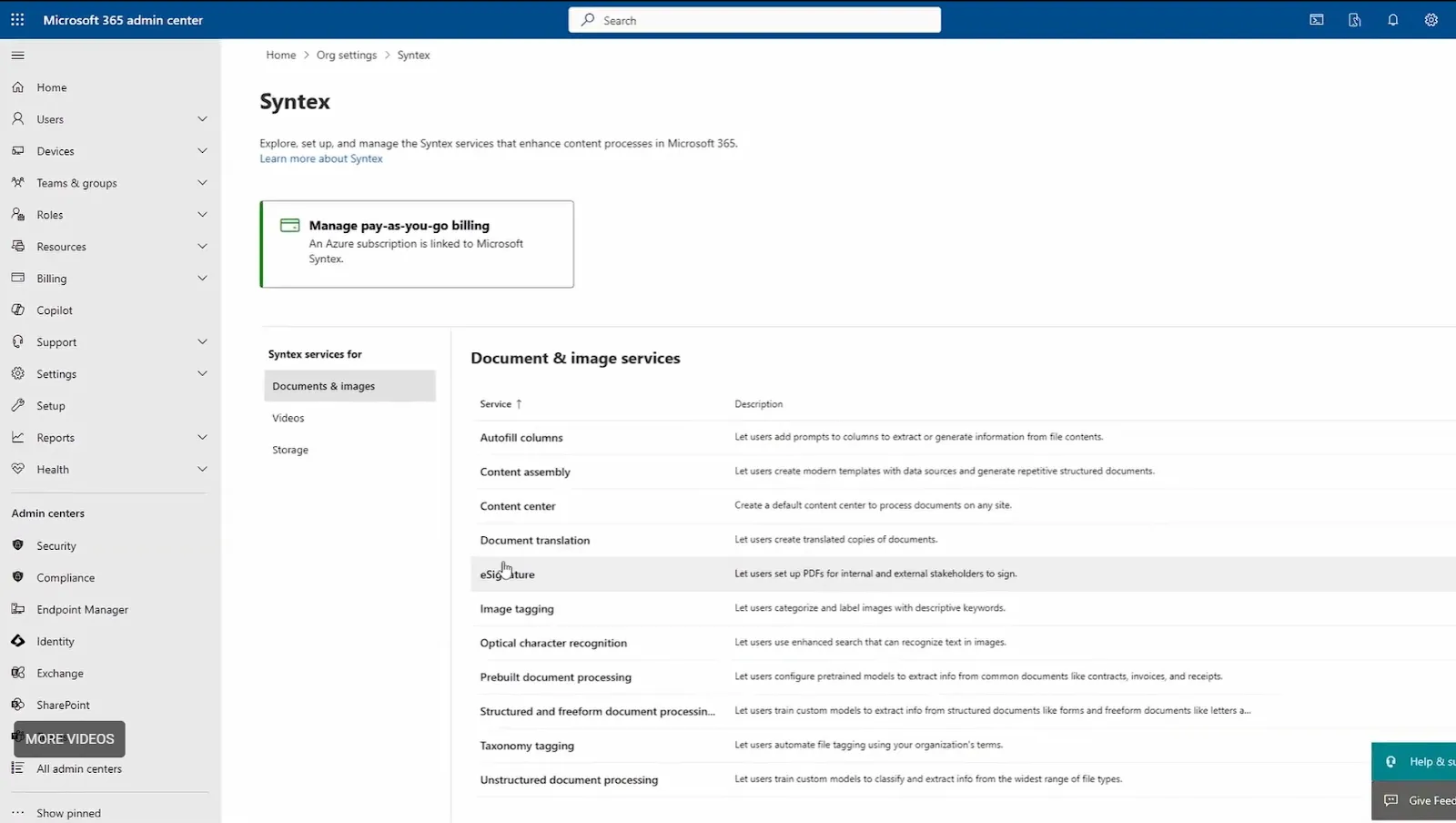
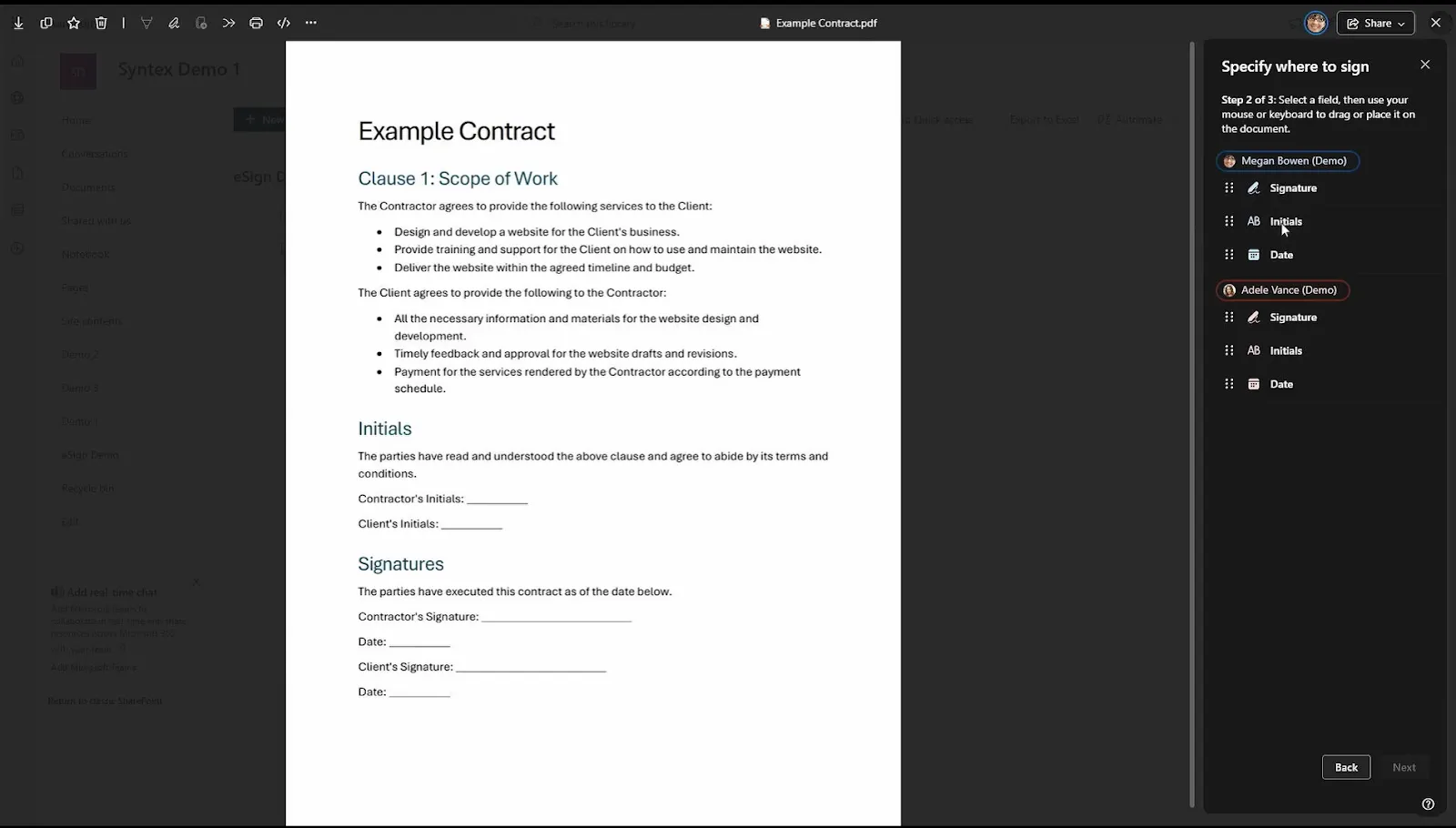
Microsoft's eSignature is built into SharePoint as a pay-as-you-go service. You can find it under the Syntex section of the Microsoft 365 admin center alongside other document processing features. Once an admin enables it through the Microsoft 365 admin center, users can initiate signature requests from PDF or Word files stored in a SharePoint library.
Source
The signing experience remains close to what it says on the packaging. Recipients type their name to sign and receive email notifications at each step of the signing process. Once all parties have signed, the completed document saves automatically back to the original SharePoint folder with an audit trail embedded.
A few things worth knowing before you start:
- Pricing runs $2 per request, billed through an Azure subscription
- Works with both PDF and Word files
- Available worldwide, except in Indonesia
- Microsoft is currently offering five free eSignature requests per month until June 2026
Source
You can also track request status through the Teams Approvals app, which keeps things inside the Microsoft 365 ecosystem. That means an HR manager running an onboarding workflow, for example, can check whether a contract has been signed directly from Microsoft Teams.
The next section walks you through the admin setup steps from start to finish.
How to set up and send eSignature requests in SharePoint
Getting eSignature running in SharePoint is a one-time admin task. Once it's configured, anyone on your team can send signature requests directly from a SharePoint library.
1. Admin setup
Start in the Microsoft 365 admin center. Go to Settings, then select Org settings. From there:
- Under Pay-as-you-go services, select the Settings tab
- Under Document and image services, select eSignature and enable it for your organization
- Link an Azure subscription to handle billing
- Choose whether eSignature is available across all SharePoint sites or specific ones only
- For teams that need to send requests to external signers, enable Microsoft Entra B2B integration separately based on your organization's requirements
2. Sending your first request
Once setup is complete, open a PDF or Word file from your SharePoint library. Then:
- Select the eSignature option from the document menu
- Add recipients and assign signature fields to each one
- Include an optional message and review before sending
- Recipients receive an email with a signing link and can sign from any device
- Once all parties have signed, the completed document saves automatically to the original folder
It works, yes. But the limitations show up when you look at what it costs and who it's built for.
What are the limitations of SharePoint's built-in eSignature?
Microsoft SharePoint’s native eSignature feature works well for occasional use. At any real volume, the cost structure becomes a problem worth examining before you commit.
At $2 per request, a team sending 100 documents a month is spending $200 every month. That figure doesn't account for cancelled or declined requests, which still count toward your bill. There's no bulk pricing, no monthly cap, and no way to offset the cost through a flat subscription.
Pricing aside, the feature has some hard boundaries for teams with more complex workflows:
- No reusable templates, so every document starts from scratch
- PDFs are capped at 10 MB and 500 pages
- Bulk sending is not supported
- No built-in reminders for pending signatures
- No dedicated contract management dashboard for tracking requests at scale
- External signers require Microsoft Entra B2B, which adds a separate admin configuration layer
For teams doing light, infrequent document signing, those constraints may not register. But for teams running high volumes of eSignature SharePoint workflows, the time and money spent working around those limits start to outweigh any savings the native feature offered.
The native option covers the basics. It was not built to replace a dedicated eSignature solution.
Third-party eSignature integrations for SharePoint
Microsoft's native eSignature feature is one way to handle document signing inside SharePoint. For teams that need more control over their signing workflows, several third-party integrations connect directly to SharePoint through Microsoft AppSource and handle the same process with a broader set of tools.
Signeasy, Docusign, and SignNow are the most widely used among them. Each installs as a SharePoint add-in and keeps signed documents stored inside the platform. Where they differ is in pricing, workflow depth, and how well they hold up under daily, high-volume use.
Note on Adobe Acrobat Sign
Adobe Sign previously offered a SharePoint integration but has since discontinued it. Teams that still use Adobe Sign alongside SharePoint now rely on workarounds through Power Automate, which adds complexity to a workflow that should be straightforward.
A side-by-side look at all four options makes the differences easier to evaluate.
Signeasy stands out across that table for a reason, and the next section covers exactly why.
How Signeasy's SharePoint integration simplifies document signing
Signeasy connects directly to SharePoint, so the signing workflow stays inside the platform your team already uses. The sections below cover how it works and what it brings to the table that the native feature doesn't.
1. Getting started with Signeasy for SharePoint
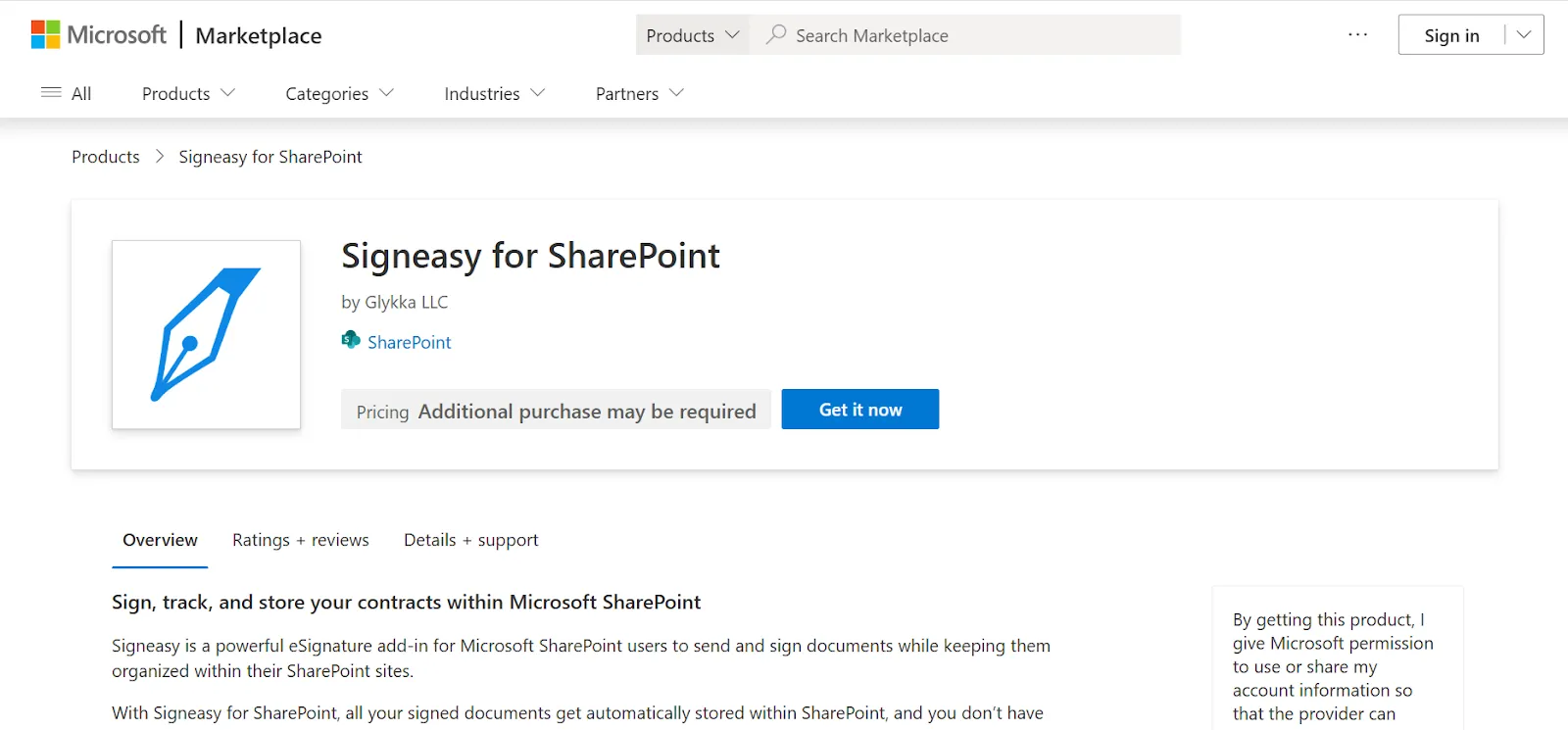
Installing the Signeasy add-in from Microsoft Marketplace takes a few minutes. Once connected, it appears inside your SharePoint document library and is ready to use without any complex configuration on your end.
Source
2. How document signing works with Signeasy
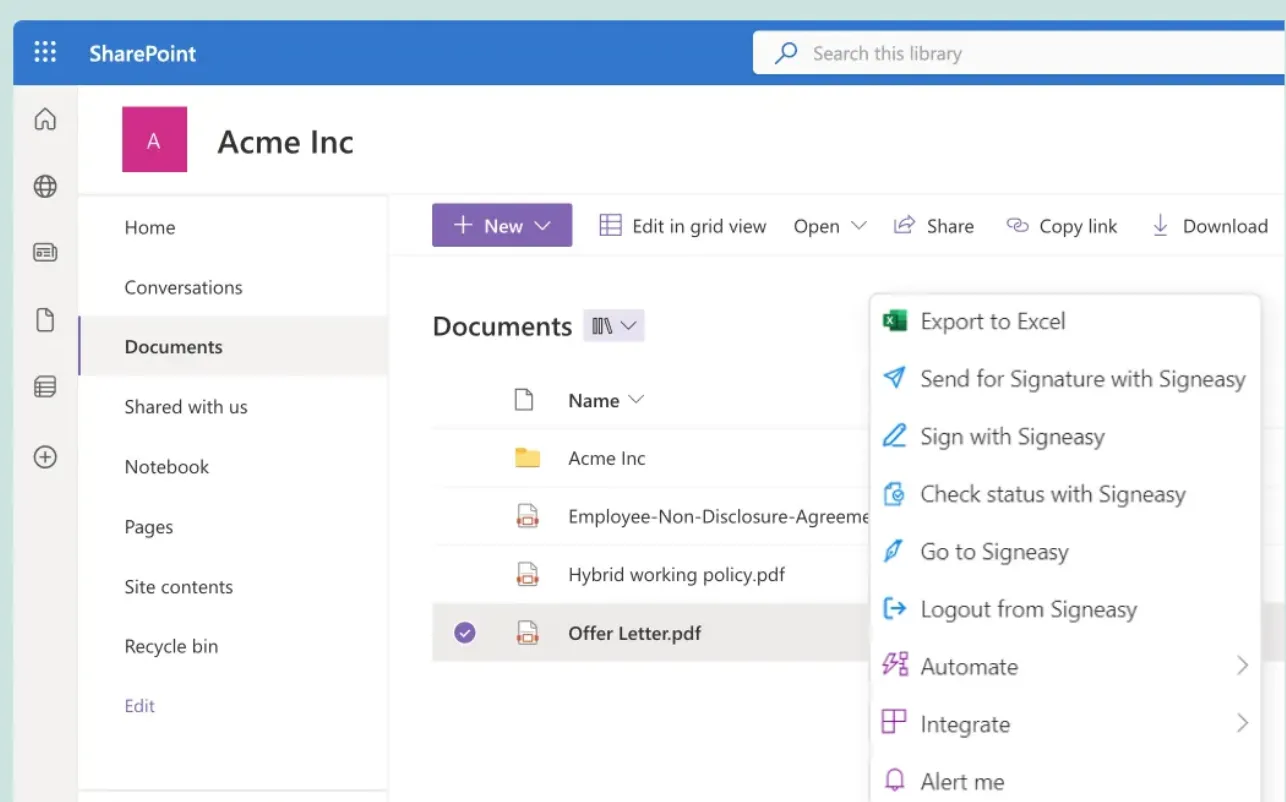
Open any PDF or Word file from your SharePoint library and select Signeasy. Add recipients, assign signature fields, and include an optional message before sending. Recipients receive an email with a signing link and can sign from any device without creating an account.
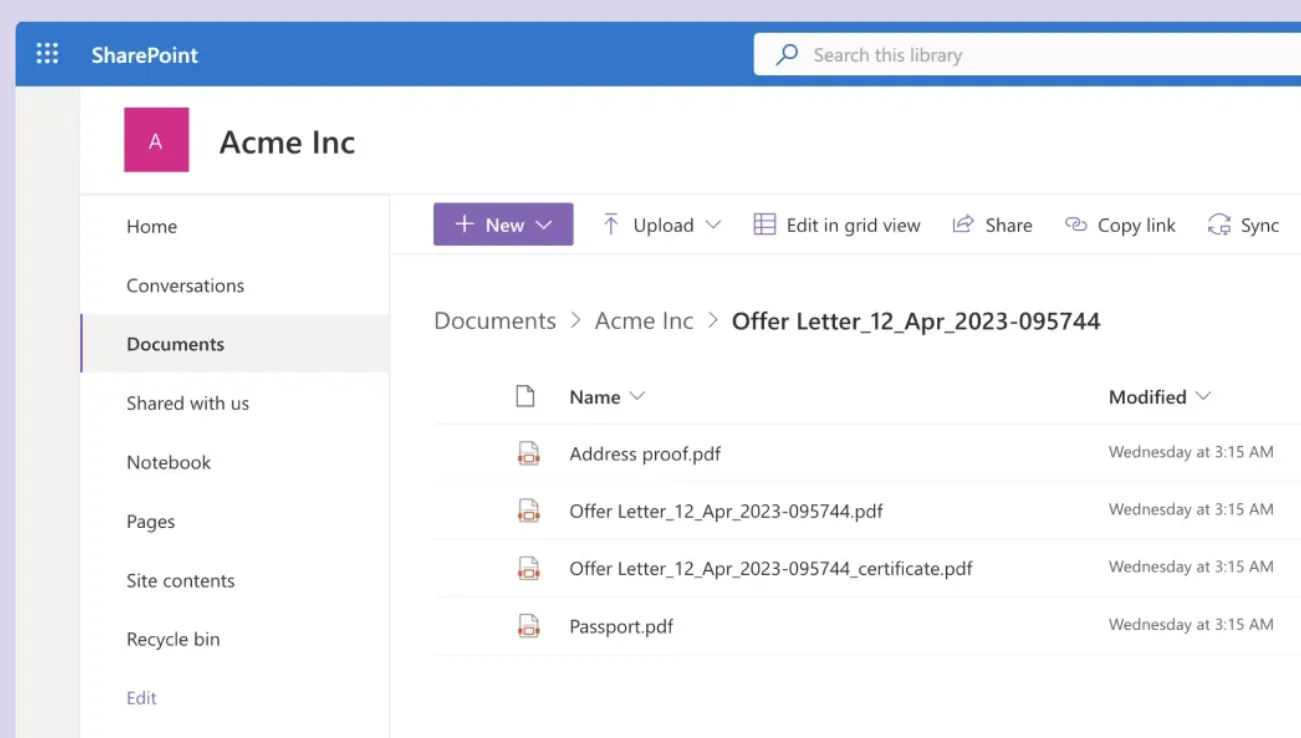
Once signed, the completed document saves automatically back to SharePoint with a full audit trail attached.
You can also sign your PDF online with Signeasy.
3. What Signeasy's SharePoint eSignature integration includes
The SharePoint eSignature integration with Signeasy is built for teams that sign documents regularly, not occasionally. Key features include:
- Reusable templates for contracts, NDAs, and onboarding forms
- Bulk send for high-volume workflows
- Approval workflows with role-based permissions
- Real-time tracking and automated reminders for pending signatures
- An intelligent contract repository for post-signature document management
- AI-powered features, including contract summaries, key terms extraction, and Smart Q&A
- SOC 2, HIPAA compliance, two-factor authentication, and a trust seal on every signed document
- Full integration with Microsoft Teams and Outlook, keeping eSignature workflows inside the broader Microsoft 365 ecosystem
4. Signeasy eSignature for SharePoint cost
Signeasy runs on flat-rate pricing billed annually:
- Business plan starts at $20/month per user with unlimited sends
- Business Pro runs $30/month per user and adds advanced workflow features
- Build Your Plan is available for enterprise teams with custom signing needs
A team sending 20 documents a month pays Microsoft $40. With Signeasy, that same team pays $20 per user and sends as many as they need.
So where does that leave you?
Make the switch to Signeasy for SharePoint
The right choice depends on how often your team actually signs documents and what happens after.
Microsoft's native eSignature works well for teams with low, infrequent signing needs. If you're sending a handful of documents a month and don't need templates or workflow automation, the built-in option gets the job done.
For teams where contract signing is a regular part of the workday, the per-request cost adds up and the feature gaps become harder to work around. Signeasy's SharePoint integration covers the full workflow — from sending to tracking to post-signature storage — at a predictable monthly cost.
If that sounds like your team, you can install the Signeasy add-in directly from Microsoft Marketplace or Request Demo to see it in action.