

.png)


PDFs act as the final format for teams, whether it’s HR onboarding documents, sales proposals, IT requests, or vendor contracts for procurement. They act as the glue that keeps internal and cross-functional workflows connected.
But PDFs don’t stay static.
A contract may need additional clauses added, or a proposal may require updated pricing pages, or blank pages for signatures. Tasks like merging PDFs, adding pages to a PDF, inserting blank pages, and signing documents turn a standalone file into part of a larger workflow involving multiple stakeholders.
You or your team may switch between tools, deal with formatting issues, face file size limits, or encounter paywalls when trying to download the final version.
This article on how to add pages to a PDF covers practical ways to handle these situations. It covers:
- Why would you need to add pages to a PDF?
- Ways to add pages to a PDF online
- How to add a blank page to a PDF
- How to combine multiple PDFs into one document
- Free methods to add pages to a PDF without paid software
- Tips for organizing and managing PDF pages after merging
- How Signeasy helps you manage documents after building your PDF
Let’s get started.
Why would you need to add pages to a PDF?
Adding pages to a PDF helps maintain document continuity while supporting collaboration across teams and stakeholders.
Let's look at a few use cases where adding pages becomes necessary:
1. Updating contracts before signing
Legal, sales, or procurement teams often revise contracts based on feedback, which includes adding updated clauses, revised terms, or clarification pages before final approval.
2. Adding annexures or attachments
Many agreements include annexures, schedules, or supporting documents. These are often prepared separately and then inserted into the main PDF to create a single, complete file for review or signing.
3. Combining invoices
Finance teams often need to review multiple invoices or supporting documents together. This is common across industries like education, construction, and technology, where billing is spread across multiple files or vendors.
By merging or adding pages to a PDF, they can consolidate documents into one file for easier tracking and reconciliation.
By merging or adding pages to a PDF, they can consolidate documents into one file for easier tracking and reconciliation.
4. Adding cover pages
Cover pages are often used to provide context, summaries, or document metadata such as project names, client details, or version information. Adding a cover page to a PDF helps improve clarity and presentation before sharing internally or externally.
5. Correcting missing pages
Sometimes documents are incomplete due to export errors, scanning issues, or accidental omissions. In such cases, inserting the missing pages into the PDF ensures the document is complete and ready for distribution or approval.
Whichever the use case, users need ways to add pages to PDF online.
How to add pages to a PDF online
Adding pages to a PDF online lets you update a document without installing software. Most tools follow a similar flow, which makes the process easy even for first-time users.
1. Using online PDF tools
Here’s how to add pages to a PDF online step by step:
- Step 1: Upload your original PDF to the tool
- Step 2: Upload the file you want to insert into the PDF
- Step 3: Drag and arrange pages in the correct order
- Step 4: Click “merge” or “insert” to combine files
- Step 5: Download the updated document
Online tools work well for quick editing, but most free tools focus on basic functionality, so they may not support advanced workflow controls or enterprise compliance needs.
If you prefer a structured interface, tools like Adobe Acrobat provide a more guided experience for inserting pages.
2. Using Adobe Acrobat Online:
This tool gives you more control over where pages are inserted, especially when working with multiple files. Here are the steps:
2A. Click the Select a file button, or drag and drop a PDF into the drop zone
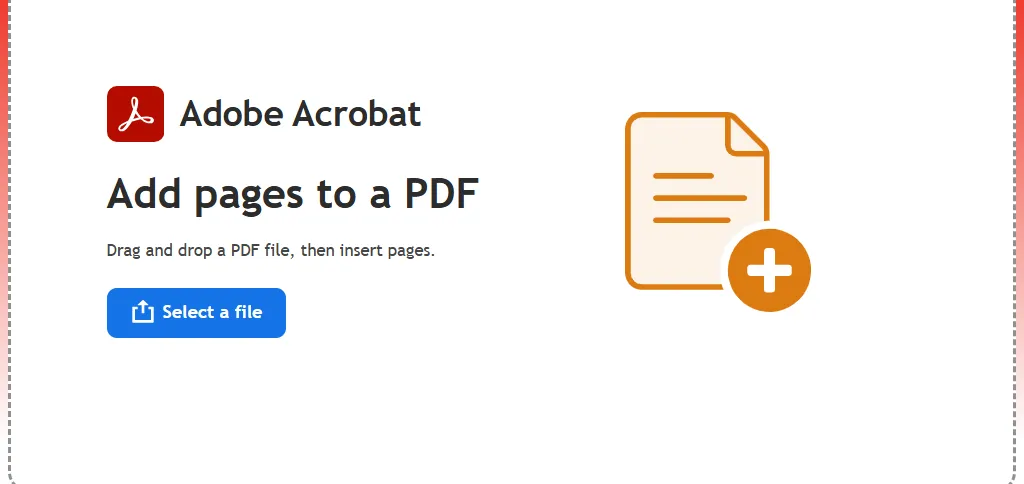
2B. Select the PDF document to which you want to add pages
2C. After Acrobat uploads the PDF file, sign in
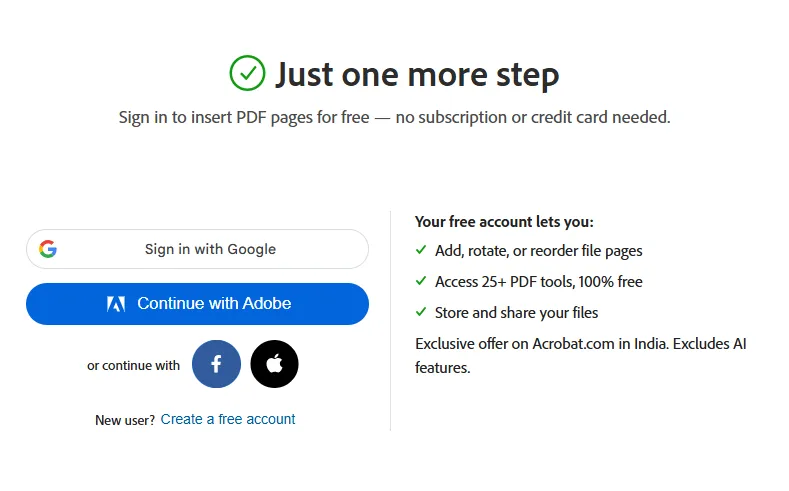
2D. Select an insertion point before or after the page thumbnail where you want to insert pages
2E. Navigate to the PDF file or files you want to add
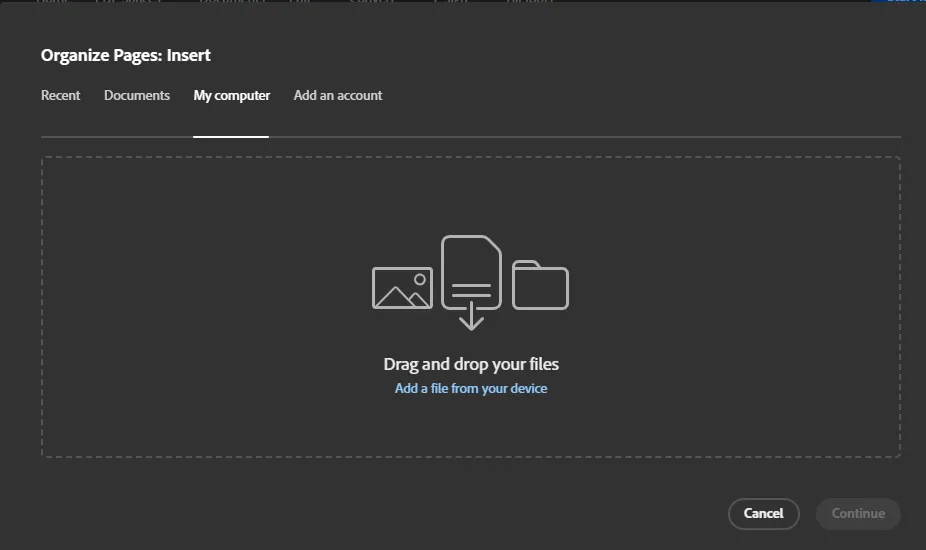
2F. Organize individual pages as desired. Highlight one or more page thumbnails; then drag and drop to reorder them
2G. Click Save to save your new PDF file. You can download the new document or get a link to share it
3. Using Preview on Mac
3A. Go to the Preview app on your Mac
3B. Open the PDF you want to change
Do any of the following:
- Add a page to a PDF: Select the page you want to appear before the new page, choose Edit > Insert, then choose Page from File or Blank Page.
- Delete a page from a PDF: Choose View > Thumbnails or View > Contact Sheet, select the page or pages to delete, then press the Delete key on your keyboard (or choose Edit > Delete)
When you delete a page from a PDF, all the annotations on the page are removed as well.
- Move pages in a PDF: Choose View > Thumbnails or View > Contact Sheet, then drag the pages to their new location
- Move a page from one PDF to another: In each PDF, choose View > Thumbnails or View > Contact Sheet, then drag thumbnail images from one PDF to the other.
Online tools work well when you need to quickly insert pages into a PDF or merge PDF files online without setup. However, limitations appear when documents are part of a business process. A sales rep may combine PDFs online for free, but there is no version control, audit trail, or clear ownership. The wrong version can get sent or signed, which leads to delays.
In regulated use cases, this creates risk. Contracts and financial documents need traceability and controlled access. Here’s when tools like Signeasy address this by adding audit trails, document tracking, and secure signing, so your workflow stays structured after you build the PDF.
Once you know how to insert pages, the next step is structuring your document properly, which includes adding spacing or combining multiple files into one clean, shareable PDF.
Whichever the use case, users need ways to add pages to PDF online.
How to add a blank page to a PDF
Teams often add blank pages for signature spacing, section breaks, or formatting consistency in contracts and reports.
Here’s how to do so using online tools.
1. Online method (tools like iLovePDF, Adobe Acrobat, PDFGear)
You can add a blank page to a PDF online using tools like iLovePDF, PDFgear, Adobe Acrobat Online, or Smallpdf with five simple steps:
- Upload your PDF
- Choose “Add page” or “Insert blank page”
- Select where you want the blank page (start, middle, or end)
- Apply changes
- Download the updated file
Free tools work well for basic edits, though some may limit file size or advanced layout control.
2. Mac Preview method
If you are using macOS, Preview provides a built-in option:
- Open your PDF in Preview
- Go to the page thumbnail view
- Right-click where you want the new page
- Select “New Page” or insert a blank page via edit options
- Save the document
This method works well for quick offline edits without uploading files.
How to combine multiple PDFs into one document
- Combine PDFs online (free method)
Combining files helps you keep everything in one place. It is useful when dealing with contracts, reports, or multi-part documents.
You can merge PDF files online using tools like iLovePDF or Smallpdf with these simple steps.
1a. Upload multiple PDF files
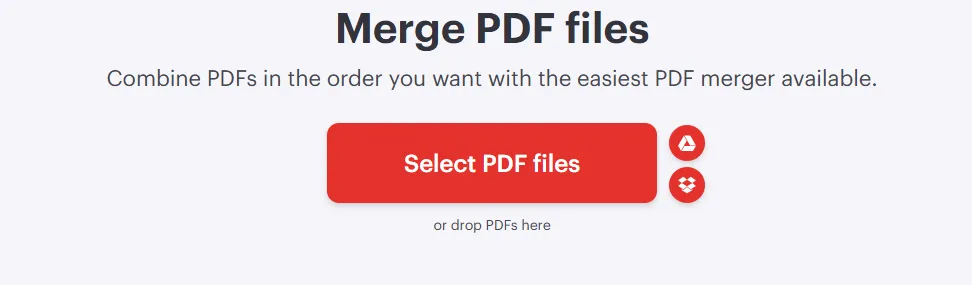
1b. Arrange them in the correct order

1c. Click “Merge”
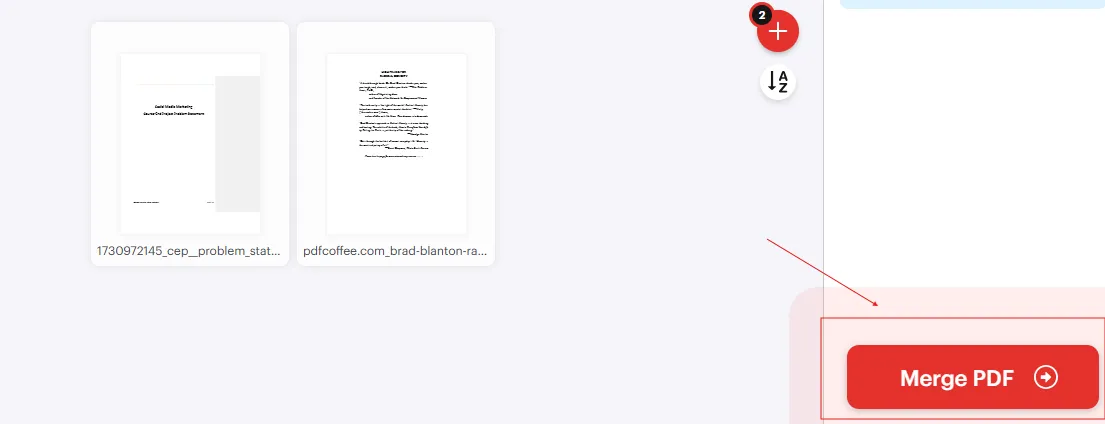
1d. Download the combined document

Many tools allow free merging, but they often limit file size or the number of uploads.
- Combine PDFs using desktop software (Adobe, Preview)
For a more guided approach, Adobe Acrobat Online provides a structured workflow.
2a. Using Adobe Acrobat
- Upload the files you want to combine
- Drag and arrange them in order
- Click “Merge”
- Download the merged PDF
2b. Using Mac Preview
You can also combine PDFs using Preview:
- Go to the Preview app on your Mac
- Open the PDFs you want to combine
- In each open PDF, choose View > Thumbnails to display the page thumbnails in the sidebar
- Drag the thumbnails you want to add from the sidebar of one PDF to the sidebar of the other PDF. If the thumbnails you want aren’t next to one another, you can Command-click to select each one.
- You can add pages to the end of the document or between pages in a document. Drag thumbnails to reorder them.
When merging large documents, check file size limits and page restrictions.
Tip: To add an entire PDF to another PDF, drag the PDF icon from the Finder to the sidebar of an open document.
Tips for organizing and managing PDF pages after merging
Merging PDFs is easy, but ensuring the final document is clean, readable, and ready to share? The result can be a disorganized, hard-to-share file.
You might end up with distorted formatting, unclear text, or a file that’s too large to send.
Here are ways to avoid this:
1. Rename files clearly
After you merge PDF files online, use clear, descriptive names like Client-Agreement-March-2026.pdf so reviewers know exactly what they're opening.
2. Use consistent page numbering
When you combine PDFs online, page numbers can reset or disappear. Add consistent numbering so readers can follow the document easily, especially useful for contracts or reports that need referencing.
3. Compress large PDFs
Merged files with images or scanned pages can get heavy. Large files are harder to upload, share, or even open on some devices. Use compression tools to reduce size without losing readability.
4. Check formatting
Depending on the document type, the fonts, margins, or layouts vary. After merging, scan through the document, and look for broken layouts, misaligned text, or overlapping elements.
5. Verify digital signatures
If you edit a signed document — even something as simple as adding pages to a PDF — it can invalidate the electronic signature. That means the document may no longer be legally reliable.
In such cases, tools like Signeasy help. Instead of editing signed PDFs, you can prepare your document first, then send it for signing with a clear audit trail. It keeps signatures valid, tracks every action, and ensures your document stays compliant.
How Signeasy helps you manage documents after building your PDF
Once you add pages to a PDF or merge PDF files online, the next step is often signing or sharing the document.
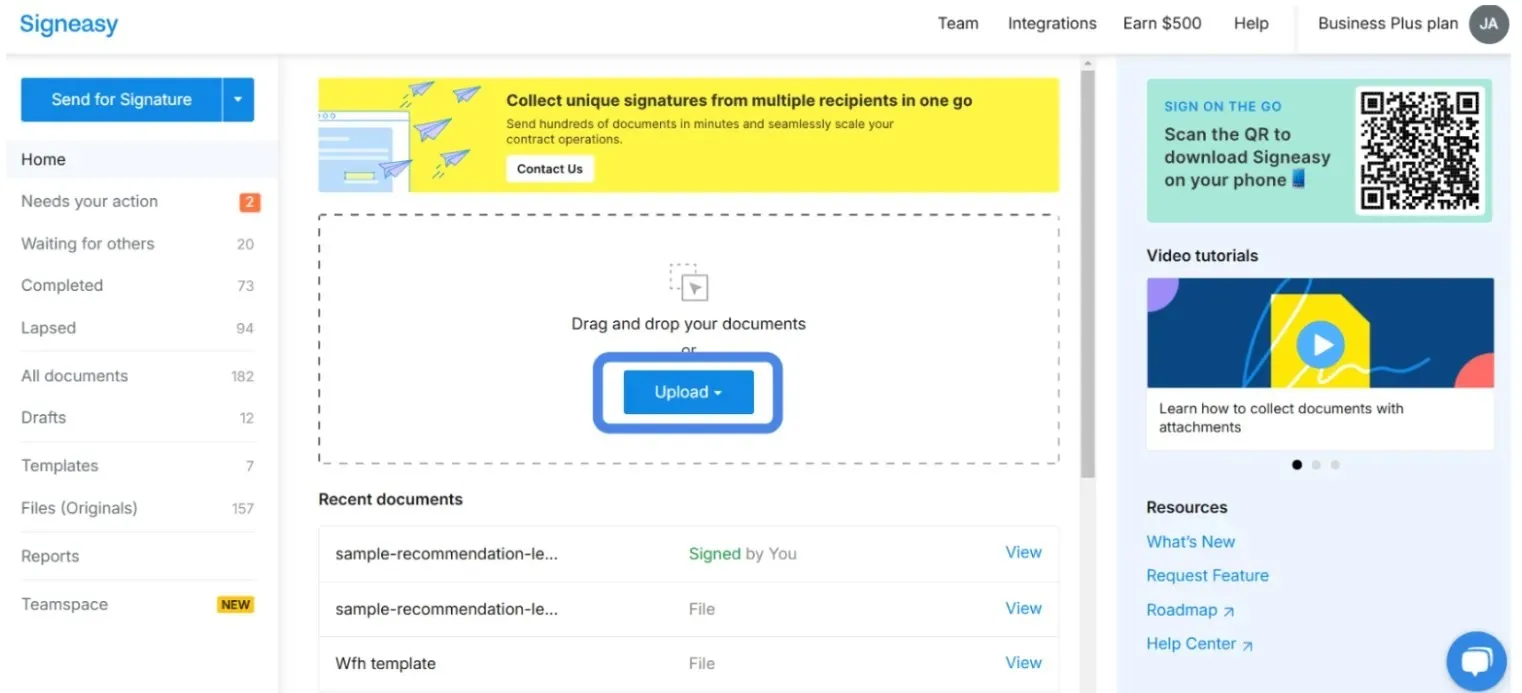
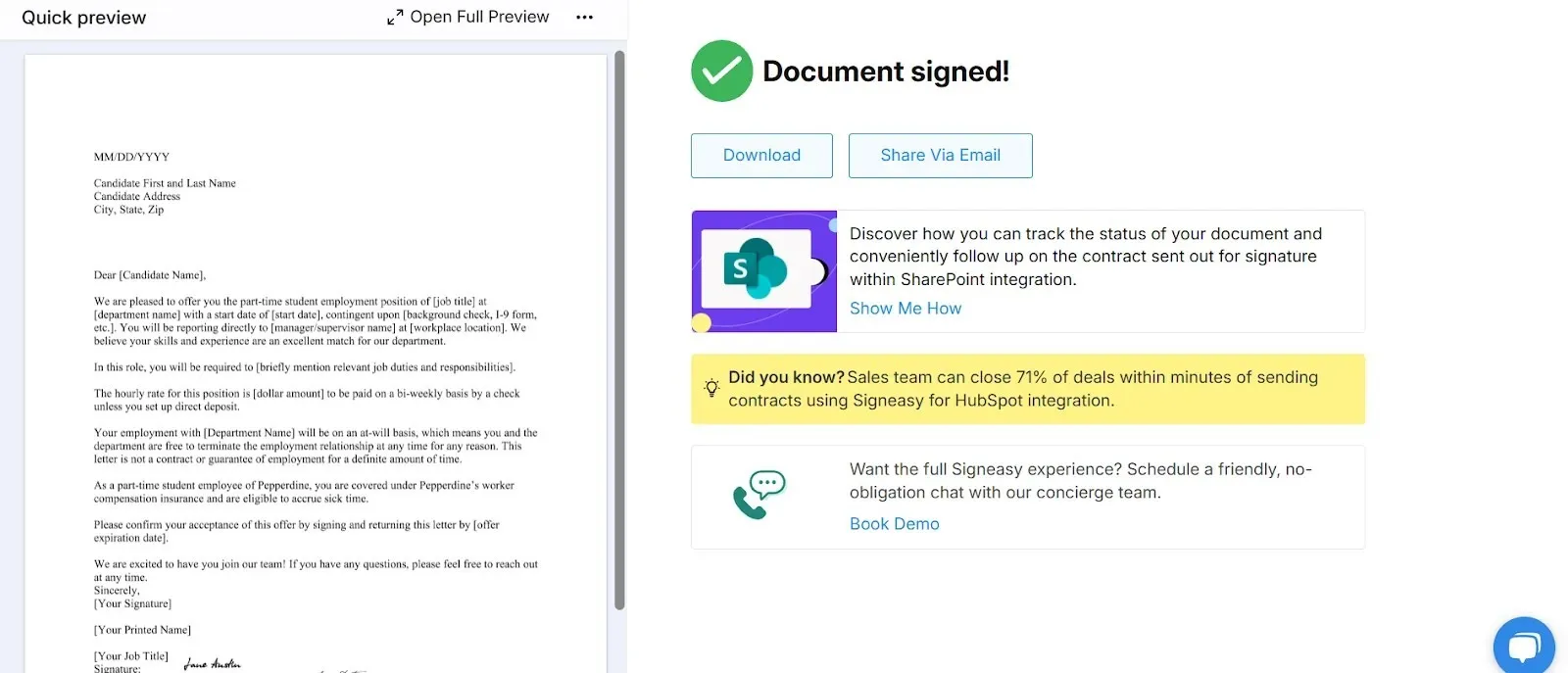
Signeasy helps you sign pdf online for free in five easy steps:
- Click on ‘Upload File’ or ‘Drag and Drop’ your file into Signeasy
- Add your email address and click ‘Start Signing’
- Draw, type, or upload an image of your signature
- Finish signing and download your PDF instantly
- Verify your email address with a secret code
If your business regularly handles contracts, proposals, IT, or HR documents, you benefit from a solution that streamlines the entire document lifecycle, from creation to tracking and storage.
Signeasy does exactly that. Its intuitive interface makes it easy for your teams to get started quickly. Plus, features like audit trails, real-time document tracking, and compliance-ready contract workflows ensure documents are securely signed, shared, and tracked.
Signeasy is built for teams that want structure and visibility without the complexity of heavy CLM systems. Request Demo today!