



Managing multiple PDFs can be frustrating and time-consuming. Merging them into one file keeps everything organized and saves you from digging through folders.
If you’re a Mac user, you already have what you need. Preview and Finder — both built in — can merge PDFs in about 30 seconds, making it easy to consolidate reports, forms, or contracts into one clean document.
But merging is often only the first step. While macOS includes built-in tools for adding basic signatures, these features are designed for individual use, not business workflows. They don’t provide audit trails, signer authentication, or approval tracking.
As a result, teams still end up exporting files, sharing them over email, and manually following up to confirm who signed and when. Each workaround adds friction and slows progress.
Signeasy removes that extra layer of work by combining PDF merging and signature collection in one platform, so documents move from preparation to completion without switching tools.
In this guide, you'll learn:
- How to merge PDFs using Preview
- How to combine files with Finder's Quick Actions
- When to use third-party apps for advanced features
- How to merge PDFs using Terminal for automation
- How to combine and collect signatures with Signeasy
Different methods to combine PDF files on a Mac
Mac users have several reliable options for combining PDF files. Each method suits different situations — some work best for quick merges, while others offer more control over page arrangement and file organization.
Quick comparison table
1. Using Preview (built-in Mac application)
Preview is macOS's default PDF viewer and editor, and it includes powerful features for combining documents. This method requires no additional software and works entirely offline.
1a. Step-by-step process:
- Step 1: Open the first PDF in Preview by double-clicking the file.
- Step 2: Display the thumbnail sidebar by clicking ‘View’ in the menu bar, then selecting ‘Thumbnails’.
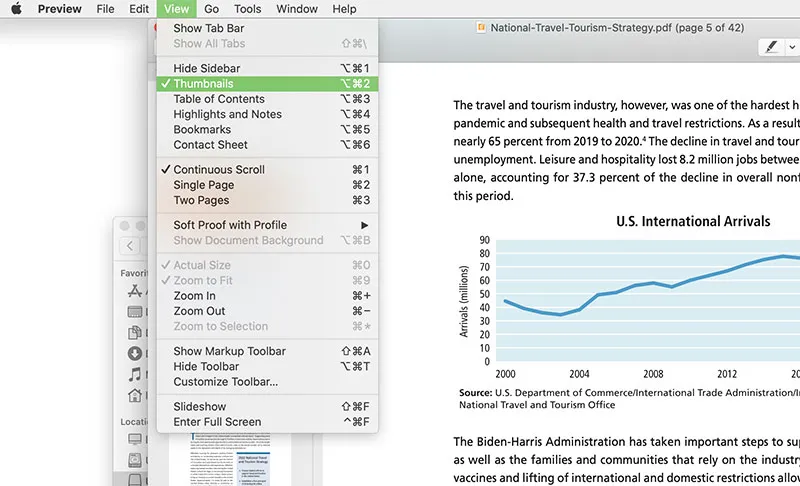
- Step 3: Drag additional PDFs into the sidebar from Finder. You can drop entire PDF files between existing pages or at the end of the document. Preview automatically integrates the new pages.
- Step 4: Arrange pages in your preferred order by dragging thumbnails up or down within the sidebar. This gives you complete control over the final document structure.
- Step 5: Delete unwanted pages by selecting thumbnails and pressing the ‘Delete’ key. This is useful when you need specific pages from longer documents.
- Step 6: Go to ‘File’ and choose ‘Export as PDF’ to save the combined file.
1b. Best for:
- Legal contracts with multiple exhibits
- Academic papers with appendices
- Proposals with case studies attached
1c. Advantages of Preview:
- Completely free and pre-installed on every Mac
- Works offline with no internet connection required
- Provides visual control through thumbnail previews
- Handles both combining and basic editing tasks
- Saves directly to your preferred location
File size limit: 500MB (performance degrades with larger files; consider splitting them first)
Preview is the best option when you need a simple, built-in tool that handles PDF merging and basic edits without extra apps.
2. Using Finder's Quick actions
Finder offers an even faster approach for straightforward PDF combinations. This method works best when you want to merge files without opening them first.
2a. Step-by-step process:
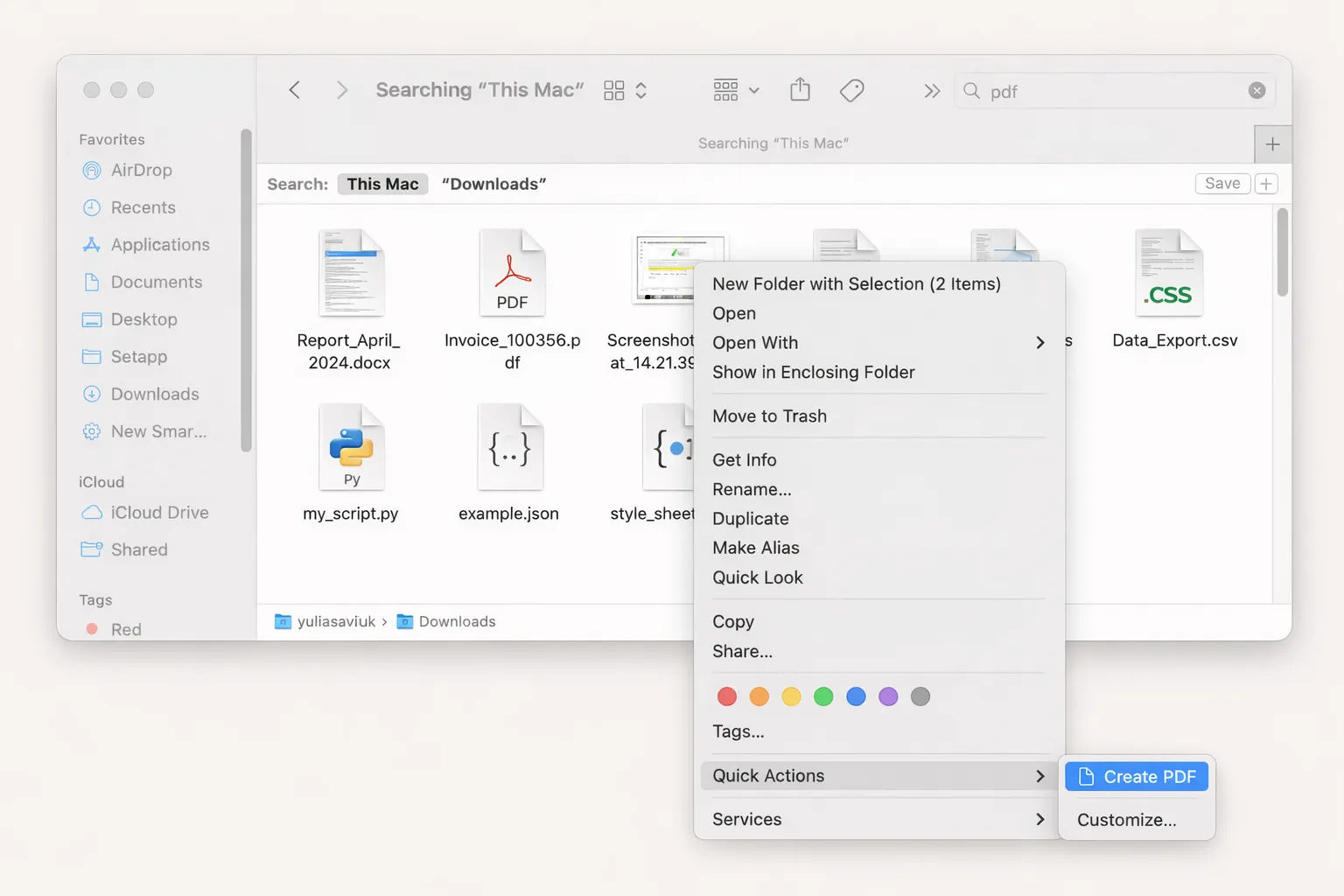
- Step 1: Select the PDF files you want to combine in Finder. Hold the command key while clicking each file to select multiple documents.
- Step 2: Right-click on the selected files to open the context menu.
- Step 3: Choose Quick Actions and then create PDF from the menu. Some Mac versions may show this as "Combine PDFs" depending on your macOS version.
- Step 4: Finder creates a new merged PDF in the same folder as your original files. The combined document typically uses a generic name like "Merged PDF" or includes the date. Rename the file immediately to something descriptive so you can identify it later.
Important: Finder merges files alphabetically by filename. To control the order, rename your files with numbered prefixes (01-filename.pdf, 02-filename.pdf) before merging.
2b. Best For
- Expense reports + receipts
- Monthly statement consolidation
- Quick archiving of related documents
- Files where alphabetical order works
File size limit: 100MB total (performance drops with larger files)
Finder is all about speed when you don't need visual editing.
3. Using third-party Mac applications
Several Mac applications specialize in PDF management and extend beyond basic merging. PDF Expert, PDFpen, and Adobe Acrobat combine documents while offering capabilities that Preview and Finder don't include.
3a. When to use third-party apps:
- You regularly work with scanned documents that need OCR (text recognition)
- Your PDFs require text editing, not just page arrangement
- You process large batches of documents with similar workflows
- You need form filling, redaction, or advanced annotation tools
- Your organization already uses Adobe Acrobat or similar software
3b. Common features in third-party apps:
- Drag-and-drop interfaces with enhanced visual controls
- Batch processing for multiple merge operations
- Advanced editing tools like text editing and annotation
- OCR (Optical Character Recognition) for scanned documents
- Form filling and digital signature capabilities
3c. Adobe Acrobat approach:
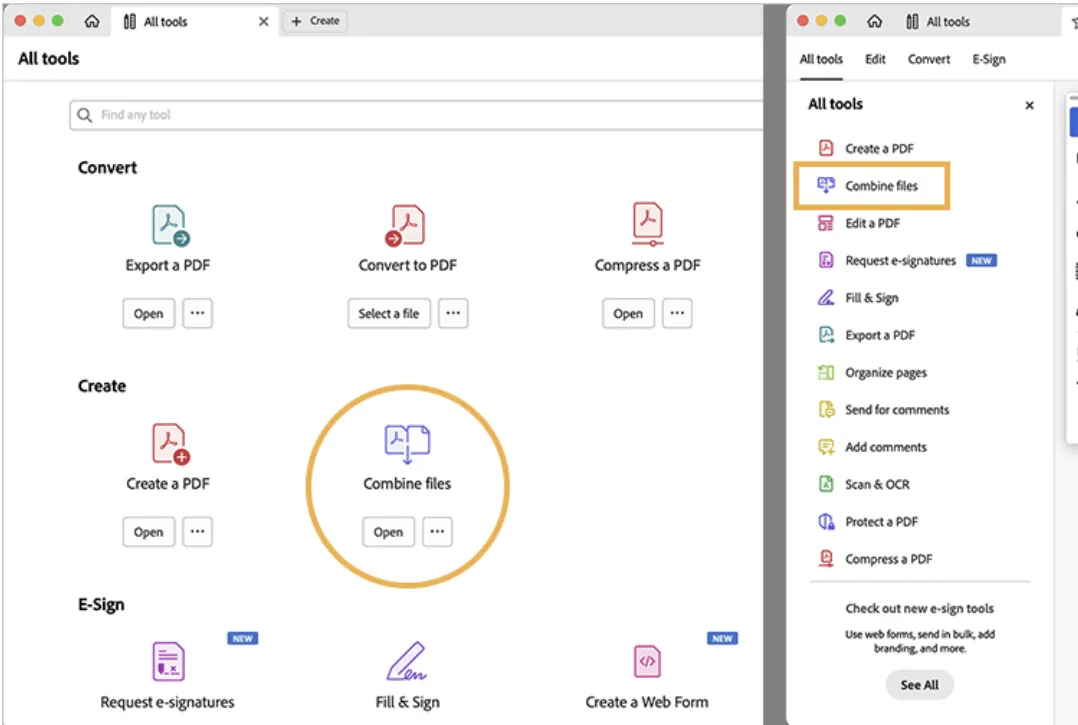
- Launch Adobe Acrobat and select “Tools” from the menu.
- Click “Combine Files” from the available tools.
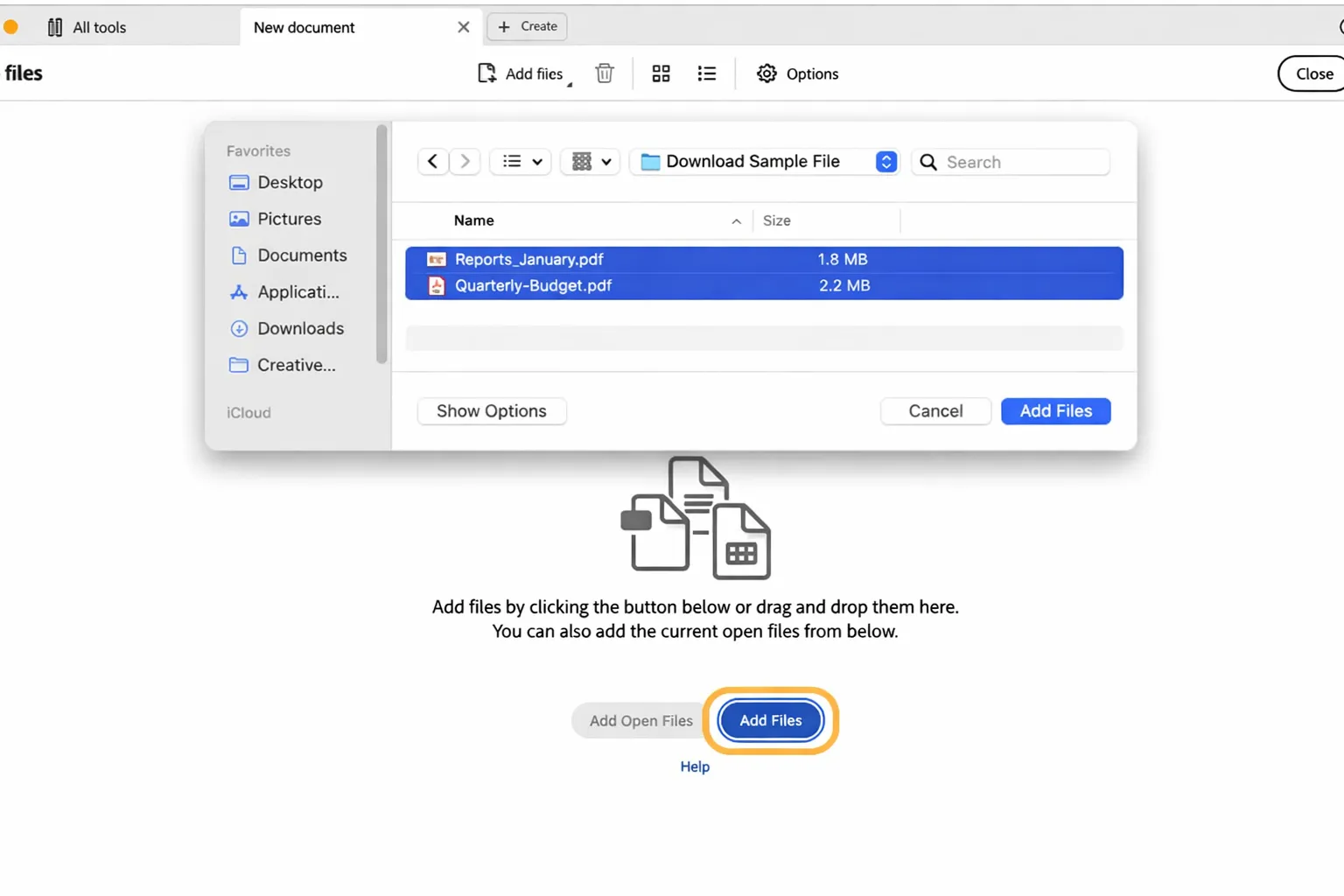
- Add your PDF files by clicking "Add Files" and selecting documents from your Mac.
- Arrange files by dragging them into your preferred order in the preview panel.”
- Click “Combine” to merge the files. Acrobat processes the documents and creates your combined PDF.
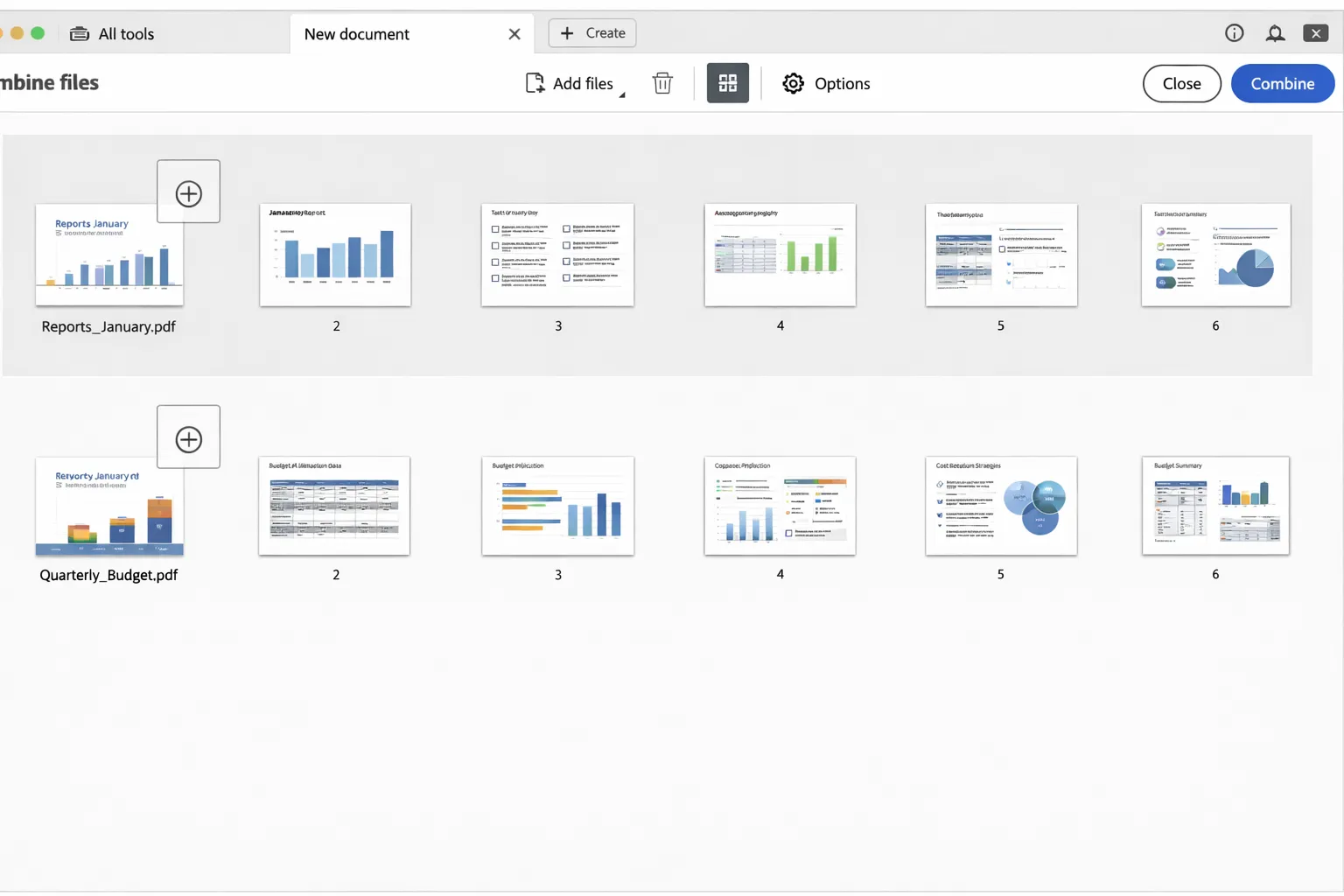
- Save the result to your chosen location.
3d. Trade-offs with third-party software:
- Most offer free trials but require paid subscriptions for continued use
- They provide professional-grade features beyond basic combining
- Learning curves vary depending on the application's complexity
- Some tools emphasize speed while others focus on editing capabilities
File size limitations: Varies
Third-party tools are helpful when your merging process includes editing, annotations, or intensive document handling.
4. Online PDF combining tools
Browser-based PDF combiners work across all devices and platforms. These tools require no installation and process files through web interfaces.
4a. General steps for online tools:
- Step 1: Navigate to the PDF combining tool in your web browser.
- Step 2: Upload your PDF files by clicking the upload button or dragging files into the browser window.
- Step 3: Arrange the files in your preferred order using the web interface.
- Step 4: Click merge or combine to process the files. The service merges your PDFs on their servers.
- Step 5: Download the combined PDF to your Mac.
4b. By method:
- Multi-party contracts requiring signatures
- HR onboarding document packets
- Real estate transaction bundles
4c. Benefits of online solutions:
- Work on any device with a browser - Mac, iPhone, iPad, or even Windows machines
- No storage space required on your device
- Regular updates without manual software management
- Often include additional features like compression and conversion
- Accessible from anywhere with an internet connection
File size limitations: Typically 10-50MB per file limit
Tools like Signeasy combine PDF merging with signature collection, eliminating the download-upload cycle when documents need signing after merging.
5. Using Terminal (For advanced users)
If you’re comfortable with the Terminal, merging PDFs from the command line is fast and fuss-free. Install a tool like pdfunite via Homebrew, run a single command, and your files combine in seconds.
It’s perfect for batch merges or simple automation, and while it’s not as visual as Preview or Finder, it’s incredibly efficient and works fully offline. For anyone who prefers Terminal workflows, this method gives you speed and control with zero overhead.
5a. Steps to merge PDFs using Terminal (pdfunite):
- Step 1: Open Terminal on your Mac.
- Step 2: Install the required tool by running: brew install poppler
- Step 3: Navigate to the folder where your PDF files are located using the cd command.
- Step 4: Run the merge command in this format: pdfunite file1.pdf file2.pdf merged.pdf
- Step 5: Check your folder for the new merged PDF file.
File size limitations: No practical limit
How Signeasy compares to alternatives
Many people merge PDFs in one app, only to realize they need signatures from clients. This often means exporting the file and uploading it to another tool — adding extra steps, wasting time, and increasing the chance of errors.
Signeasy removes this friction by letting you merge and sign documents in a single platform.
Here’s how it compares to alternatives — and why it’s the only solution that handles both tasks without switching apps.
For teams handling recurring paperwork, approvals, or contracts, Signeasy brings together merging, signing, and collaboration in a streamlined workflow — without relying on separate products or enterprise-heavy setups.
How to use Signeasy’s combine PDF tool on Mac
Signeasy is built for teams and professionals who need more than basic PDF merging. When you're dealing with contracts, HR documents, or any files requiring signatures, the platform lets you merge and collect signatures in one continuous workflow.
1. Why choose Signeasy for PDF management
Signeasy brings key document preparation and signing tasks into one place. You don't need separate tools to combine PDFs or add signatures to documents, including Word files — Signeasy handles it all in a single platform.
The service emphasizes simplicity - you won't encounter complex workflows or steep learning curves that slow down your work. The interface focuses on getting tasks done quickly, whether you're combining two files or managing enterprise-level document signing.
Teams using Signeasy report significant time savings - for example, Mercure Hotel eliminated 10,000 printouts monthly.

Aruba Bank cut paperwork by 60% and doubled process speed.

Companies such as Icelandair (aviation), Palazzo Versace (hospitality), and SAMSA (IT services) use Signeasy to handle complex document workflows that go beyond simple PDF merging.
Signeasy's approach prioritizes practical features that professionals actually use daily rather than overwhelming users with options they'll never need. This streamlined design means faster onboarding for team members and more efficient document processing overall.
2. Step-by-step: Combining PDFs with Signeasy
2a. Getting started:
- Visit Signeasy's PDF tools in your web browser. The service works with Safari, Chrome, Firefox, and other major browsers on Mac.
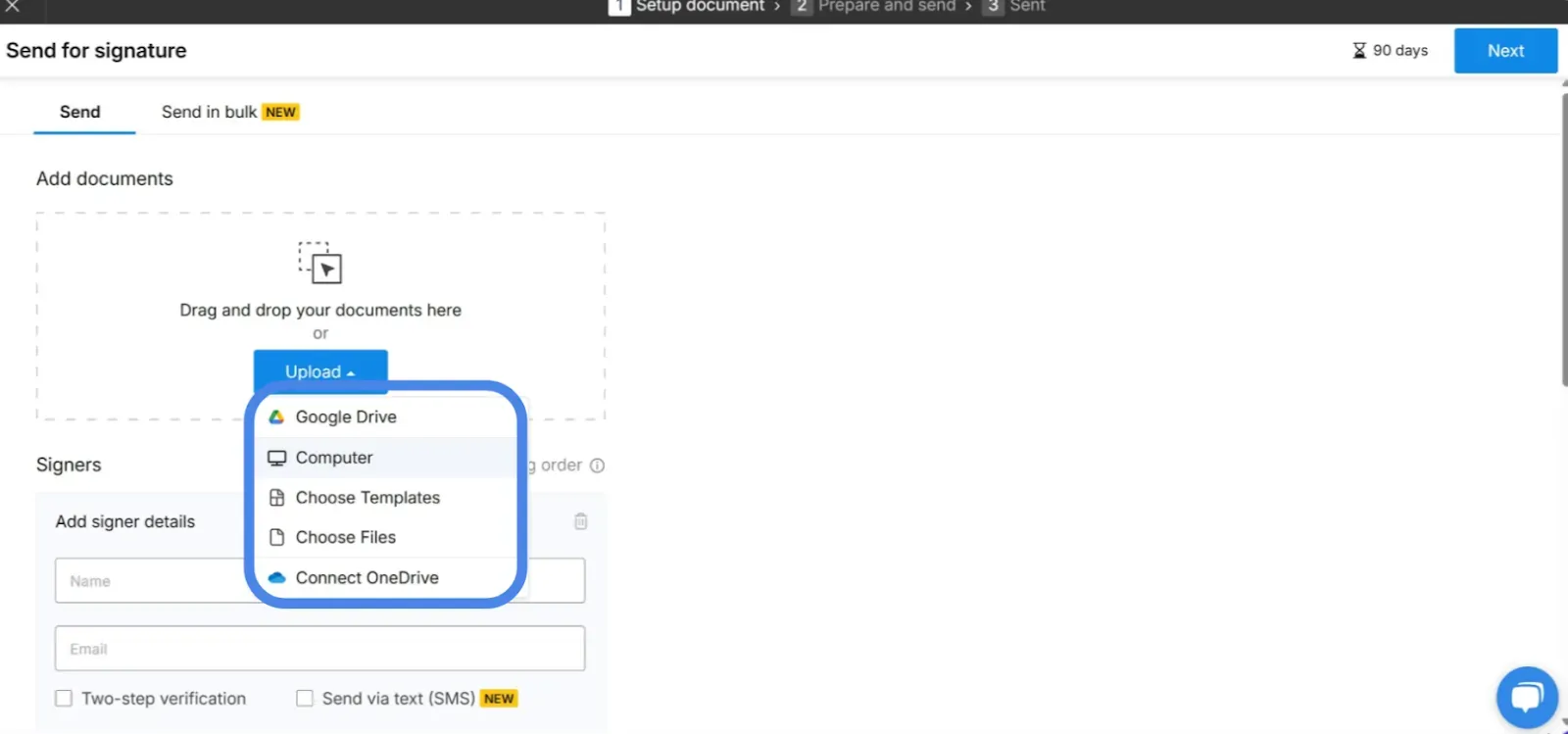
- Click on “Upload” to add your documents.
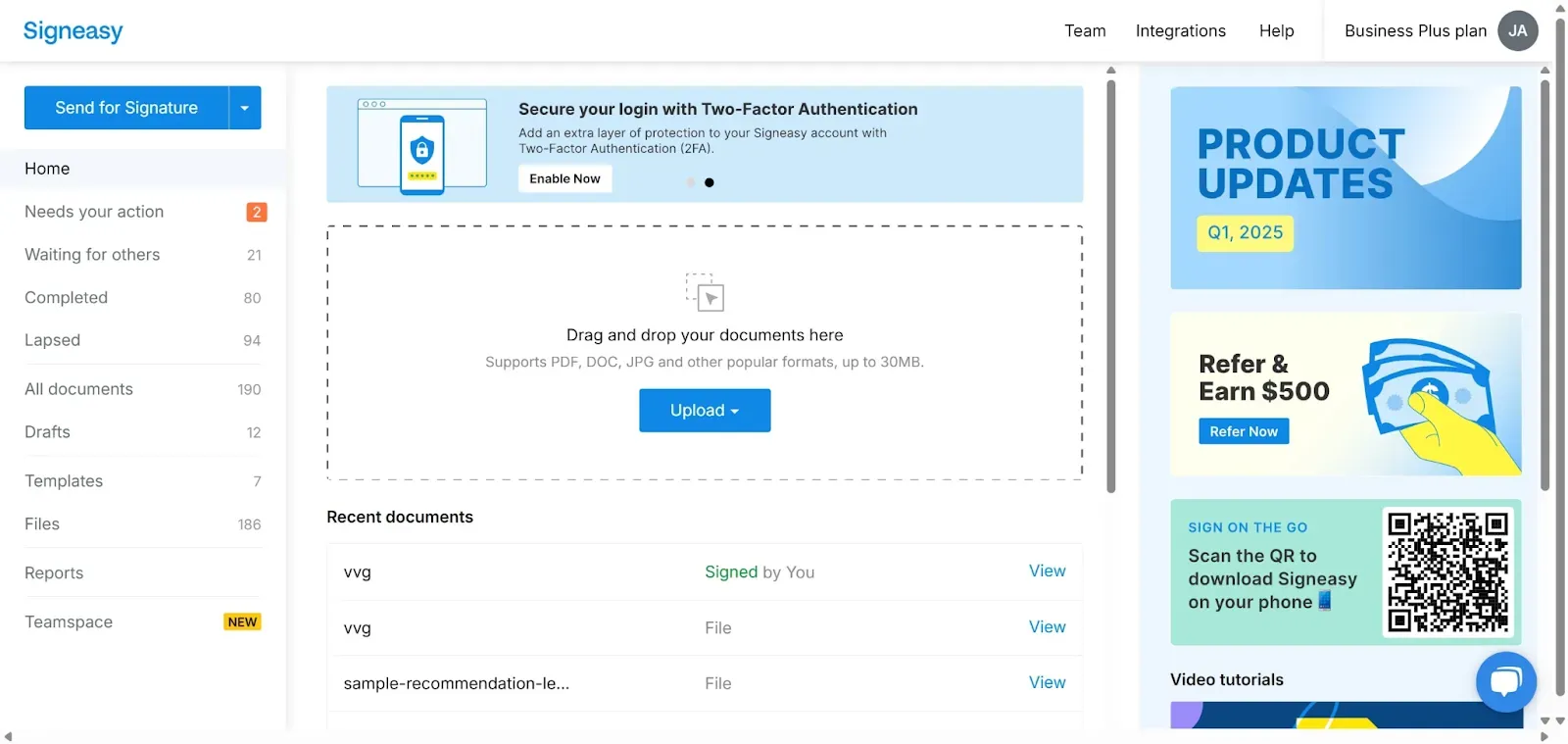
- Choose the PDFs you want to combine — you can pick files from your Mac or cloud storage such as Google Drive or OneDrive.
- Add all required PDF files.
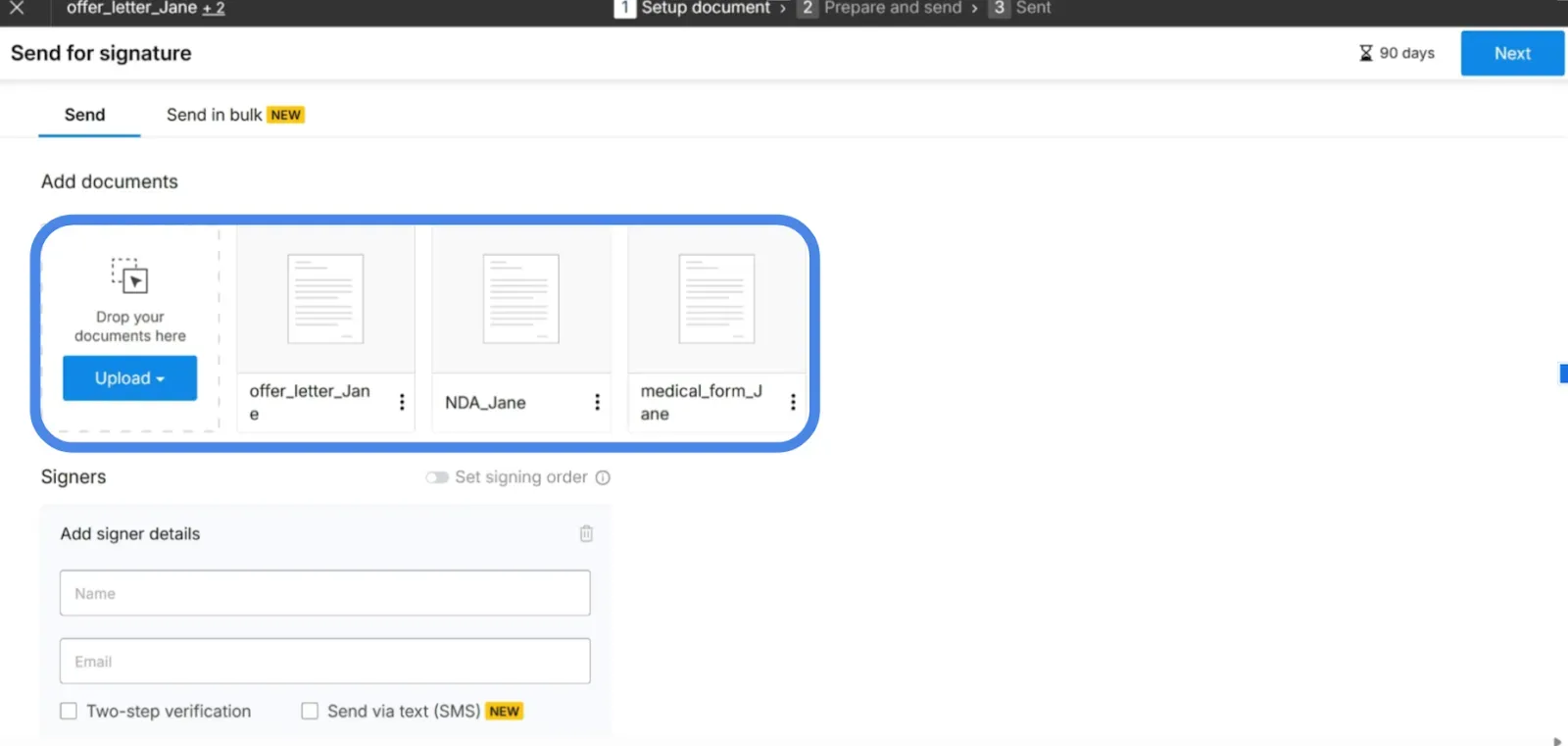
- Add the signer details, including their name and email, in the provided fields.
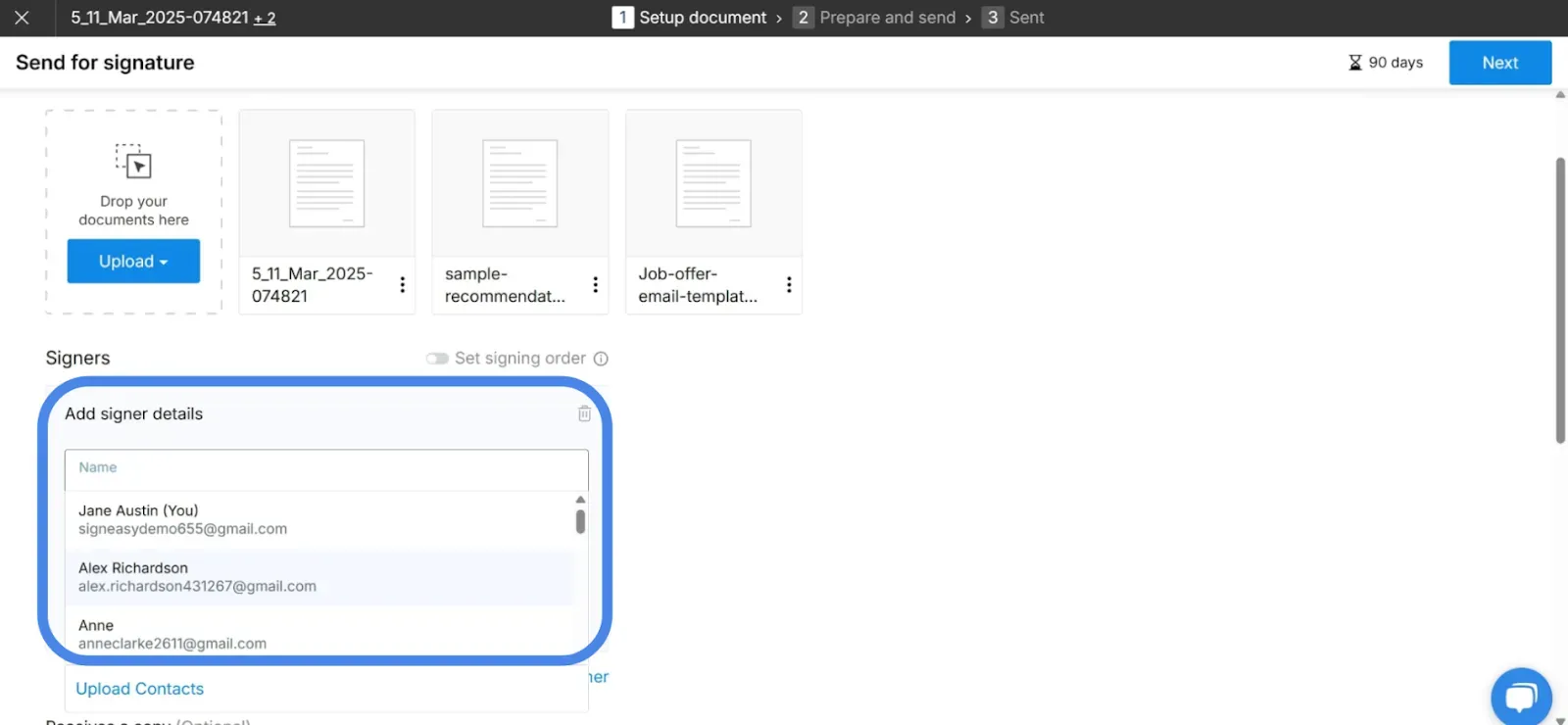
- Then, click on "Next" to proceed.
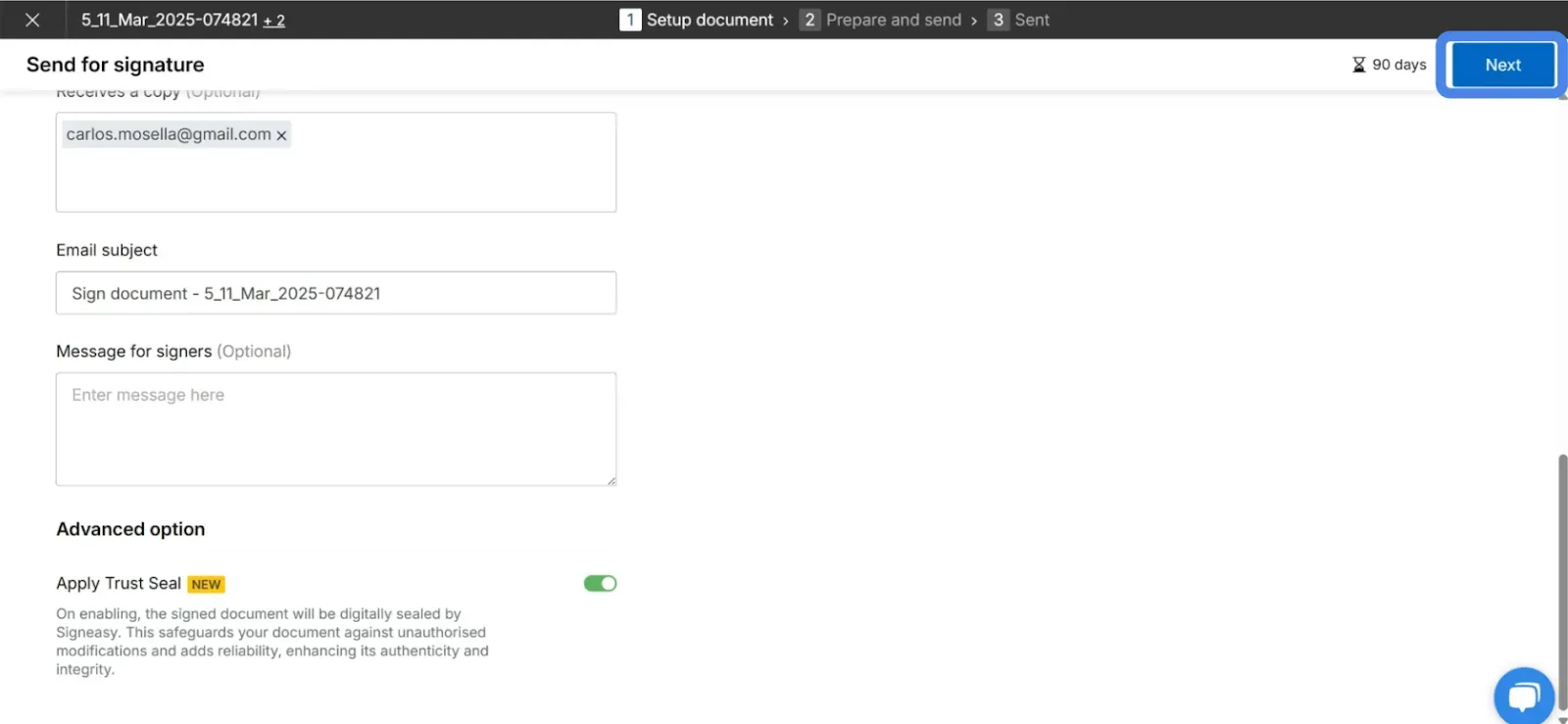
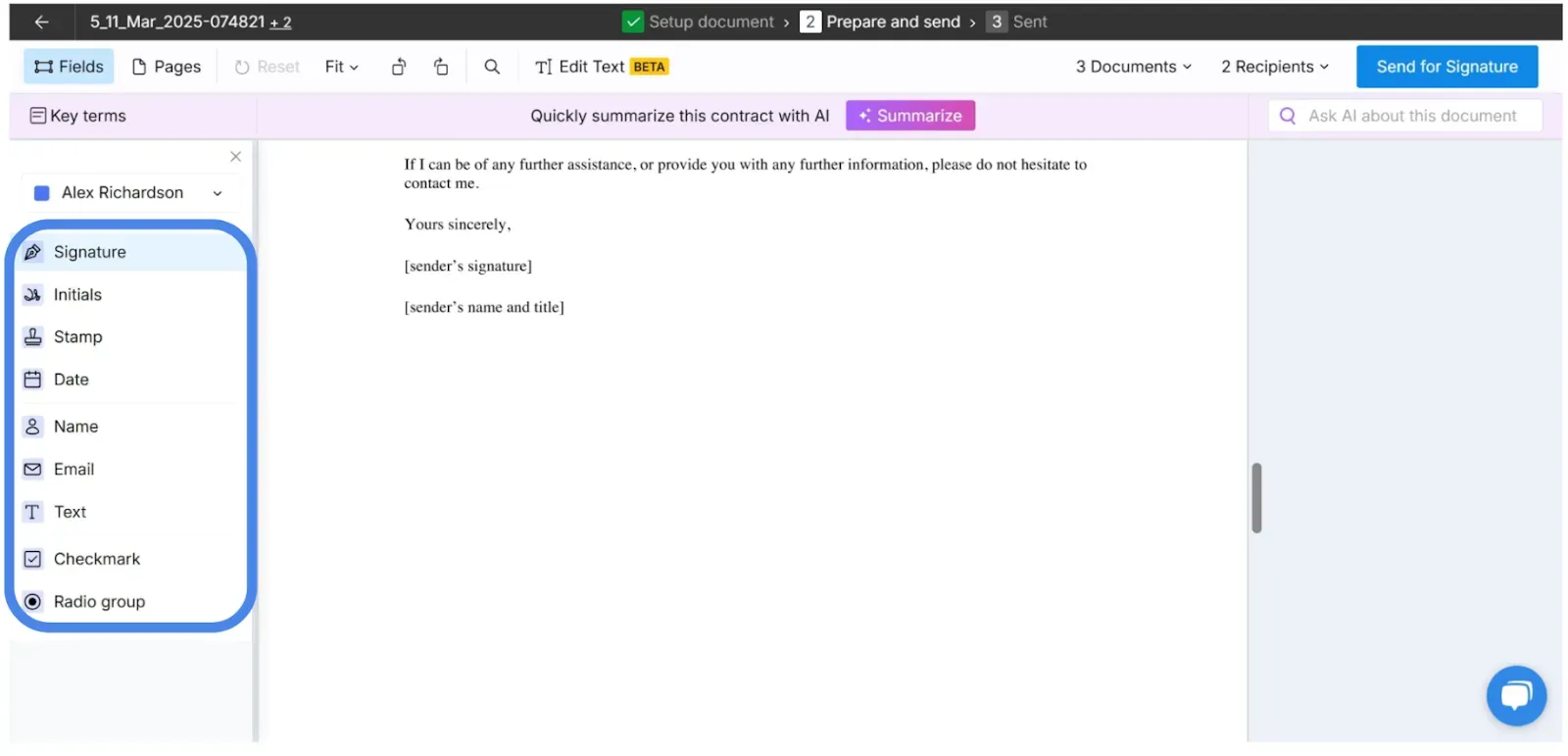
- Drag and drop the necessary fields into the desired sections of the document.
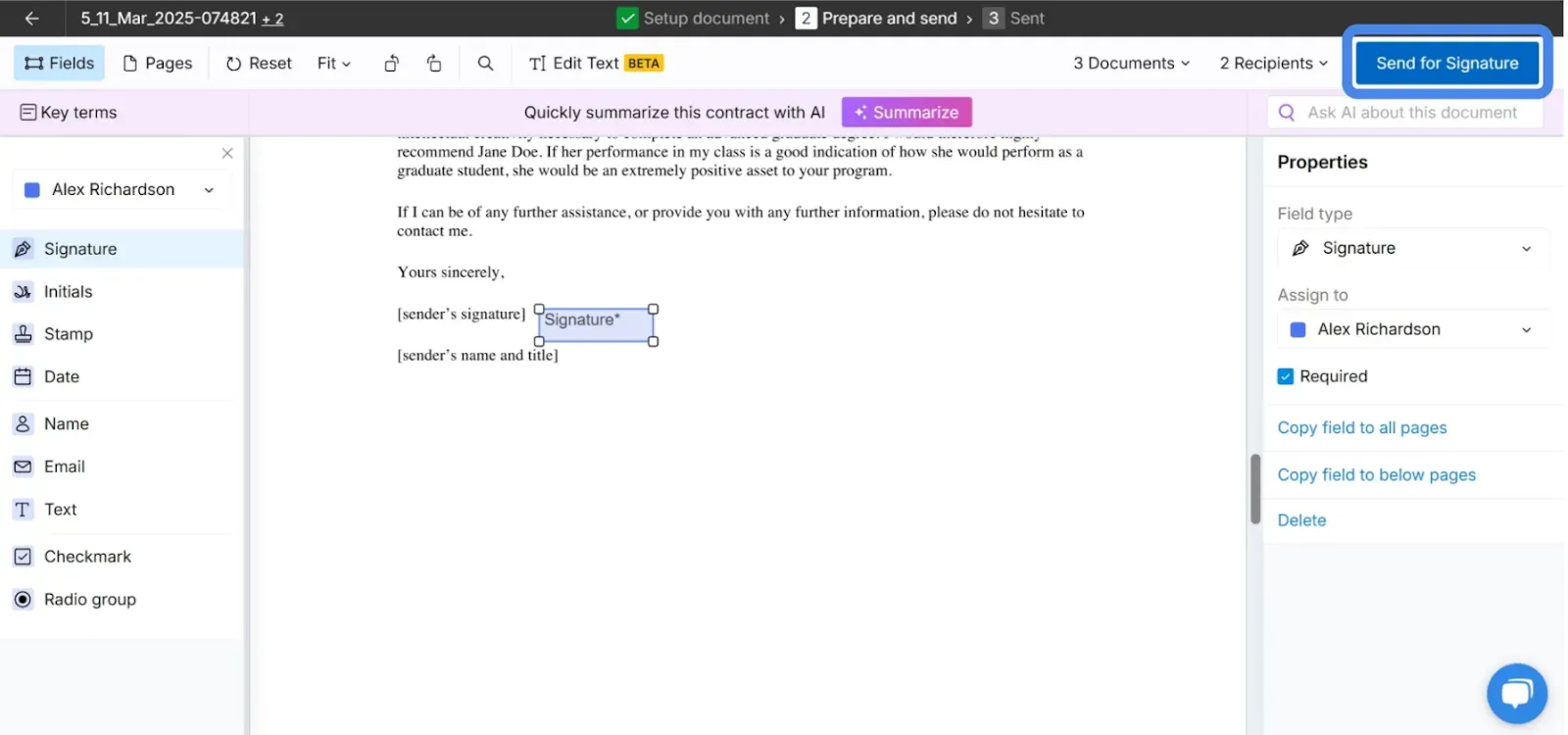
- Click on "Send for Signature" once you are done.
- Once all signers have completed signing, go to "All Documents" to download the combined signed document.
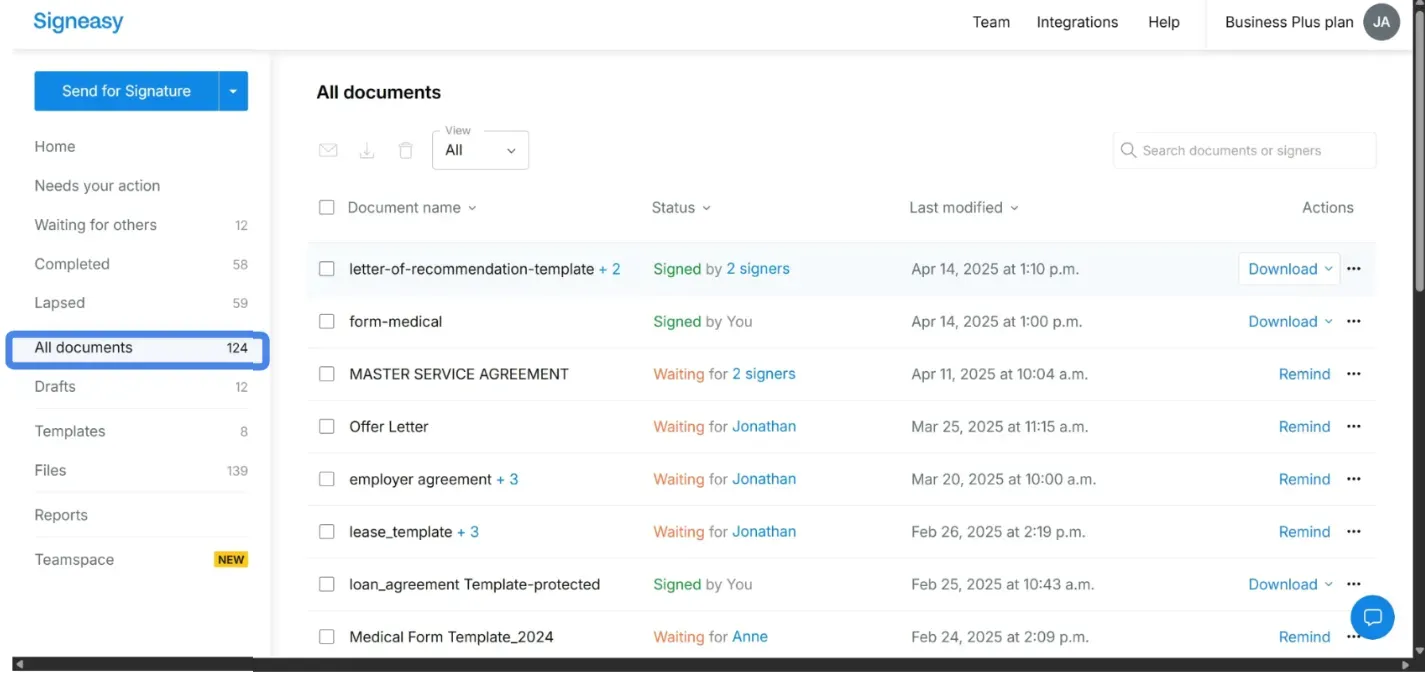
- Click "Download" to download the combined and signed document.
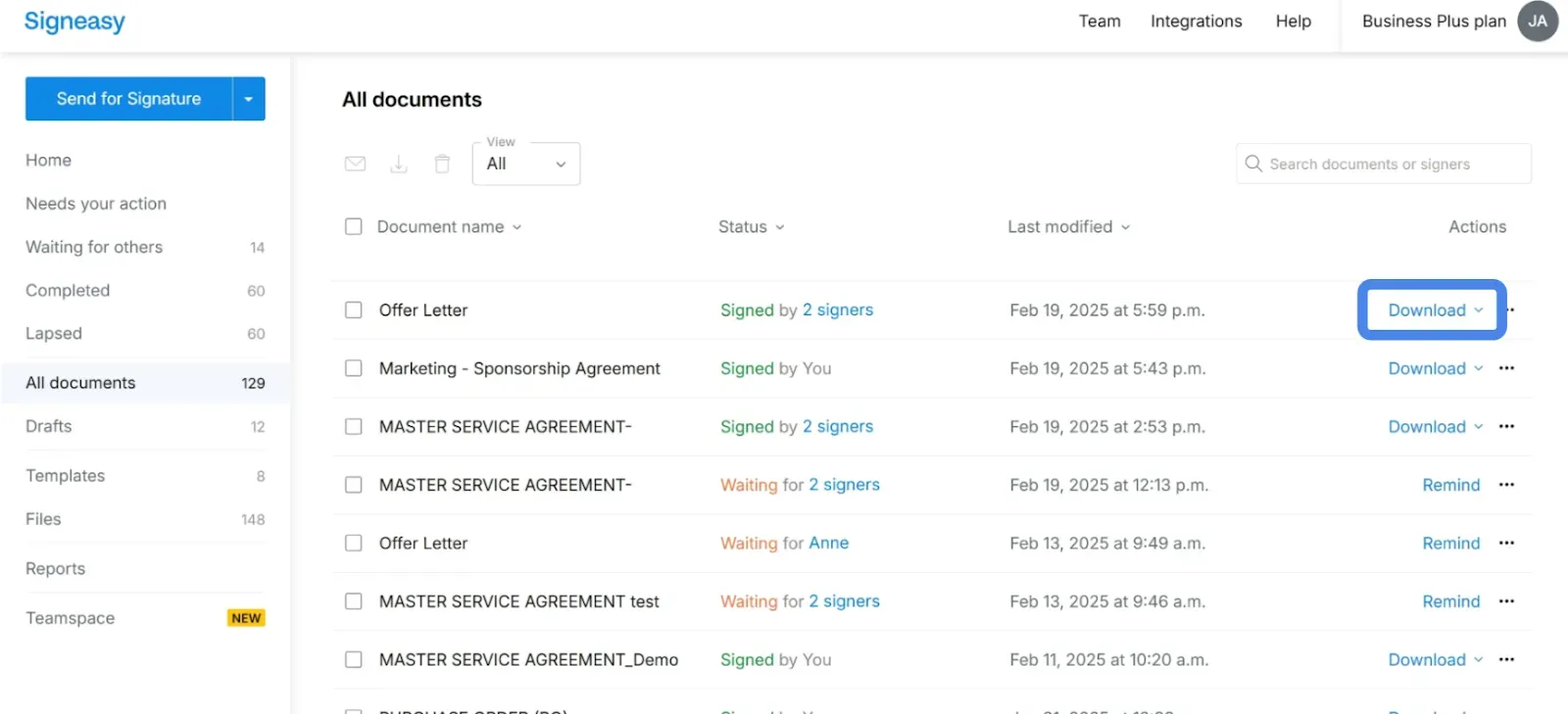
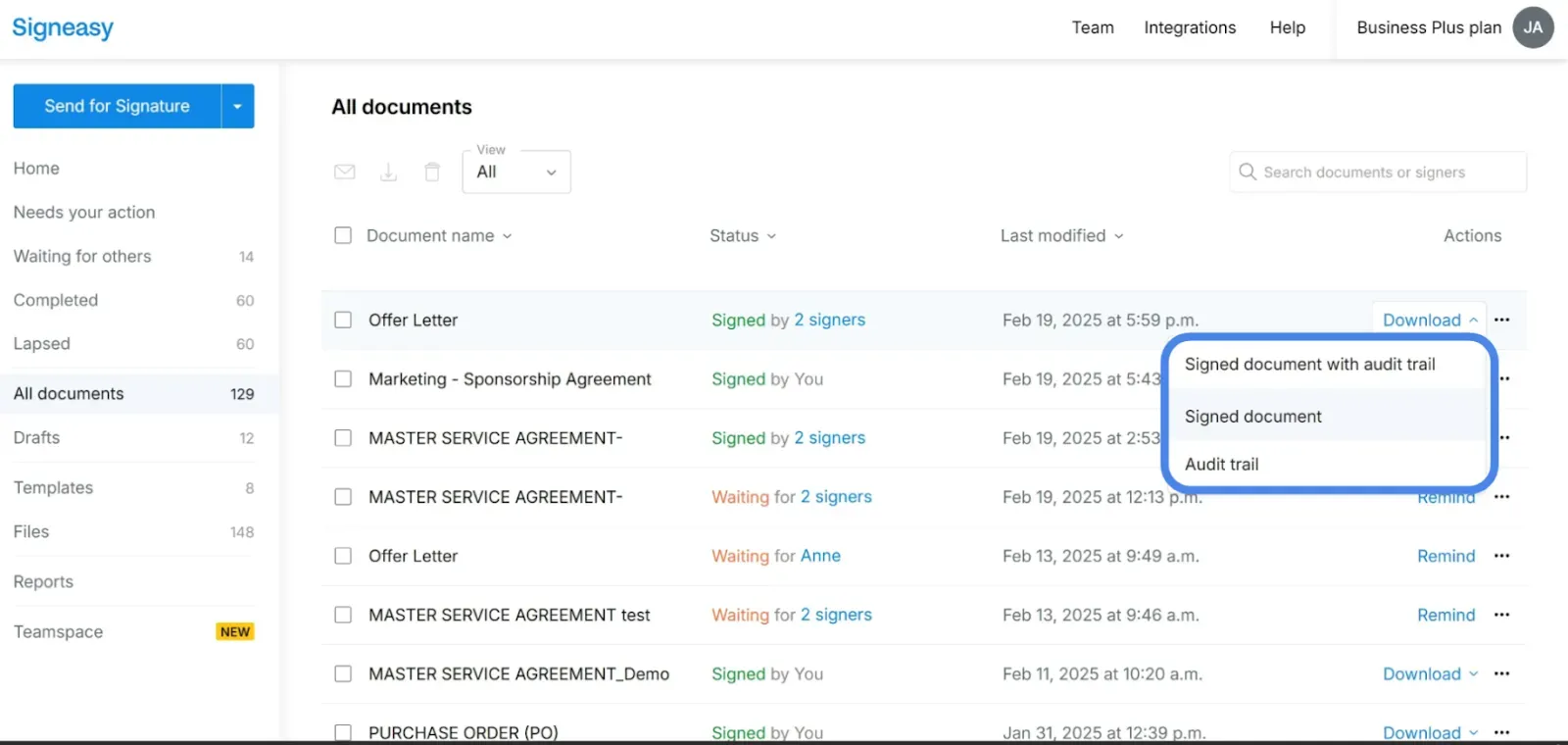
- You can download the combined signed document, either with or without the audit trail, based on your preference.
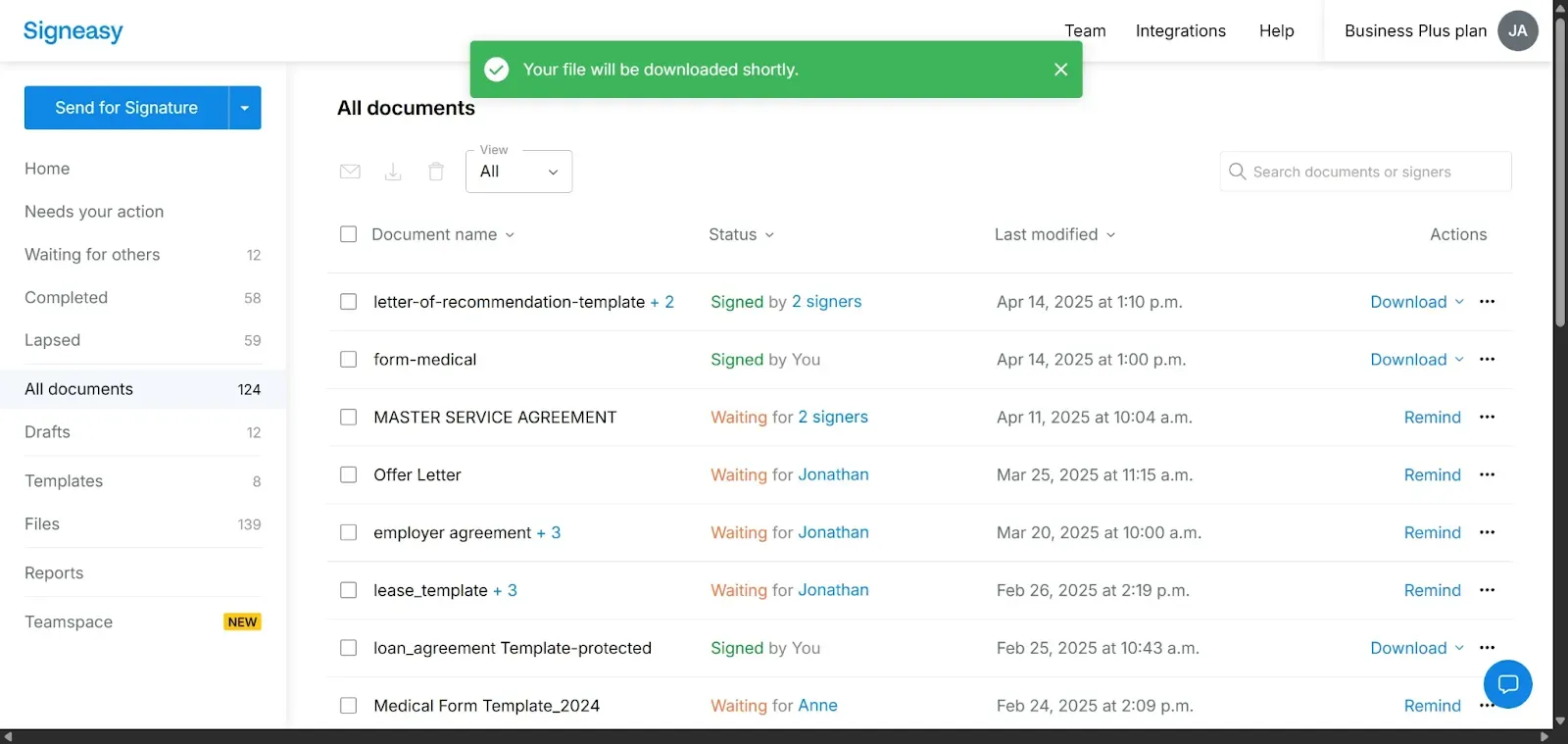
- You’ve successfully combined and downloaded the signed PDF using Signeasy.
2b. Best For
- Contracts requiring multiple signatures
- HR documents needing employee signatures
- Forms that need signing after combining
- Teams managing document workflows
2c. Additional capabilities:
Signeasy doesn't just combine PDFs — it offers a complete document workflow solution. After merging your files, you can immediately add signatures, fill out forms, or upload documents in PDF format to cloud storage services. This integration eliminates the need to download files only to upload them to another service.
The platform handles common document workflows efficiently. For example, if you're combining contract pages that need signatures, you can merge the pages and collect signatures in one continuous workflow rather than switching between applications.
2d. Security and reliability
Signeasy employs industry-standard encryption for all file transfers and processing. Documents transfer securely between your Mac and Signeasy's servers, protecting sensitive information during the combining process.
The service processes files quickly and deletes them from servers after you download the combined PDF. This approach minimizes data retention and reduces security concerns associated with storing files on external servers.
For teams and businesses, Signeasy provides administrative controls that let you manage document workflows while maintaining security standards. These controls support compliance requirements without adding unnecessary complexity to everyday tasks.
Choose the right PDF workflow: merge and sign faster
You now have several proven methods to merge PDFs on your Mac — from Preview's drag-and-drop control to Terminal's automation power. Preview and Finder handle quick personal merging for free. Third-party apps deliver advanced features like OCR and batch editing. Online tools add cross-device flexibility.
The right choice depends on what happens after you merge. For occasional file combining, stick with Mac's built-in tools. But if your documents need signatures — like contracts, HR forms, or client agreements — switching between a merger and a signature tool wastes time you don't have.
But if you're merging documents that need signatures — contracts, onboarding packets, client agreements — switching between tools adds 10-15 minutes per document. Signeasy eliminates that friction by handling merge and signature collection in one workflow.
See how Signeasy works. Start Free Trial