

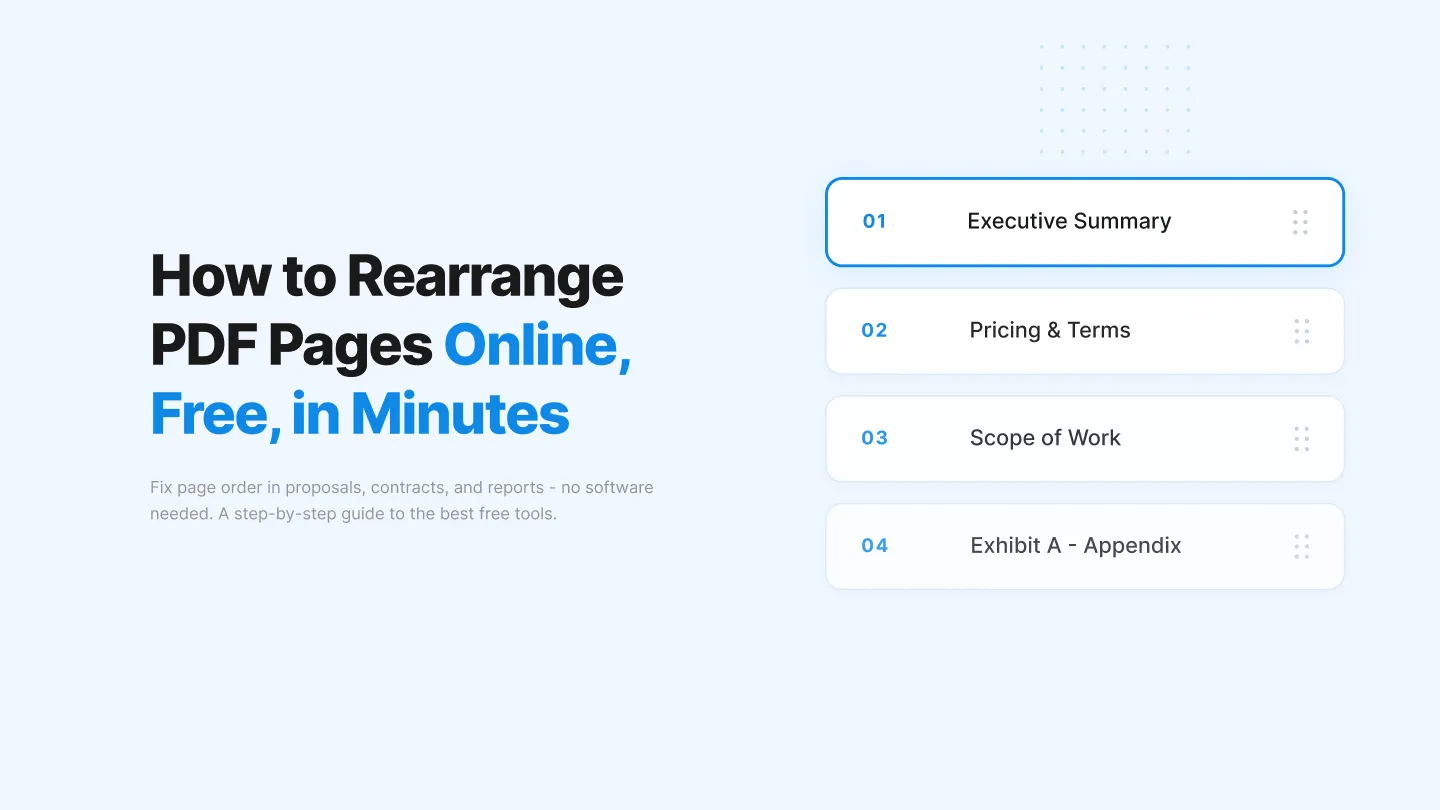


"I need to fix the page order before I send this contract." We hear that a lot.
Whether it's a proposal where the pricing page ended up on page two, a report where the executive summary got buried, or a multi-party agreement assembled from different sources, getting the page order right matters. Sending a document with scrambled pages to a client or executive does not inspire confidence.
The good news: you do not need expensive software or a desktop application to fix it.
Today, you can rearrange PDF pages online in a few clicks, for free, from any browser.
Here's what you'll find in this guide:
- Step-by-step instructions for three free online tools: iLovePDF, Smallpdf, and PDF24
- How to use Adobe Acrobat's free online version to rearrange pages
- How to reorder pages without any dedicated software
- A walkthrough for rearranging PDF pages on mobile devices
- Tips for organizing PDFs after reordering
- How Signeasy helps you manage, sign, and store documents once they're organized
Why would you need to rearrange PDF pages?
PDF files are easy to share and preserve formatting across devices, but they do not always arrive in the right order. A quick reorder is often all it takes to make a document ready to send or sign. Here are the most common reasons people rearrange PDF pages:
- Scanned documents come out of order: Multi-page scans often end up shuffled, especially when pages are fed manually into a scanner.
- Merged PDFs have the wrong sequence: When you combine multiple documents into one PDF, the page order depends on the order you uploaded the files — which is easy to get wrong.
- Contracts or agreements need reordering before signing: A vendor sends over a contract with exhibits in the wrong place. You need them in the right order before anyone signs.
- Reports or proposals need a specific flow: Executive summaries, appendices, and supporting data each belong in a particular position for the document to make sense to the reader.
- Presentations or booklets have a specific print order: Printed booklets require pages in a set sequence that differs from the reading order.
How to rearrange PDF pages online for free
Several free browser-based tools make it easy to reorder PDF pages without installing any software. Below are step-by-step instructions for three of the most reliable options: iLovePDF, Smallpdf, and PDF24. Each tool has slightly different capabilities, which we summarize in the comparison table at the end of this section.
1. iLovePDF
iLovePDF offers a dedicated "Organize PDF" tool that lets you drag and drop pages into any order.
- Go to ilovepdf.com and select Organize PDF from the tools menu.
- Click Select PDF file or drag your document into the upload area.
- Once the file loads, you will see thumbnail previews of each page.
- Drag the thumbnails to your preferred order.
- To remove a page, click the trash icon on the thumbnail.
- Click Organize PDF when you are ready.
- Download the reorganized file to your device.
Note: The free tier on iLovePDF limits file size and batch processing. For occasional, single-file use, the free plan works well.
2. Smallpdf
Smallpdf's free tier allows you to rearrange, merge, split, rotate, and delete pages — all subject to a daily download limit.
- Go to smallpdf.com and select Organize PDF under the Tools menu.
- Upload your PDF by clicking Choose File or dragging it into the browser window.
- Smallpdf displays all pages as draggable thumbnails.
- Drag the pages into the order you want.
- Use the rotate or delete icons on each thumbnail if needed.
- Click Save and then download your file.
Note: Smallpdf's free tier applies a daily download limit. If you hit the limit, you can either wait until the next day or create a free account for slightly more usage.
3. PDF24
PDF24 stands out among free tools because all its features are available at no cost, with no usage limits. The platform is funded by on-page advertising and is available as both a web tool and a desktop app.
- Go to pdf24.org and select PDF Page Organizer from the tools list.
- Upload your PDF file.
- PDF24 shows each page as a movable thumbnail.
- Drag pages into your preferred sequence.
- Delete or rotate pages as needed using the icons on each thumbnail.
- Click Create PDF and download your reorganized document.
Note: PDF24 displays ads on the page, which is how it keeps the service free. The tool itself places no restrictions on file size or number of uses.
How to rearrange PDF pages using Adobe Acrobat's free online tool
Adobe Acrobat is one of the most recognized names in PDF management. Its free online version lets you organize PDF pages directly in your browser without downloading the desktop application.
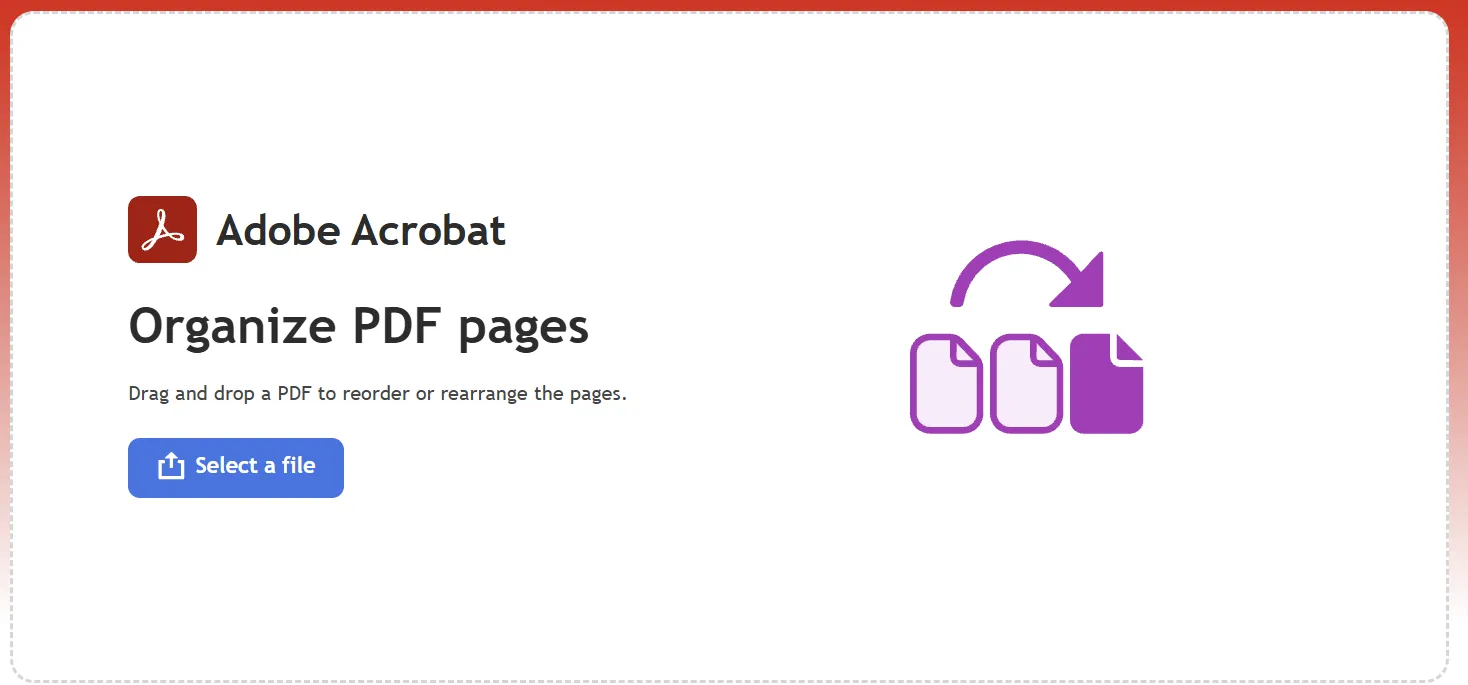
- Go to adobe.com/acrobat/online/rearrange-pdf.html.
- Click Select a file or drag your PDF into the upload area.
- Sign in with a free Adobe account (required to use the tool).
- Once your file loads, you will see all pages displayed as thumbnails.
- Drag and drop the thumbnails to reorder your pages.
- Click Save when you are satisfied with the new order.
- Download the reorganized PDF to your device.
💡 How does Adobe Acrobat's paid plan differ from the free online version?
The free online tool covers basic page reordering, but Adobe Acrobat's paid plans (Standard and Pro) add:
- Unlimited file processing with no daily caps
- Desktop application with full offline access
- Advanced editing including text edits, redaction, and form creation
- E-signature tools and PDF conversion across formats
For occasional PDF reordering, the free online version is sufficient. For teams that handle large volumes of PDFs regularly, the paid plan offers considerably more.
Suggested Read: Sign your PDF online for free
How to reorder PDF pages without paid software
If you prefer not to use a dedicated PDF tool, a few built-in options on your computer can get the job done.
1. Using Google Drive (Chrome browser)
Google Drive does not have a native page reorder feature, but you can work around it by converting your PDF to a Google Doc and rearranging the content there. This works best for text-heavy PDFs where formatting is not critical.
- Upload your PDF to Google Drive.
- Right-click the file and select Open with Google Docs.
- Google Docs converts the PDF into an editable document.
- Cut and paste sections to reorder content.
- Go to File > Download > PDF Document to save it back as a PDF.
2. Using your browser's print function
Most modern browsers (Chrome, Firefox, Edge) let you print a PDF and specify a custom page range and order. This is a quick option for printing a reordered hard copy, though saving back to a digital PDF requires a "Print to PDF" driver.
- Open your PDF in a browser tab.
- Press Ctrl + P (Windows) or Cmd + P (Mac) to open the print dialog.
- Select Save as PDF or Microsoft Print to PDF as your printer.
- Under Pages, enter your desired page order (for example: 3, 1, 2).
- Click Save and choose a destination on your device.
Both methods work for quick, low-stakes reordering. For precise control over page sequence, especially for multi-page contracts, legal documents, or client-facing reports. A dedicated tool like the ones above gives more reliable results.
How to rearrange PDF pages on mobile devices
You can rearrange PDF pages on iOS and Android using the same online tools (iLovePDF, Smallpdf, PDF24) through your mobile browser. The steps are essentially the same as on desktop: open the tool's website, upload your PDF, drag pages into order, and download.
Here are the steps where mobile differs slightly from desktop:
- Step 1: Uploading files: On mobile, tap Select PDF file and your phone's Files app or Gallery will open. Navigate to your document and tap to select it. On iOS, you can also upload directly from iCloud Drive or Google Drive. On Android, files stored in Google Drive, OneDrive, or your local storage are all accessible.
- Step 2: Dragging pages: On a touchscreen, press and hold a page thumbnail for a moment before dragging. A brief long press activates the drag on most tools — a quick tap may open the page instead of moving it.
- Step 3: Downloading the file: After reordering, tap the download button. On iOS, you will be prompted to save to Files or open in another app. On Android, the file saves directly to your Downloads folder.
If you find drag-and-drop on a small screen fiddly, PDF24's mobile interface tends to be more responsive than the other two tools for touch-based reordering.
Tips for organizing and managing PDF pages after rearranging
Reordering pages is often just the first step. Here are four practical habits that keep your PDFs organized for the long term.
1. Name your files consistently
After reordering, save the file with a clear, descriptive name that includes the document type, the relevant party or project name, and the date (for example: ServiceAgreement_AcmeCorp_June2025.pdf). This makes files far easier to locate later — especially when you have multiple versions of the same document.
2. Keep a single "final" version
It is easy to accumulate multiple copies of the same PDF as you revise page order. Once you have the version you need, move it to a designated folder and archive or delete the earlier drafts. A cluttered file system slows down retrieval and creates confusion when multiple people work with the same document.
3. Use folders or labels by project or team
Group PDFs by context, for instance, by client, by project, or by department. This structure pays off as your document volume grows. If you manage contracts, agreements, or compliance documents, consider a dedicated contract repository where all finalized documents live in one searchable location.
4. Combine related PDFs before distributing
If you routinely send a main document along with supporting exhibits or annexures, combine them into a single PDF before sharing. This reduces back-and-forth and ensures the recipient has everything in one file. For more on this, see how to combine multiple documents into one PDF.
Suggested Read: How to combine multiple documents into one PDF
How Signeasy helps you manage documents after organizing your PDFs
Rearranging pages gets your document in the right order. What happens after that — getting it signed, keeping track of it, and making sure it stays accessible — is where many teams lose time. Signeasy is an AI-powered eSignature and contract management platform built for operations, finance, legal, and HR teams that need structure without the overhead of a heavy, enterprise-grade system.
Here is how Signeasy fits into your workflow once your PDFs are organized.
1. Sign your rearranged PDF instantly
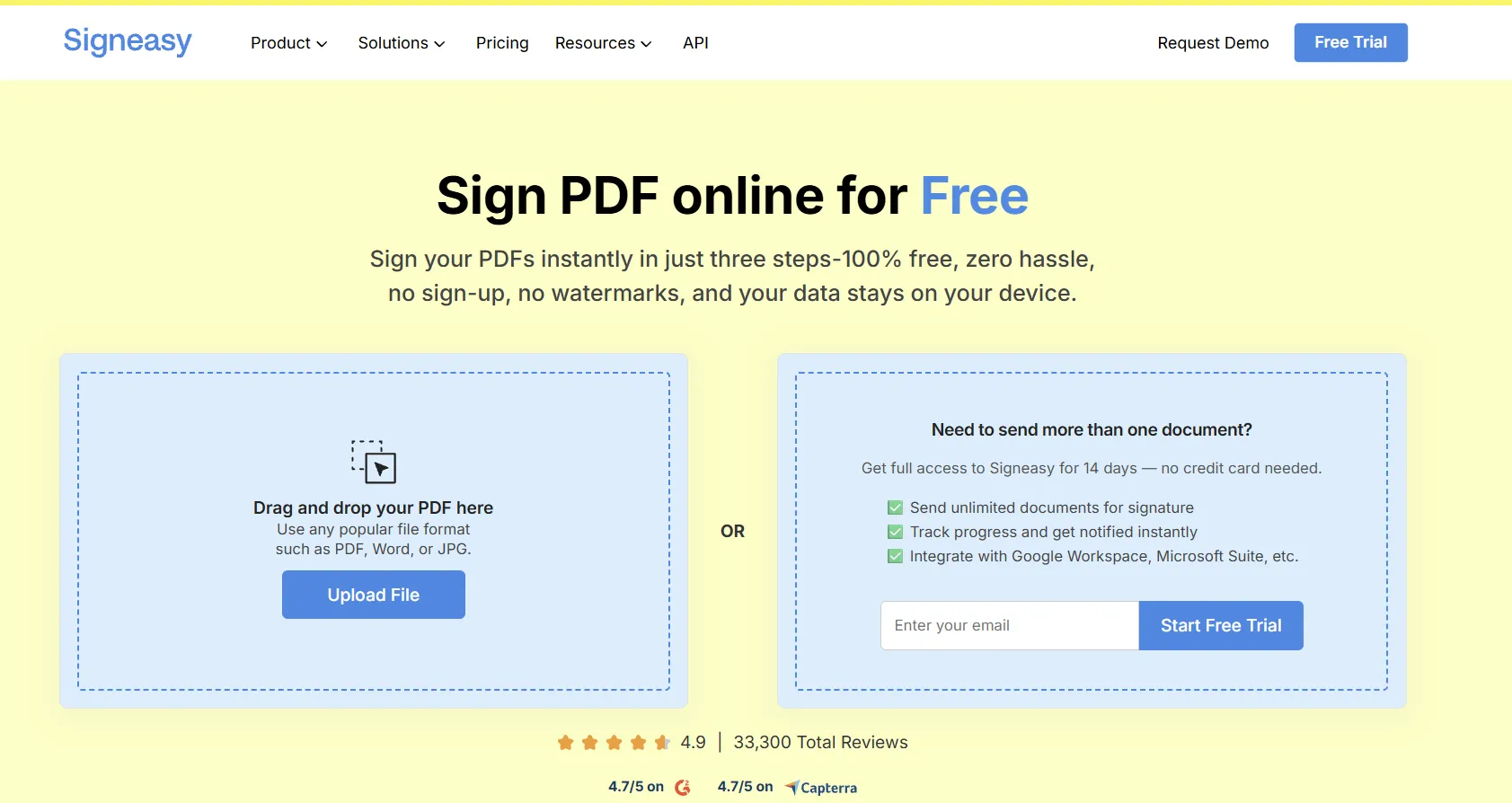
Once your PDF is in the right order, you can upload it directly to Signeasy and sign it online for free. Signeasy supports cross-device signing — desktop, tablet, and mobile — so you and your counterparts can sign from wherever you are. Every signature is legally binding and backed by a full audit trail, so you always have a record of who signed, when, and from where.
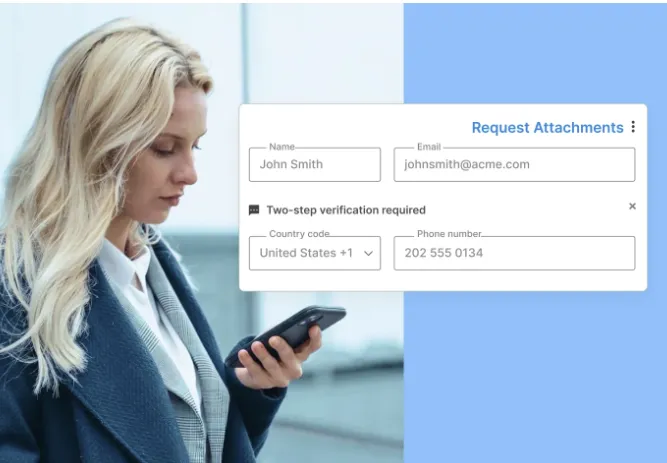
Signeasy also supports multi-factor authentication (MFA) for added identity verification, which matters for contracts, NDAs, and compliance documents.
2. Store and organize all your signed PDFs in one place
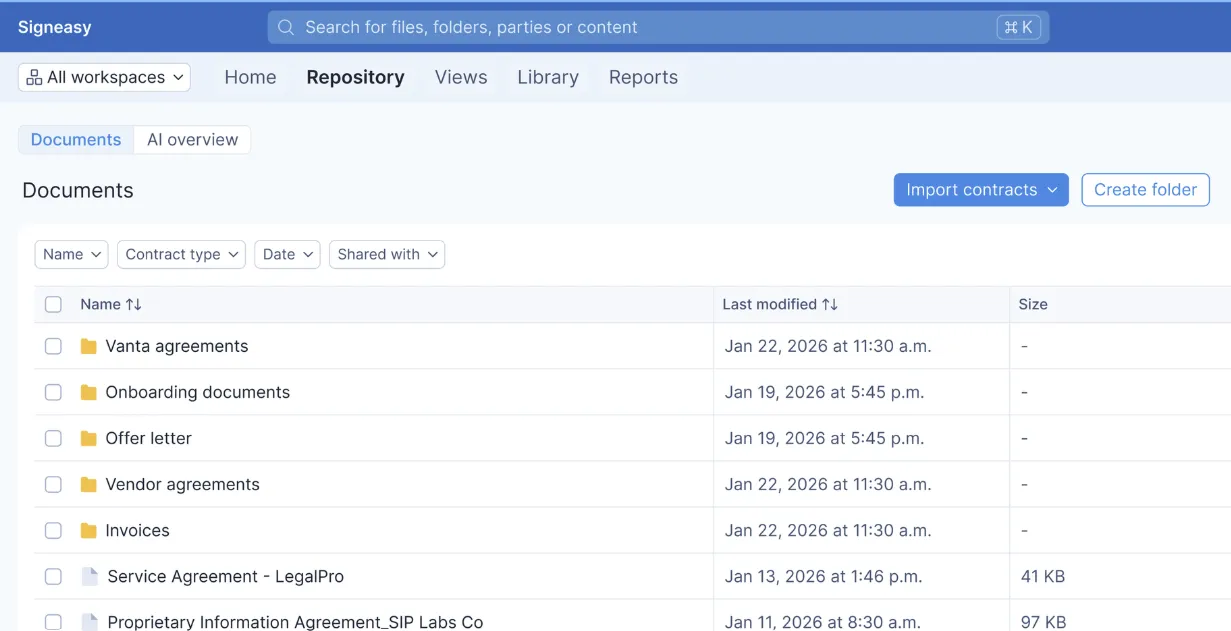
After signing, your documents go directly into Signeasy's contract repository. Rather than hunting through email threads or shared drives for a signed copy, you can search for any document by name, date, counterparty, or status from a single dashboard.
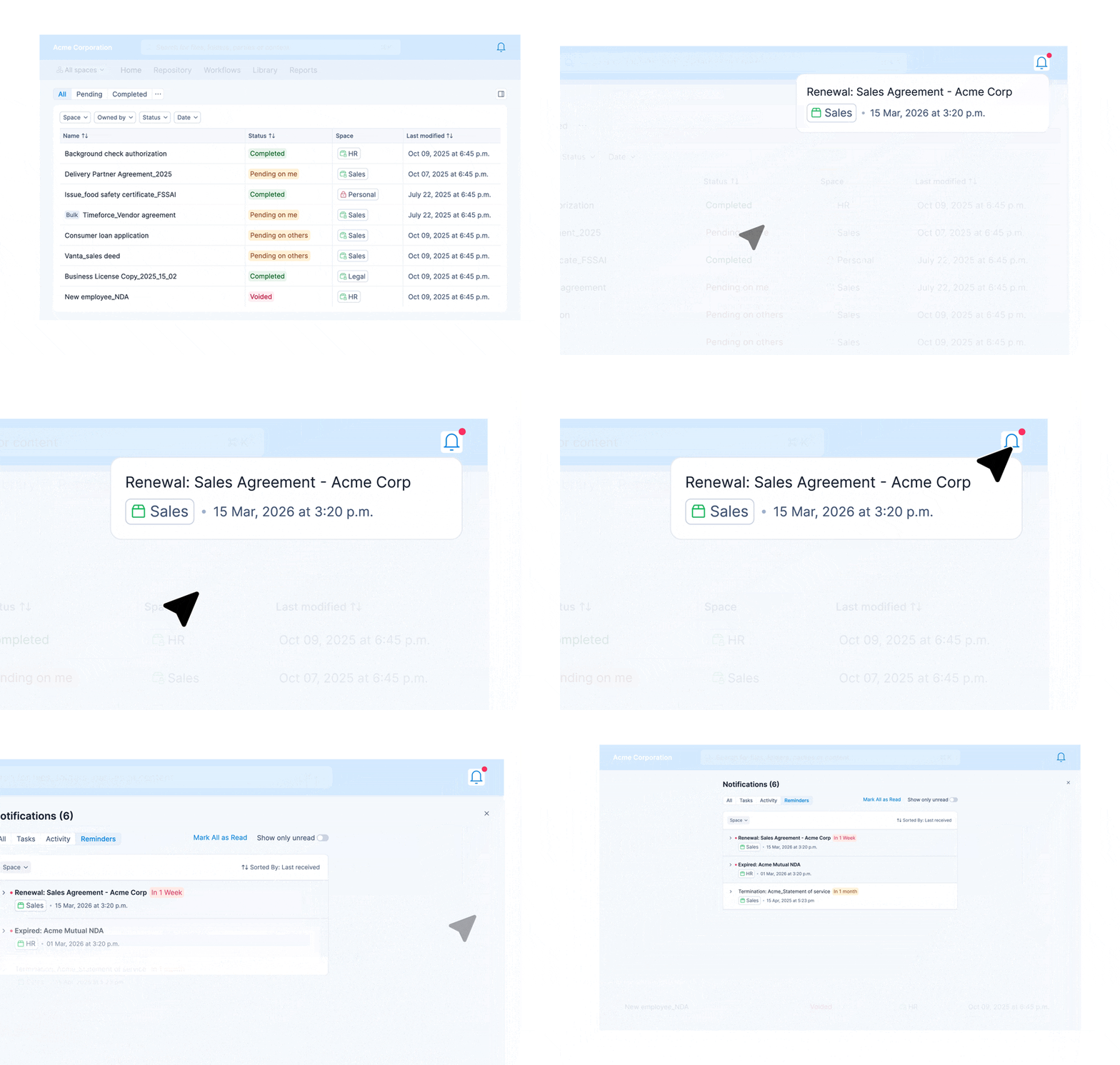
The repository supports real-time tracking and renewal alerts, so you receive notifications before a contract expires or a deadline passes. For teams managing a high volume of vendor agreements, client contracts, or HR documents, this visibility removes a significant operational burden.
Try our Online Document Signer for signing documents.
3. Track, access, and never miss a deadline
Signeasy's reporting and tracking tools give your team a live view of every document's status — drafted, sent, signed, or overdue. You can organize documents by team, project, or region, which makes it straightforward for cross-functional teams to access only what is relevant to them without having to request files from colleagues.
Automated reminders reduce the follow-up time on pending signatures, and role-based access controls mean the right people see the right documents.
4. A full-featured platform, without the complexity
A common concern with contract management software is that it brings complexity along with capability. Signeasy is built specifically for mid-sized teams that need a structured, capable platform without a steep learning curve or an enterprise-grade implementation process.
The platform includes templates for repeat agreements, approval workflows, bulk sending, sequential and parallel signing, and integrations with Google Workspace, Microsoft 365, and HubSpot. For teams with more specific needs, Signeasy offers API access for embedded workflows.
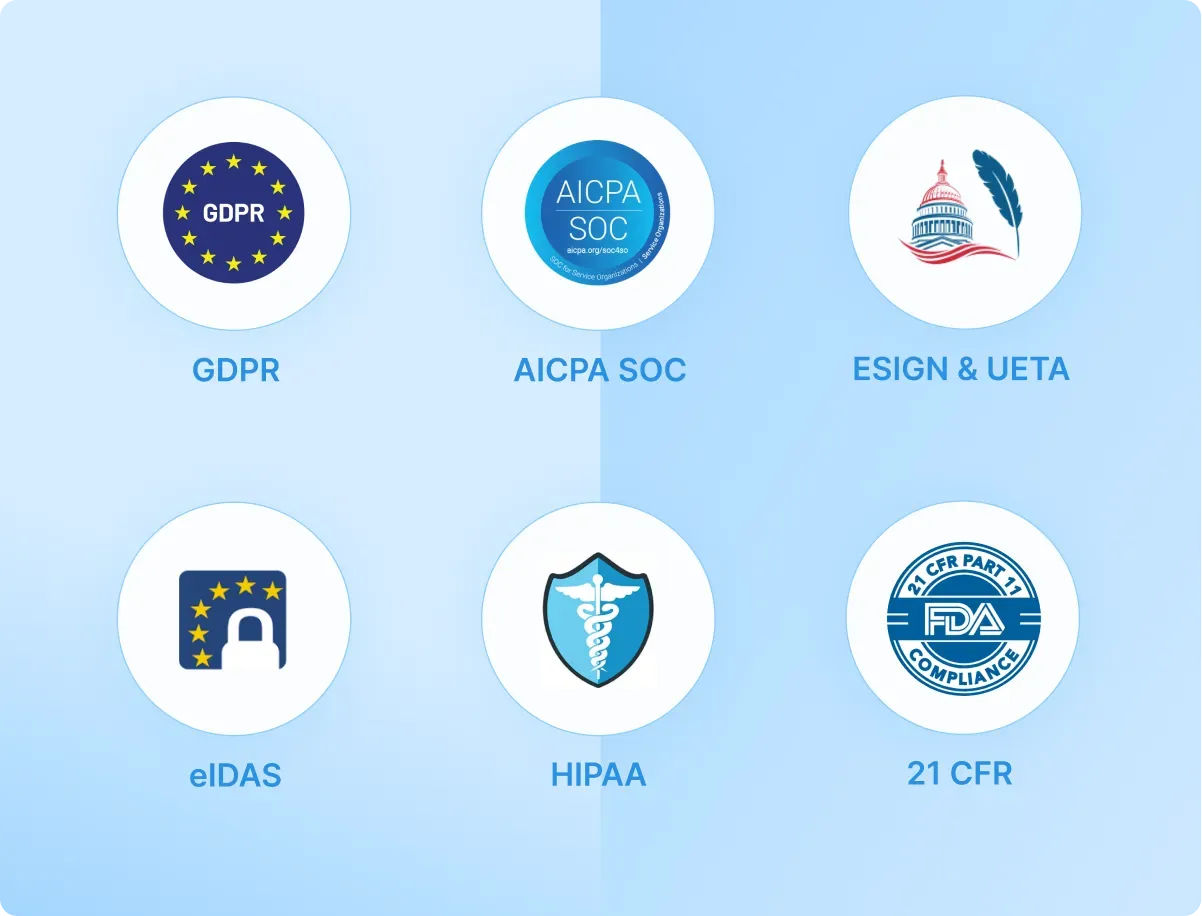
Security is enterprise-grade: SOC 2 Type 2 certified, GDPR and HIPAA compliant, with SSO, two-factor authentication, and role-based permissions built in.
Signeasy offers both a free plan and a free trial, and the two serve different purposes. The free plan gives you ongoing access to core signing features at no cost.
The free trial gives you full access to the platform's paid features for a limited period, so you can evaluate whether the advanced capabilities — like the contract repository, bulk sending, or workflow automation — fit your team's needs before committing.
Once your PDF pages are in the right order, the next step is getting them signed, stored, and managed. Start Free Trial and see how Signeasy handles everything after the rearranging is done.