

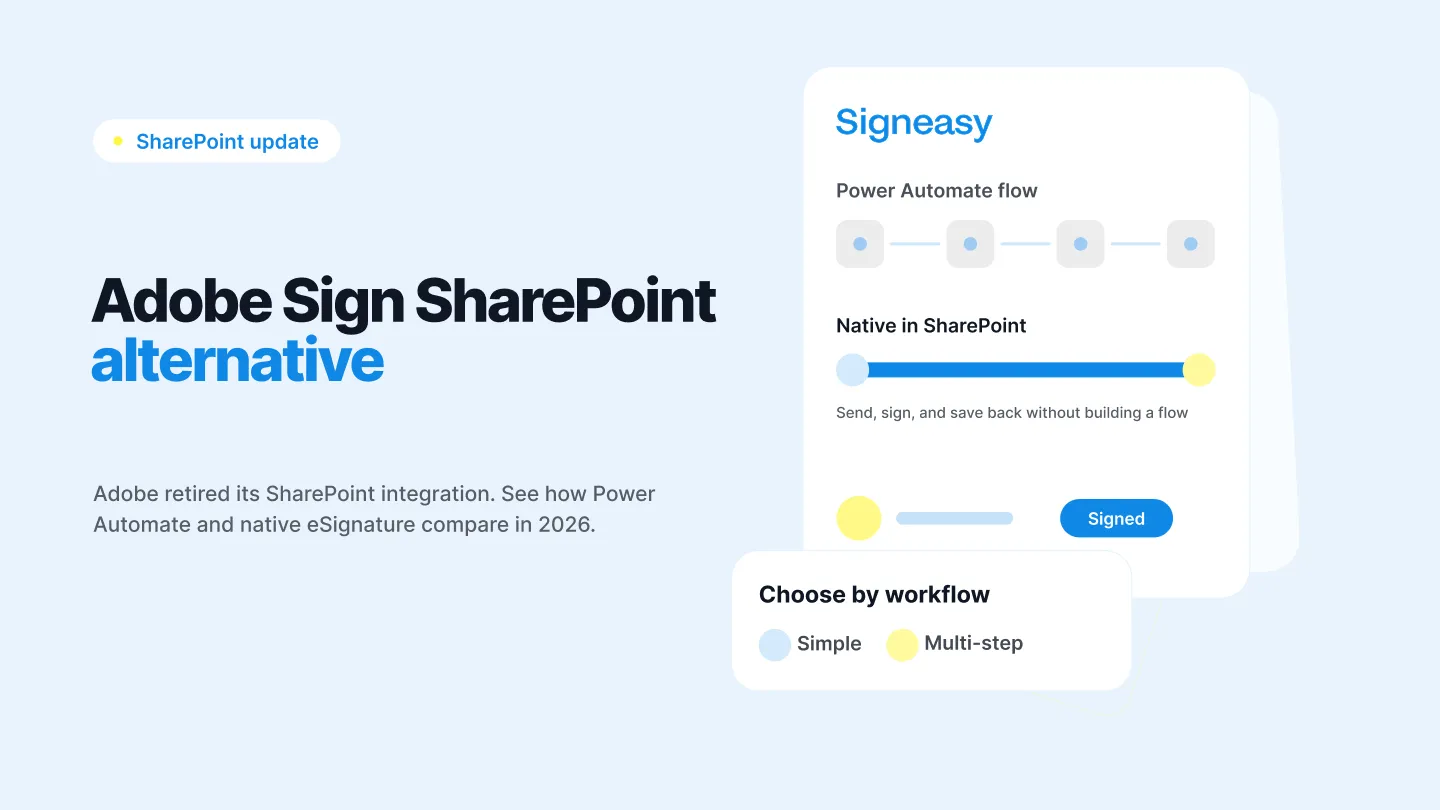


If your team used Adobe Acrobat Sign with SharePoint, you may have already run into a problem: the SharePoint integration you relied on is no longer available.
Adobe ended its Acrobat Sign integration for SharePoint Online in June 2024. Adobe's recommended path is now Power Automate. Then, in April 2026, Microsoft retired the older SharePoint Add-In model, which affected a much wider range of SharePoint integrations.
So what are you supposed to do now?
For some teams, Power Automate is the right answer. It gives you plenty of control if signing is part of a larger workflow involving approvals, notifications, metadata, or other Microsoft 365 actions.
But if all you really need is to pick a document in SharePoint, send it for signature, and have the completed document come back to the right place, building a Power Automate flow for every signing request can feel like a lot of extra work.
That's where native SharePoint eSignature integrations come in.
In this guide, we'll walk through what happened to Adobe Sign for SharePoint, what your options look like today, and when it makes sense to use Power Automate versus a native eSignature integration.
What happened to Adobe Sign for SharePoint?
There are actually two separate changes worth knowing about. First, Adobe ended its dedicated SharePoint Online integration in 2024. Then, Microsoft retired SharePoint Add-ins in 2026.
The two changes are related, but they aren't the same thing. Here's what happened and what each one means for your team.
Adobe ended its SharePoint Online integration in 2024
Adobe previously offered a dedicated Acrobat Sign for SharePoint Online integration.
The idea was straightforward. A user could select a document from a SharePoint library, send it for signature, and have the completed document stored back in SharePoint.
Adobe's own documentation describes workflows including requesting a signature for a SharePoint file, requesting signatures for SharePoint list items, saving completed agreements to SharePoint, and mapping form data back to SharePoint lists.
For a SharePoint team, that meant the document could stay within the system they were already using:
SharePoint → Adobe Sign → SharePoint
Then Adobe announced that support for the integration would end on June 28, 2024.
After that date, agreements already sent through the old integration could still be signed, but Adobe said the completed documents would no longer be saved back into SharePoint through that integration. Customers would have to download the completed agreement manually or use another automation to put it back into SharePoint. Adobe recommended moving workflows to Power Automate or Microsoft Teams.
That detail matters.
The change wasn't simply that an Adobe button disappeared from SharePoint.
For many teams, the problem was that the final step of their document workflow had changed.
Instead of:
Select document → send for signature → signed document returns to SharePoint
they now had to build a process around the eSignature step.
Adobe previously had a dedicated Acrobat Sign integration for SharePoint Online. The workflow was pretty simple:
SharePoint → Adobe Sign → SharePoint
You could select a document from a SharePoint library, send it out for signature, and have the completed document saved back into SharePoint.
That worked well for teams that wanted to keep their documents in SharePoint without creating a separate process around every signature request. Adobe's documentation covered workflows for sending SharePoint files and list items for signature, saving completed documents back to SharePoint, and updating SharePoint list data.
Then Adobe announced that the integration would be discontinued on June 28, 2024.
After that date, documents already sent through the old integration could still be signed, but the completed files would no longer automatically flow back into SharePoint through that integration. Teams needed to download them manually or use another automation to put them back.
Adobe's recommendation? Move the workflow to Power Automate or Microsoft Teams.
For a team that had a simple “send → sign → save” process, that's a meaningful change. You didn't necessarily need a new eSignature tool. You needed a new way to connect the pieces.
What changed again in April 2026?
Adobe's decision was specific to its own SharePoint Online integration. Microsoft's change was much broader.
Microsoft retired the SharePoint Add-In extensibility model for SharePoint Online on April 2, 2026. Microsoft had already stopped allowing new SharePoint Add-ins for new tenants in November 2024, and SharePoint Add-ins could no longer be acquired from the public marketplace after July 1, 2024.
Microsoft recommends SharePoint Framework (SPFx) as the replacement technology for the retired Add-In model. SPFx itself is not being retired.
That distinction is important.
Adobe's SharePoint Online integration ended in 2024. Microsoft retired the underlying legacy SharePoint Add-In model in 2026.
The second change affected the wider SharePoint ecosystem, including vendors that had built integrations using the old model.
So if your organization is evaluating a SharePoint eSignature solution in 2026, it's worth checking not only whether a vendor says it "integrates with SharePoint," but how that integration works today.
- Is it a current SharePoint Framework-based integration?
- Is it Power Automate?
- Is it an API?
- Or is the vendor still referring to a legacy SharePoint Add-in?
What does Adobe Sign + SharePoint eSignatures look like now?
Adobe's recommended path is Power Automate. Adobe documents Power Automate workflows for sending a SharePoint file for signature, sending SharePoint list items for signature, saving completed agreements back to SharePoint, and using form field data to update SharePoint lists.
A simplified workflow looks like this:
SharePoint↓Power Automate↓Adobe Acrobat Sign↓Power Automate↓SharePoint
This is a perfectly valid architecture. The question is what happens when your organization has dozens of workflows, multiple departments, external signers, different approval rules, or frequent process changes.
That's where the trade-off between Power Automate and native SharePoint eSignature becomes important.
Power Automate vs. native SharePoint eSignature
There isn't a universal winner here. The better option depends on what you're asking the system to do.
Think of it this way: Power Automate is a workflow engine that happens to include signing. A native SharePoint eSignature integration makes signing part of the SharePoint experience.
Both can be useful. They're just solving slightly different problems.
Which kind of SharePoint team are you?
Before choosing an Adobe Sign SharePoint alternative, start with the workflow rather than the vendor.
Camp 1: "We want to sign documents from SharePoint."
Your team already stores documents in SharePoint.
A typical process looks like:
Find document → send for signature → select recipients → track signing → save completed document
You don't want employees switching between SharePoint, an automation builder, and an eSignature platform for a routine signature request.
A native SharePoint eSignature integration is likely the simpler fit.
Camp 2: "We already automate everything through Power Automate."
Your organization has more complex processes.
For example:
Contract uploaded → manager approval → legal approval → send for signature → update metadata → notify finance → move completed contract to another library
Here, signing is just one step in a larger process.
A Power Automate workflow with an eSignature API may make more sense because the automation layer is already doing the heavy lifting.
Option 1: Sign directly from SharePoint with a native eSignature integration
For teams with straightforward signing requirements, a native integration keeps the process close to the SharePoint experience your employees already know.
With Signeasy for SharePoint, users can send documents for signature directly from SharePoint, select recipients, and manage the signing process. Once the signing process is complete, the document can be saved back to SharePoint.
Learn more about Signeasy for Microsoft SharePoint →
This works for internal and external signers, so a SharePoint user can send a document to a customer, vendor, contractor, candidate, or other external recipient without building a Power Automate flow for every standard signing request.
The workflow becomes:
SharePoint → Signeasy → SharePoint
rather than:
SharePoint → Power Automate → eSignature platform → Power Automate → SharePoint
That's the main benefit of a native SharePoint integration.
It reduces the amount of workflow infrastructure your team needs to build for everyday signing.
Option 2: Stay on Power Automate and use Signeasy as the signing step
If your team already relies heavily on Power Automate, you don't have to replace it. Signeasy can also be used as the signing layer inside an existing Power Automate workflow through its API.
A typical flow looks like this:
SharePoint trigger↓Power Automate sends document to Signeasy↓Signeasy API creates the signature request↓Recipient signs↓Signeasy webhook sends completion event↓Power Automate retrieves the completed document↓SharePoint moves it to the appropriate folder
This is a good option when signing is part of a broader process. For example, you might want to:
- trigger signing when a SharePoint field changes
- route documents through an approval process first
- notify another team when signing is complete
- update SharePoint metadata
- move documents between libraries
- connect signing to another Microsoft 365 workflow
What to check before choosing a SharePoint eSignature solution
Don't evaluate an Adobe Sign SharePoint alternative based only on whether it can send a document for signature.
The more important question is what happens before, during, and after signing.
Use this checklist when comparing providers.
1. Where does the signed document go?
Can the completed document automatically return to the correct SharePoint library or folder?
2. Can your workflow see the signing status?
If you're using Power Automate, can your flow tell when a document has been sent, viewed, signed, declined, or completed?
3. Can you control signing order?
If three people need to sign, can signer 2 receive the document only after signer 1 has completed it?
4. Can you route signers?
Can the workflow determine who should sign based on the document, department, role, or other information?
5. Can external people sign?
Customers, vendors, contractors, partners, and candidates often aren't part of your Microsoft 365 tenant. Check how external signing works before you commit.
6. Can you control where completed files go?
If you have separate folders for HR, procurement, finance, and legal
Top SharePoint eSignature options in 2026
Microsoft's Add-In retirement changed the SharePoint eSignature market. The important thing to check now is how each provider connects to SharePoint today.
Some vendors have moved to newer SharePoint technologies, while others use Power Automate or other integration methods.
1. Signeasy
Signeasy offers a native SharePoint integration for teams that want to send, sign, track, and store documents from SharePoint.
Users can start the signing process from SharePoint, work with internal or external recipients, and save completed documents back into SharePoint.
Signeasy can also support API-based workflows for teams that want to use Power Automate as the automation layer.
Best for: Teams that want native SharePoint signing, support for external signers, or API-based workflows.
Best for: Teams that want native SharePoint signing, external signers, or API-based workflows.
2. Docusign
Docusign offers eSignature for SharePoint, allowing users to send, sign, store, and track documents from SharePoint.
Best for: Organizations already standardized on Docusign or looking for a broad eSignature platform with Microsoft integrations.
3. SignNow
SignNow is another eSignature platform worth evaluating for SharePoint workflows. When comparing it with other options, check the exact SharePoint integration available to your organization and whether your required workflow is native or needs automation.
Best for: Teams looking for an eSignature platform with broader workflow and integration capabilities.
4. Microsoft 365 eSignature
Microsoft now offers a native eSignature service within Microsoft 365. The service is configured through the Microsoft 365 admin center and uses Azure pay-as-you-go billing. Microsoft currently supports signature requests from SharePoint libraries, with up to 10 recipients on a request and the ability to set recipients to sign in order.
There is an important consideration for external signing.
External recipients are handled through Microsoft Entra B2B and are given guest access to SharePoint. Your organization's external sharing and authentication policies therefore become part of the signing experience.
Best for: Organizations that want eSignature tightly integrated into their existing Microsoft 365 environment.
5. Nitro Sign
Nitro Sign is another option for organizations evaluating alternatives to Adobe and DocuSign.
Before choosing it specifically for SharePoint, verify the current integration method and make sure it supports your required SharePoint workflow, including how completed documents are returned and stored.
Best for: Organizations evaluating eSignature alongside broader document productivity requirements.
SharePoint eSignature comparison
Why Signeasy for SharePoint eSignatures?
If you're moving away from Adobe Sign, the SharePoint integration is only part of the decision.
Signeasy gives growing businesses a few other reasons to consider switching.
Keep signing close to SharePoint
Sign, send, track, and store documents from SharePoint without building a Power Automate flow for every standard signing request.
Easy to use
Senders start from the SharePoint library they already know, and signers finish on any device without creating an account.
Works inside and outside Microsoft 365
Customers, vendors, and contractors sign from a link, and the signed copy still lands back in SharePoint. No guest accounts in your tenant.
Unlimited documents on Business plans
Signeasy Business plans offer unlimited documents, so teams don't have to constantly calculate how many sends remain in their plan.
Predictable pricing
Signeasy is designed around straightforward pricing rather than complex usage calculations.
Use the API when you need more control
If your organization already relies on Power Automate, Signeasy can also serve as the signing layer inside your existing workflows through its API.
Support from real people
Signeasy provides a dedicated success manager and same-day support This is particularly useful when you have a growing team, and getting stuck on support query is the last thing you'd want to worry about.
Get help with migration
If you're moving from Adobe Sign, Signeasy can help your team rebuild the workflows that matter rather than asking you to figure everything out alone.
Compare Signeasy with Adobe Sign →
How to move from Adobe Sign to Signeasy
You don't need to replace every workflow at once. A practical migration can happen in stages.
1. Start a trial alongside Adobe
Use the trial to test your actual SharePoint workflows.
Pick one or two important processes instead of trying to recreate everything at once.
2. Rebuild one workflow
If you're currently using Power Automate, start with one flow.
Signeasy can work with your team to recreate the workflow and test:
- document selection
- signer routing
- signing order
- external recipients
- completed-document handling
- SharePoint storage
3. Copy the pattern
Once the first workflow works, use it as the model for similar processes.
You shouldn't have to redesign every workflow from scratch.
4. Move the rest of your signing volume
Once your team is comfortable with the new process, move the remaining workflows and users over.
If you're still under contract with Adobe, Signeasy also offers a contract buyout program.
And with a 100-day money-back guarantee, you have additional time to validate the setup before fully committing.
Ready to move beyond the Adobe Sign SharePoint workflow?
If your team is still rebuilding or maintaining Adobe Sign workflows through Power Automate, it's worth looking at the alternatives.
The right answer may be to keep Power Automate. It may be to move to a native SharePoint eSignature integration. It depends on how your organization actually handles documents.
Book a SharePoint walkthrough with Signeasy.
We'll walk through your current Adobe Sign workflow, show you how Signeasy works with SharePoint, and help you build your first workflow.