




1. This guided demo shows how to draw and sign using Signeasy.
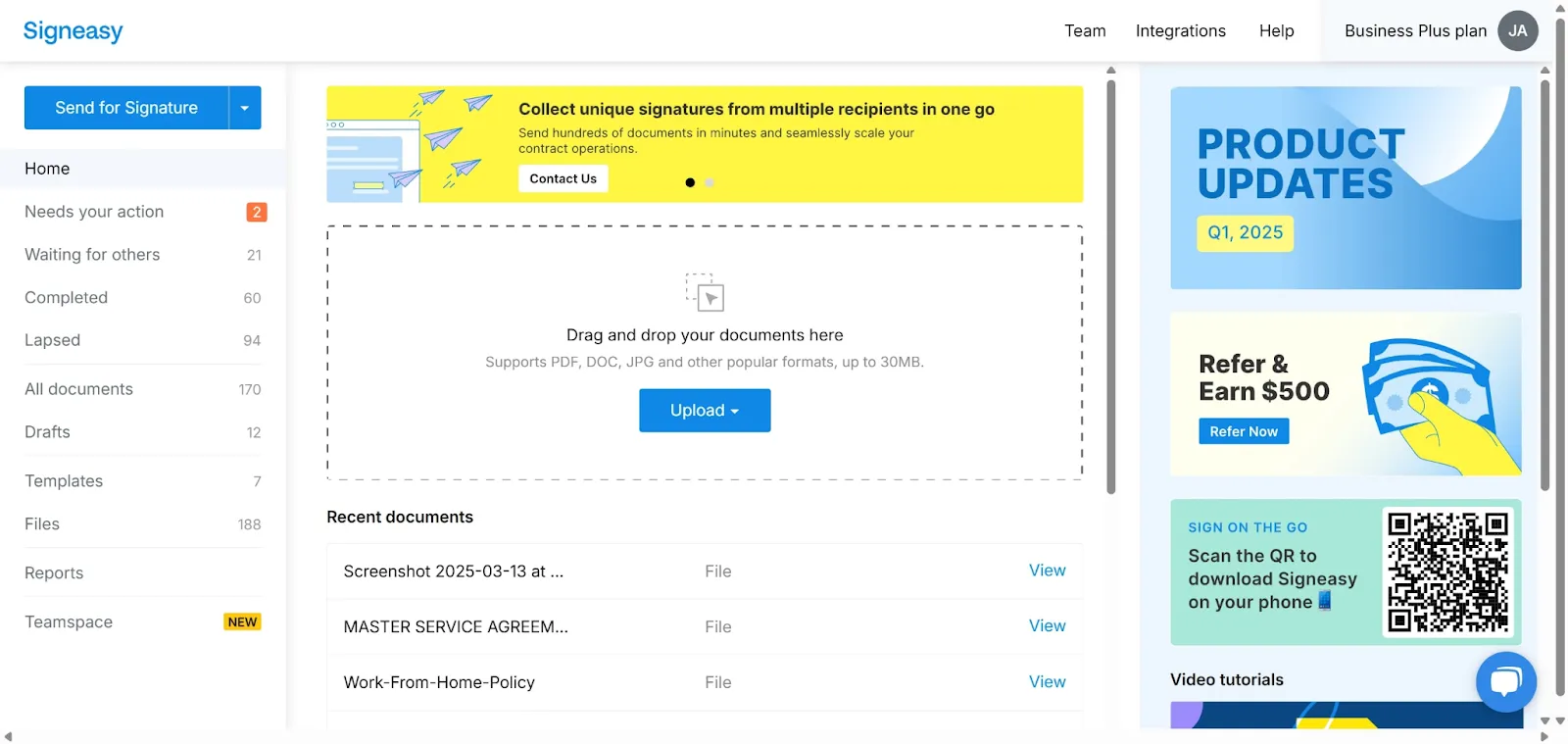
2. First, click on the profile section from the homepage.

3. Then, click on "**Account and settings**".

4. Signeasy provides multiple convenient ways to draw and sign your name effortlessly.

5. Click on the '**Add Signature**' button in the profile section to begin.

6. **Option 1**: Draw your signature. Select the **'Draw'** tab from the signature format options.

7. Use your mouse, trackpad, or touchscreen to generate your eSignature.

8. Click on "Save".

9. **Option 2**: Draw on a mobile device.

10. Select **'Draw on Mobile'**, and a link will be sent to the email associated with your Signeasy account. Open the link from your email and draw your signature on your mobile device. Your signature will be automatically uploaded to the web app.

11. Select your signature and click on **'Save'** to finalize.
12. You’ve successfully drawn your signature. You can now use it to sign any online document with Signeasy.

What are the benefits of eSignatures?

Easy eSigning workflows
Upload your document, set up signers and signing order, and send it ahead for signatures within minutes.

Legally compliant
eSign Act & eIDAS compliant. Much safer than traditional documents with signer verification, and audit trails.

Remote-friendly
Easily sign documents from anywhere, from any device, across geographies.

Faster turnaround times
Sign off and close business deals in seconds. eSignatures provide flexibility in time-sensitive scenarios.

Affordable
Physical paperwork can be expensive. Electronic signatures save you valuable money and effort.

Environment Friendly
No paper wasted. No trees butchered. Ecosystems saved.


