

.png)


If you have been managing contracts on Adobe Sign, you have probably noticed the changes. Dropped integrations, a redesigned interface that slows teams down, and pricing that keeps shifting.
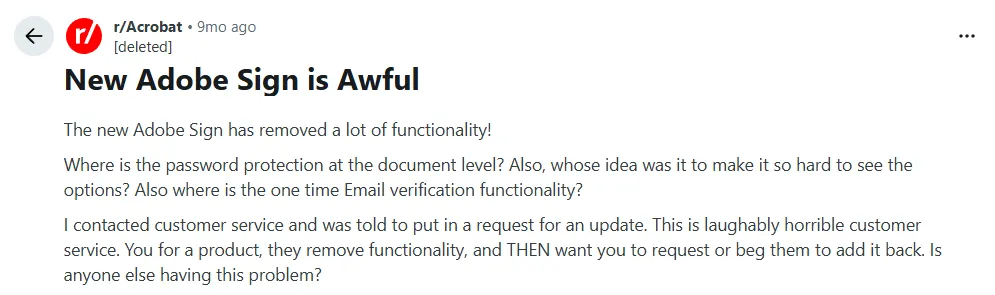
Posts like this one have become common across IT and operations communities:
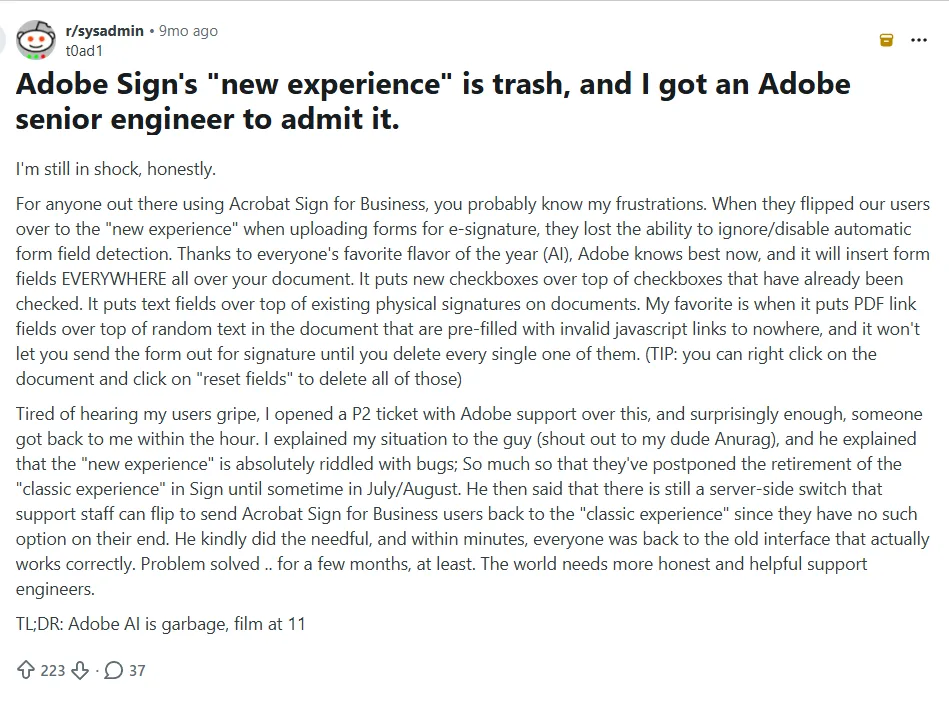
Source
These frustrations are exactly why more teams are planning an Adobe Sign migration. But switching eSignature platforms mid-workflow is not something you want to rush. In-flight agreements, user access, templates, and integrations all need to be migrated carefully to avoid delays or errors. Done right, your documents stay intact, your integrations carry over, and your team barely notices the change.
In this guide, you will learn:
- Why businesses are moving away from Adobe Sign
- A step-by-step process for migrating templates and users
- What to look for in an Adobe Sign replacement
- How Signeasy simplifies the entire migration process
Why businesses migrate away from Adobe Sign
It usually starts with something small. A contract needs a quick edit on mobile and the experience falls apart. A template update takes far longer than it should. A signer gets stuck mid-workflow and support tickets start piling up.
Over time, these issues become patterns. Teams struggle with a clunky editing experience, limited flexibility in templates and workflows, and friction that slows down signing instead of speeding it up.
Based on consistent feedback across G2 and other review platforms, these are the most common reasons businesses migrate away from Adobe Sign.
1. Difficult editing experience, especially on mobile
Adobe Sign users frequently report challenges with editing documents, particularly on mobile devices.
Filling out fields, repositioning signatures, and completing forms on a phone or tablet often requires workarounds that slow the process down. For teams in healthcare, field services, or real estate where contracts are regularly signed on the go, this becomes a real bottleneck.

Source
2. Pricing that does not match usage or the feature set
Occasional users find it hard to justify a full subscription for just a handful of documents a month. Growing teams hit transaction caps that force premature upgrades. When evaluating Adobe Sign vs Dropbox Sign or other alternatives, businesses needing features like API access, custom branding, or bulk sending find that Adobe Sign pricing can quickly outpace the value provided at equivalent tiers. where Adobe Sign pricing can quickly outpace the value.

Source
3. Navigation and usability issues
Users describe Adobe Sign's interface as difficult to navigate, with slow loading speeds and unclear instructions for common tasks.
Following Adobe's 2024 experience update, these complaints intensified. Field types defaulting incorrectly, unintuitive menu layouts, and frequent lag during document preparation are recurring themes across G2 and Adobe's own community forums.
Source
4. Signature and notification tracking gaps
Users also report unreliable notification tracking, making it hard to confirm whether a recipient has received, viewed, or signed a document.
When you’re managing time-sensitive contracts, not knowing where a document stands creates unnecessary follow-up.

Source
5. Discontinued SharePoint integration
Adobe ended support for its SharePoint integration on June 28, 2024. After that date, completed documents stopped saving back to SharePoint automatically, and teams could no longer send new agreements through the plug-in. SharePoint On-Premises support had already ended in October 2023.
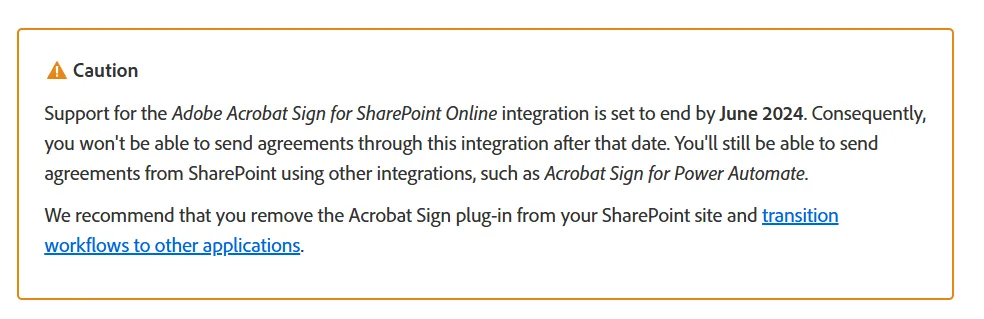
For organizations that built their document workflows around SharePoint, this meant rebuilding processes through Power Automate or Microsoft Teams. While third-party connectors do exist, they typically require extra configuration, ongoing maintenance, and workarounds that slow teams down instead of streamlining signing workflows.
How to migrate from Adobe Sign step by step
There’s no single “export everything” button in Adobe Sign. Different assets live in different places, follow different rules, and affect different teams when they move. That’s why migrations are done in stages, not all at once.
A successful Adobe Sign migration comes down to moving your contract templates, integrations, and users in the right order. Here’s how to approach it.
Step 1: Export your documents and audit trails
Start by downloading all signed contracts, in-progress documents, and completed audit trails from Adobe Sign.
Most eSignature platforms let you export these as PDFs, but make sure audit trails are included as separate files or embedded in the document metadata.
Prioritize active and high-value contracts first. Legacy agreements that are fully executed and unlikely to be referenced can follow in a second phase. Before you delete anything from Adobe, confirm that every file has been successfully transferred and is accessible in your new platform.
Step 2: Recreate your most-used templates first
Rather than migrating all templates at once, identify the 10 to 15 your team sends most frequently. Recreate those first on the new platform and validate that all fields, signing order, and routing logic work as expected.
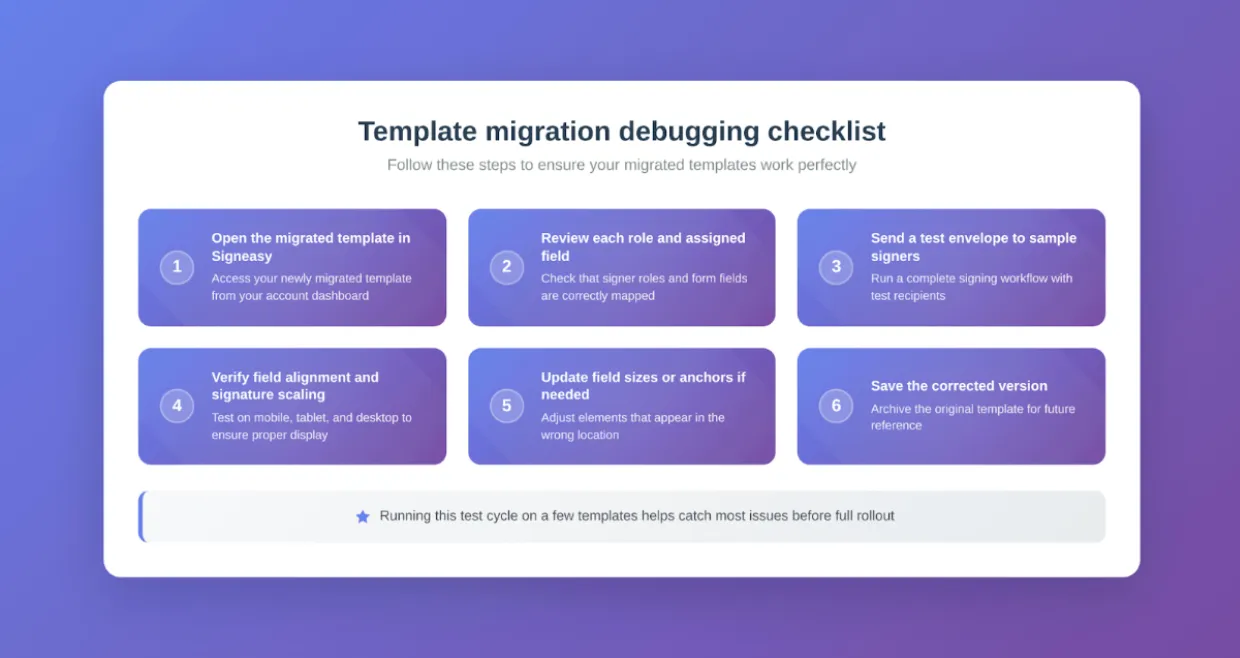
This is also a good opportunity to clean house. Many teams carry templates that are outdated, duplicated, or no longer in use. A migration is a natural reset point to standardize naming conventions, update branding, and remove anything that adds clutter without adding value.
Pro Tip: Templates often lose formatting, field placement, and signing roles when they move between eSignature platforms.
To reduce rework during your Adobe Sign migration, upload high-resolution PDFs as source files, leave enough margin space to prevent field overlap, and use anchor-based placement so fields stay attached to the correct text even if document length changes. Signeasy's guide on maintaining template integrity during migration covers common issues like role mismatches and signature scaling.
Step 3: Reconnect your integrations
Prioritize business-critical tools. If your team runs on Microsoft 365, verify that Outlook, Teams, and SharePoint integrations are live and working on the new platform. For Google Workspace teams, check Gmail, Google Drive, and Google Docs connectivity.
CRM integrations matter too. If your sales or operations team sends contracts through HubSpot, Salesforce, or a similar tool, test those workflows end-to-end before going live. A signing link that fails inside a CRM pipeline defeats the purpose of the integration.
Signeasy's SharePoint integration lets you send documents for signature, track contract status, and automatically store signed files and audit trails in dedicated SharePoint folders.
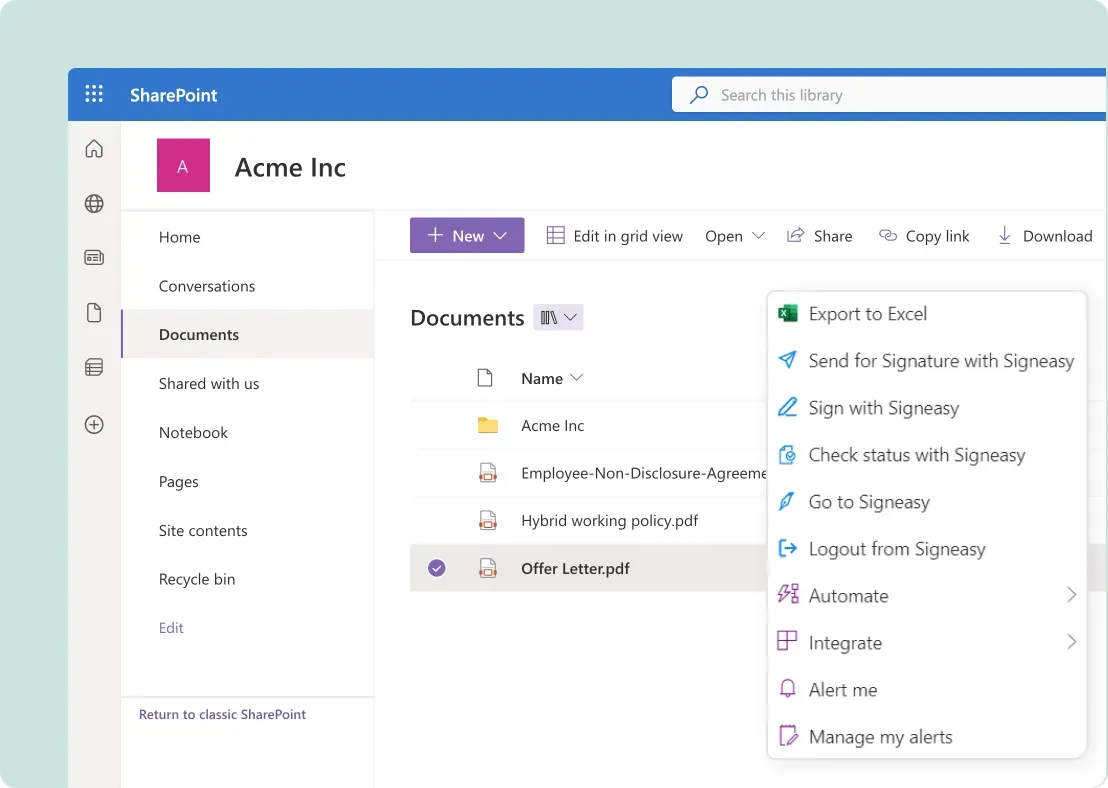
There is no need to reroute workflows through Power Automate or build workarounds. Your team stays inside the Microsoft ecosystem, and contracts stay where they belong.
Step 4: Set up users, roles, and permissions
Map out who needs access, what level of permissions they require, and which departments or teams they belong to. Admin roles, sender-only access, and view-only permissions should mirror what your team had in Adobe Sign, unless this is also a chance to clean up over-permissioned accounts.
If your organization uses single sign-on (SSO) or two-factor authentication (2FA), configure those before inviting users. Rolling out access without security settings in place creates unnecessary risk, even for a short window.
Once users, roles, and security settings are in place, most of the heavy lifting is done. That said, even well-planned migrations tend to hit a few unexpected snags once teams start using a new setup.
Common challenges with migrating from Adobe Sign
Even well-planned migrations from Adobe Sign can run into hurdles around field compatibility, automation rebuilds, and maintaining continuity during the transition. Here are the most common ones to watch for:
- Field compatibility issues: Signature fields, checkboxes, and dropdowns do not always transfer cleanly between platforms. Some may default to the wrong type or lose their assigned signer roles, so it is worth testing every template after you recreate it.
- Automation rules that do not carry over: If your setup included routing rules, reminders, or triggered actions through integrations, those will need to be rebuilt on the new platform. Documenting your existing automations beforehand makes this much easier to manage.
- Maintaining continuity during the transition: Ideally, you should run both platforms in parallel for at least two weeks. Without that overlap period, your team risks missing documents that did not transfer correctly or losing access to audit trails before they have been fully migrated.
Knowing these challenges upfront makes them far easier to manage. Similarly, choosing the right platform to migrate to can help you avoid many of them altogether.
What should you look for in an Adobe Sign replacement?
A good Adobe Sign alternative should check a few key boxes like ease of use, transparent pricing, strong integrations, unlimited documents, responsive support, and solid compliance coverage. Here’s what each of those looks like in practice:
- Ease of use: A platform your team can pick up quickly without extensive training or onboarding sessions.
- Transparent pricing: Clear, predictable plans with no transaction caps, feature gating, or hidden cancellation fees.
- Integrations that work: Native connections to Microsoft 365, Google Workspace, and CRMs that plug in without extra configuration or workarounds.
- Unlimited documents: No per-user caps on the number of documents you can send per year, especially important for teams with high contract volume.
- Responsive support: Quick, reliable help when something breaks during a migration or a contract is stuck mid-workflow.
- Compliance and security: SOC 2, HIPAA, GDPR, eIDAS, ESIGN, and UETA compliance that comes standard, not as add-ons tied to higher-tier plans.
- Contract management beyond eSignatures: Built-in reminders, tracking, contract repository, and reporting, so you’re not stitching together multiple tools.
- API and embedded signing: Accessible developer tools for building signing into customer-facing workflows without enterprise-level pricing.
With those priorities in mind, here’s how Signeasy stacks up as an Adobe Sign alternative.
Why choose Signeasy as your replacement for Adobe Sign
Many teams switch from Adobe Sign because of document caps, complex pricing tiers, and limited integrations. Signeasy solves these with unlimited documents on every plan, transparent per-user pricing, native integrations with Microsoft 365, Google Workspace, and popular CRMs, and contract workflows in one place.
Here’s what makes it a strong fit for teams planning an Adobe Sign migration.
1. Transparent pricing with unlimited documents
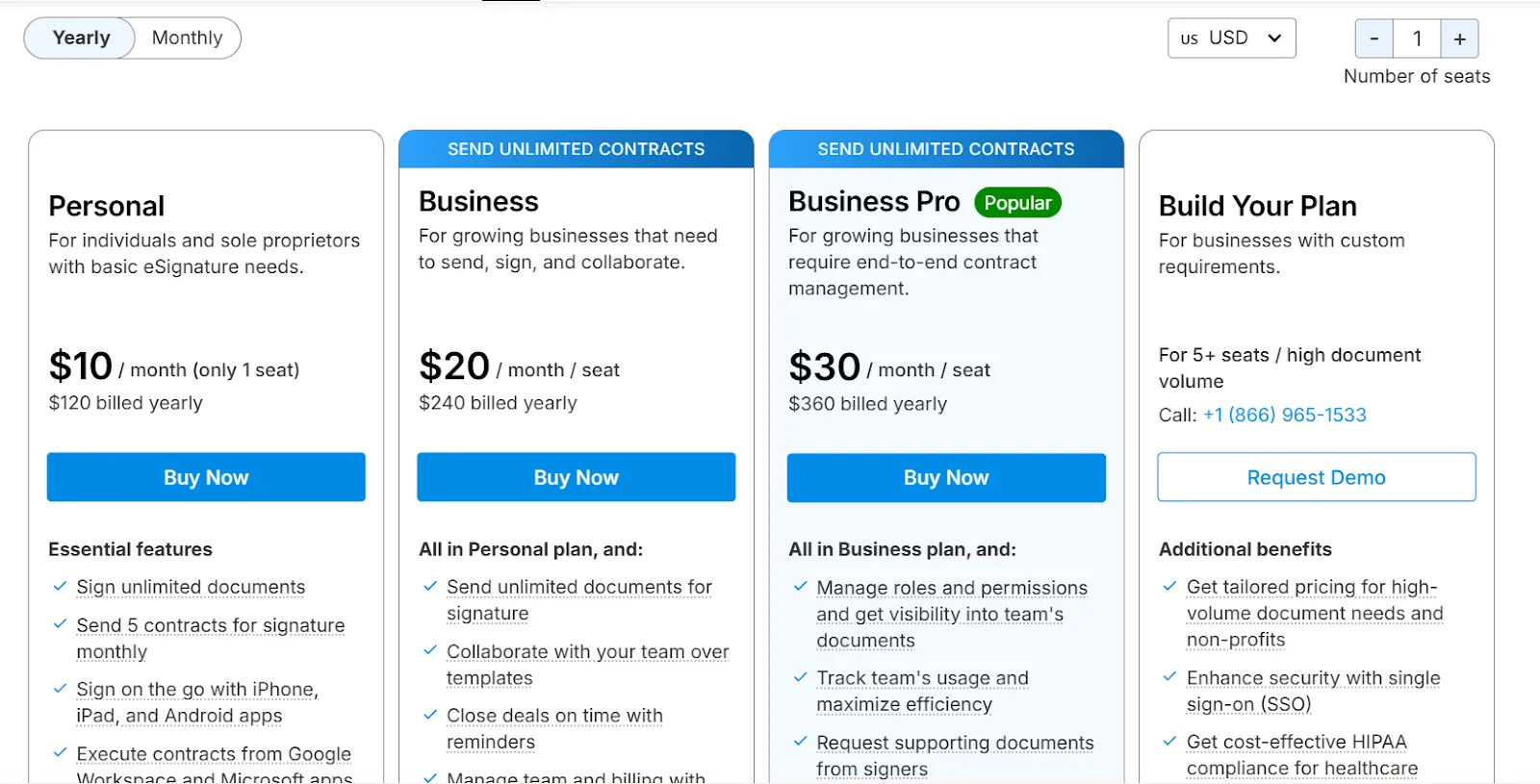
Signeasy's Business plan starts at $20/month per user, and Business Pro at $30/month per user. Both plans include unlimited documents for sending and signing, so there are no per-user transaction caps or surprise overages as your team scales.
A Personal plan is also available at $10/month for individuals with basic eSignature needs. For larger teams with custom requirements, the Build Your Plan option offers tailored pricing for 5+ seats and high document volumes.
Every paid plan comes with a 14-day free trial and a 100-day money-back guarantee, and you can cancel anytime without early termination fees.
2. Integrations built for the tools your team already uses
Signeasy connects natively with Microsoft Outlook, Teams, SharePoint, Google Workspace, and HubSpot. Your team can sign, send, and track contracts without switching between apps.
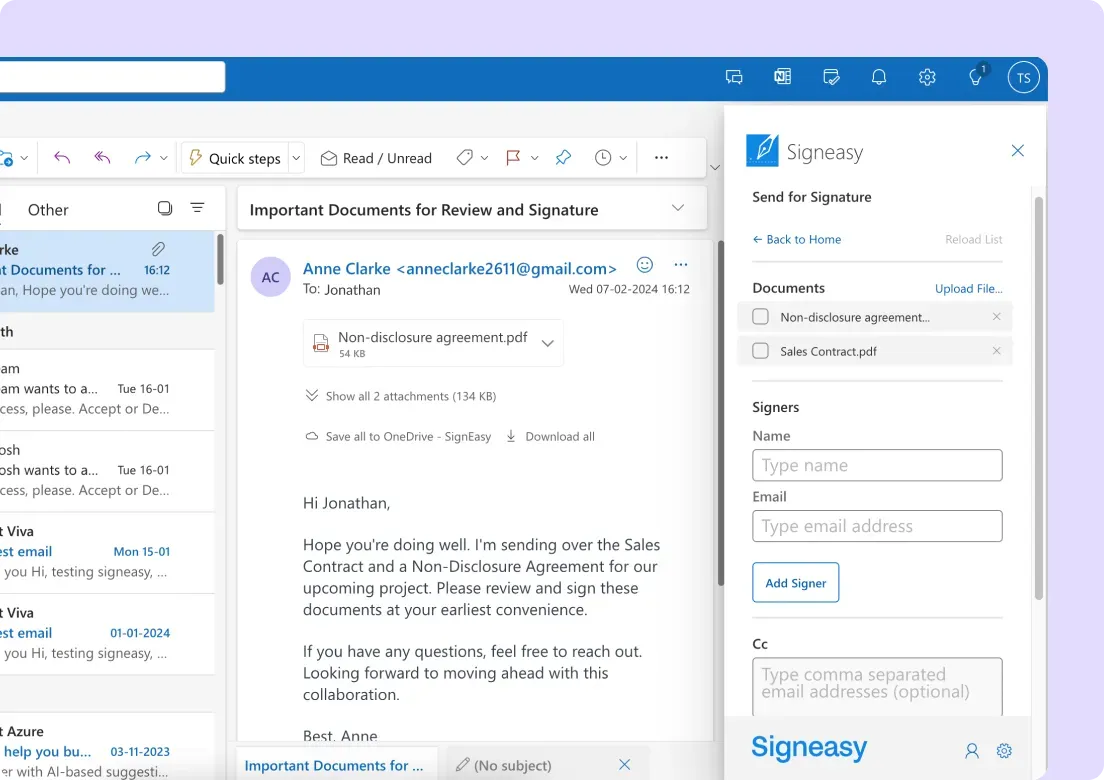
For teams that rely on the Microsoft ecosystem, the SharePoint integration is especially relevant during an Adobe Sign migration, since it lets you sign, store, and track contracts directly within SharePoint sites.
3. Swift onboarding for all teams
Signeasy is designed to be intuitive from the first login. Additionally, Business Pro customers get 24/7 priority support, and Enterprise plans include a dedicated customer success manager.
Mercure Hotel Suites and Apartments in Dubai, for example, rolled out Signeasy across their procurement, finance, and sales teams. The switch helped them go fully digital, cutting contract turnaround from weeks to days.

Fonyuy Youla Emile, the IT Manager, shares, "We chose Signeasy after evaluating Adobe Sign, thanks to the powerful features they introduced with competitive pricing. We’ve eliminated 10,000 printouts monthly, reducing costs and accelerating our digital transformation. The turnaround time on contracts has gone from weeks to days."
4. Contract management and AI-powered insights
Signeasy also brings AI-powered features into everyday contract workflows.
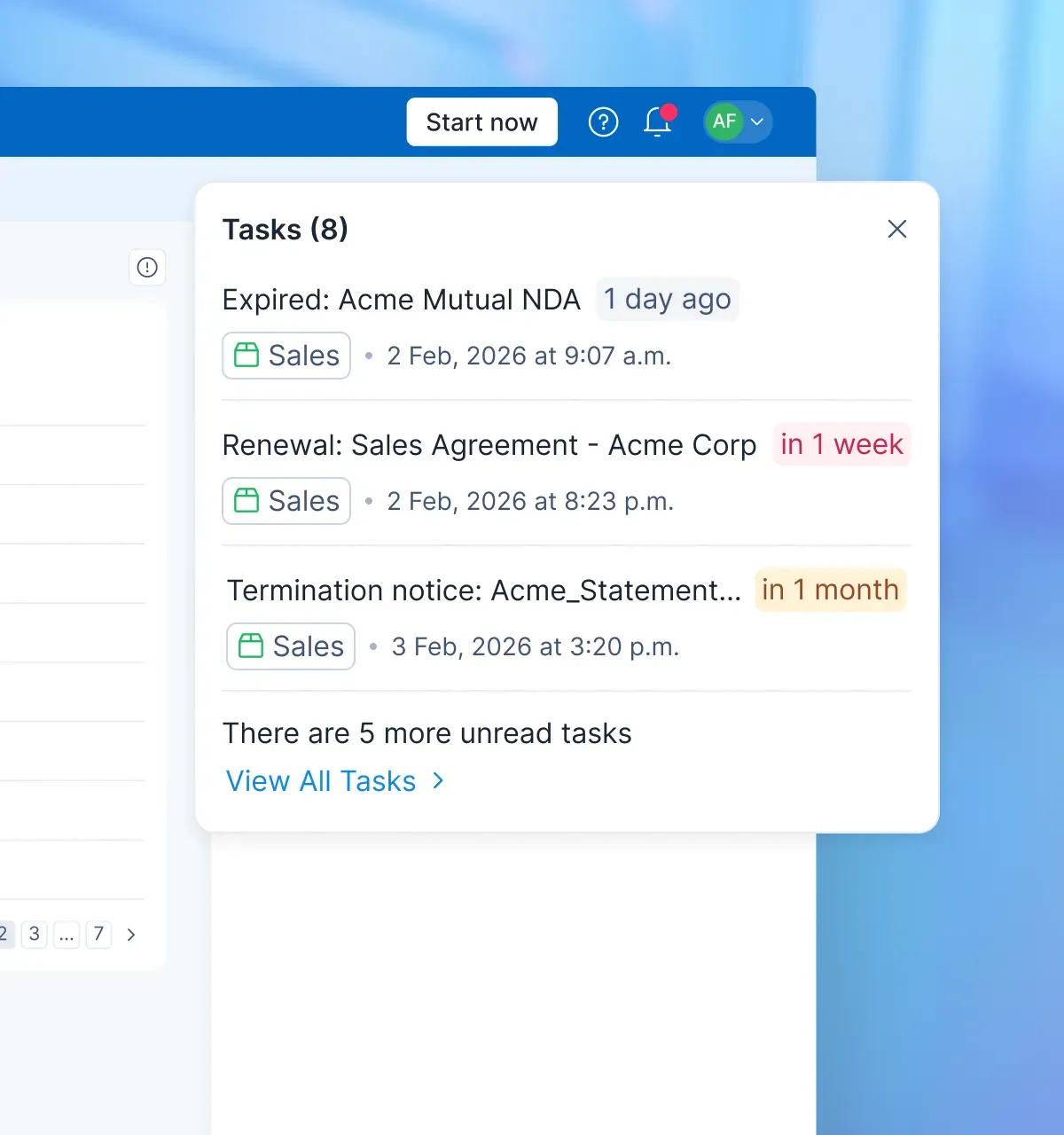
Key terms extraction automatically identifies critical clauses like payment terms, renewal dates, and termination rights with direct links to the source text. AI summaries condense lengthy agreements into digestible overviews in seconds, and Smart Q&A lets you ask questions in natural language and get instant answers from your documents.
Plus, contract renewal reminders integrate directly with Google, Apple, and Outlook calendars, so your deadlines never get missed.
Suggested read: The AI advantage: A guide to AI in contract management
5. API for embedded signing and custom workflows
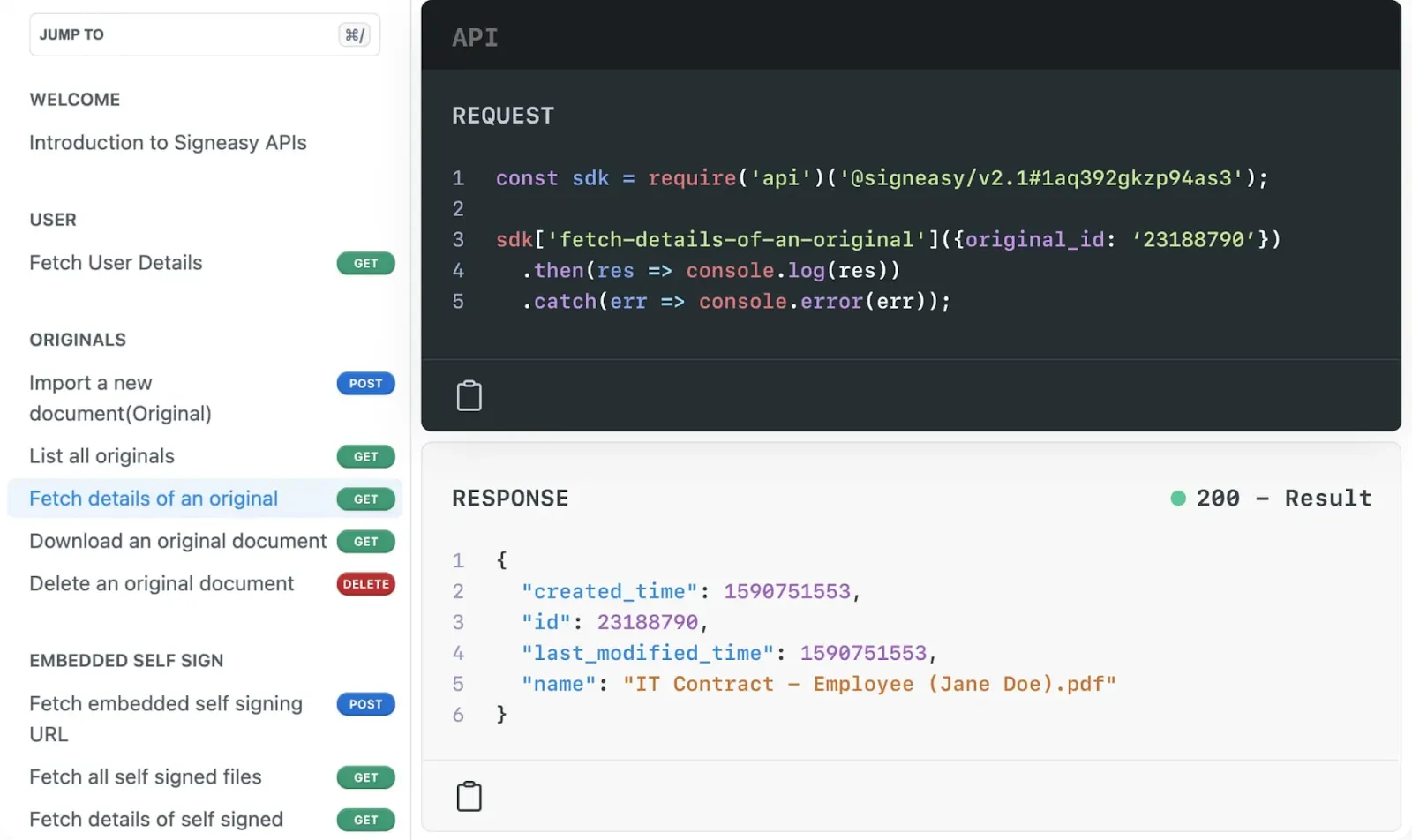
For teams that need to build signing into their own apps or customer-facing workflows, Signeasy offers a robust eSign API with a free sandbox for testing. Whether you need embedded signing in a web app, automated document generation, or workflow triggers through Zapier, the API fits into your existing tech stack.
Adobe Sign vs. Signeasy: A brief comparison
Now that you know what Signeasy brings to the table, here’s a side-by-side look at how Adobe Sign and Signeasy compare across pricing, document limits, integrations, compliance, and contract management. Whether you’re early in your research or ready to make the switch, this should give you a clear picture of where each platform stands.
Suggested read: Signeasy Reviews: Ratings, Pricing, and Key Features
If Signeasy checks the right boxes for your team, here is how to make the switch without disrupting your workflows.
Make your Adobe Sign migration count with Signeasy
Switching eSignature platforms does not have to be disruptive. With the right preparation, your documents, templates, integrations, and team permissions can carry over without interrupting active workflows.
The key is choosing a platform that solves the problems that prompted the move in the first place.
Signeasy is a user-friendly platform, easy to set up and intuitive from day one. Combined with straightforward pricing, unlimited documents, native integrations with Microsoft 365, Google Workspace, and HubSpot, and AI-powered contract management, it’s built for teams that want to move quickly without compromising on features.
See how Signeasy compares firsthand. Start free trial today.