

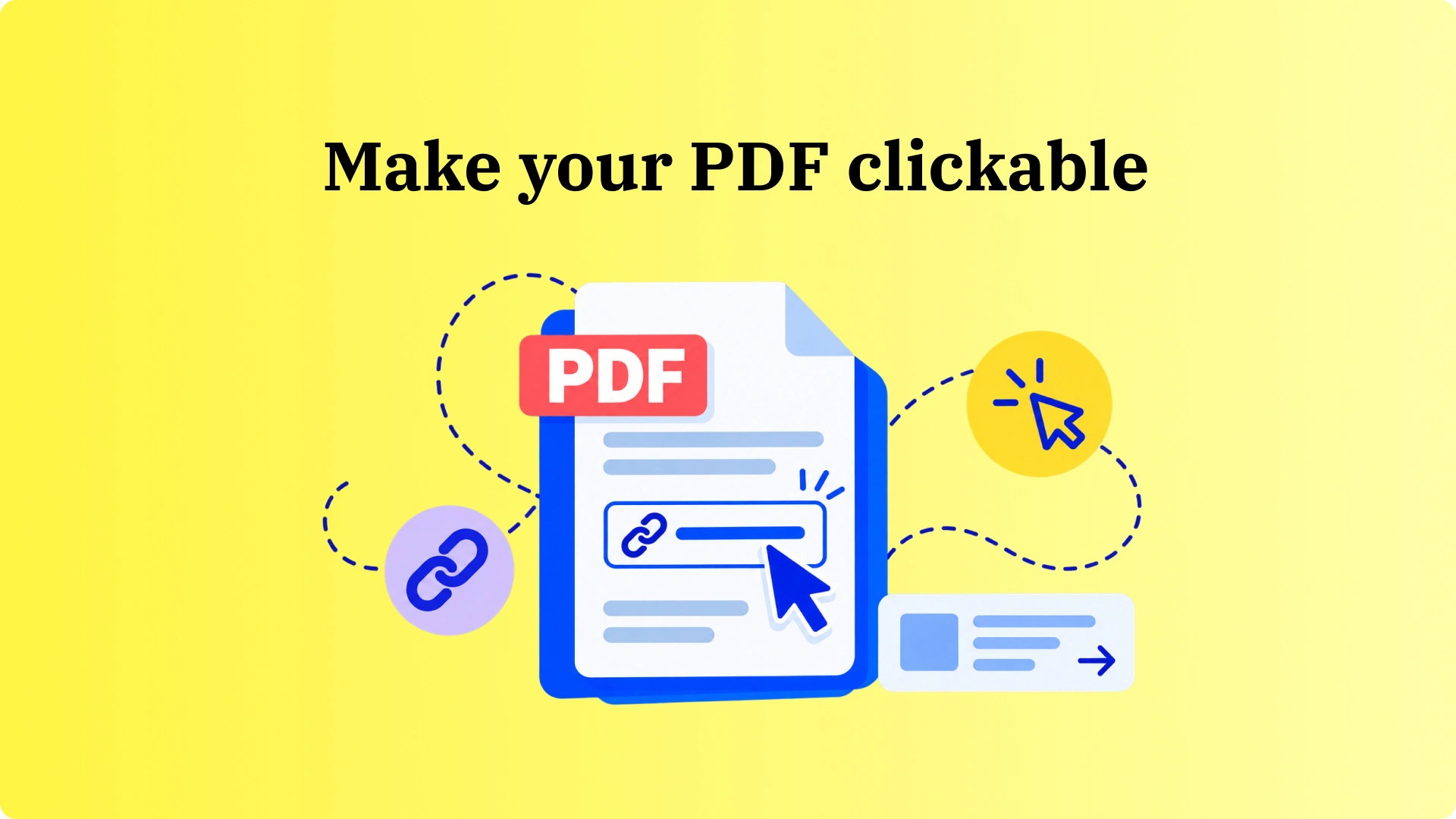


To add a hyperlink to an existing PDF, open it in Adobe Acrobat Pro or another editor with a Link tool. Select the text or image people should click, enter the destination, and save the file. If you still have the original document in Word or Google Docs, add the link there first, export a new PDF, and test it before sharing.
Types of hyperlinks you can add to a PDF
Before you add hyperlink to PDF files, decide what readers should see when they click. That determines the type of link you need:
- Website link: Opens a web page. Enter the full address, including https://.
- Page or section link: Takes readers to a page number or specific section within the same PDF. It's useful for reference guides, appendices, and long reports.
- Email link: Opens a new message in the reader's email app using the email address you set.
- File link: Opens another document or attachment. For files stored online, use a shareable link and check that recipients have permission to open it. A local file path on your computer won't work for everyone.
The setup changes slightly by editor. Acrobat and some online PDF editors can place a clickable area directly over text or an image in an existing PDF. Word and Google Docs work better when the link is added to the source document before PDF export.
Check the available actions in your editor, save the PDF, and click each link before sending the document.
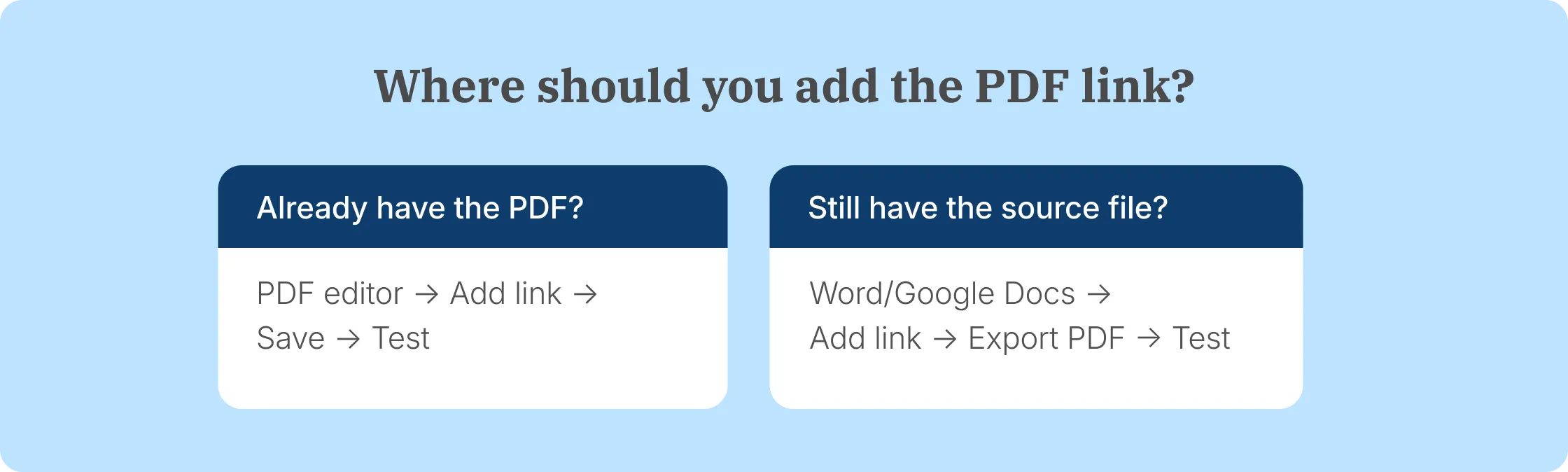
4 common ways to add or insert hyperlinks on a PDF
There are four practical ways to add hyperlink to PDF files. The right method depends on whether you are changing an existing PDF or still have access to the source document.
Use the method that fits the file you have instead of converting a finished PDF unnecessarily.
Once your PDF links work, need other people to sign it? We'll show how Signeasy adds signature fields, sends requests, and tracks completion.
How to add a hyperlink to a PDF with Adobe Acrobat
Adobe Acrobat Pro lets you edit PDF hyperlinks directly in an existing file. Open the document, choose the Link tool, and draw a clickable area over the text or image. There's no need to convert the entire PDF into another format.
Adobe's current Acrobat workflow is: Edit → More → Link → Add or edit a link. You can then define the clickable area and choose whether the link should open a webpage, another file, or a page within the PDF.
To add the link:
- Open the PDF in Adobe Acrobat.
- Select Edit → More → Link → Add or edit a link.
- Draw a box over the text or image you want readers to click.
- In the Create Link dialog box, choose the link appearance and action. You can select an invisible rectangle if you want the text or image to remain visually unchanged.
- Select Open a web page or Go to a page view, then click Next. Enter the destination web page URL or navigate to the target page and confirm the link.
- Save the PDF.
- Click the link in the saved file to confirm it opens the right destination.
To change the link later, return to the same Link tool and select the clickable area.
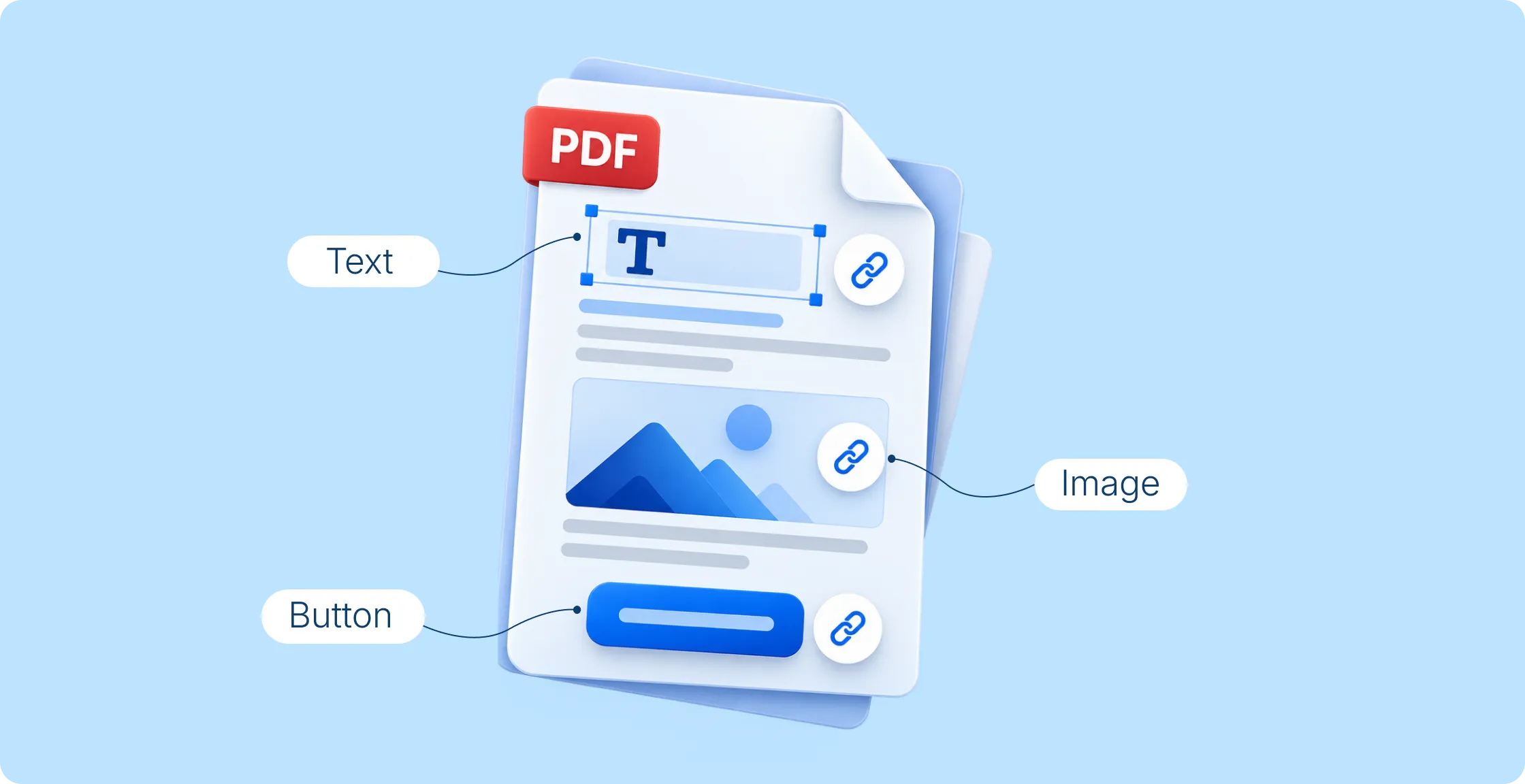
How to add a hyperlink to a PDF with an online PDF editor
Some free online PDF editors let you add clickable hyperlinks to an existing PDF without installing software. Look for an editor with a Link or Add Hyperlink tool, as some free tools only support basic annotations.
To add a hyperlink:
- Upload your PDF to an online editor that supports hyperlinks.
- Select the Link tool and draw a clickable area over the text or image.
- Enter the website URL or destination page number.
- Apply the link and download the updated PDF.
- Open the downloaded file and click the link to check that it works.
Check the editor's file size limits and privacy policy before uploading. For contracts or documents containing sensitive information, review how the service stores and handles uploaded files. If hyperlink editing requires a paid plan, you can also add links in the original Word or Google Docs document before exporting it as a PDF.
How to add a hyperlink to a PDF using Microsoft Word
Microsoft Word works best when you still have the Microsoft Word document used to create the PDF. If only the PDF remains, Word converts a copy into an editable document. This works best with mostly plain text files. Tables, graphics, and a text box containing carefully positioned content can shift during conversion, so review the layout before exporting again.
To add hyperlink to PDF content through Word:
- Open the Word document. If you only have a PDF, open it in Word and allow Word to convert a copy.
- Select the text or image you want to link.
- Choose Insert → Link.
- Enter the destination in the Address field.
- Export or save the edited document as a PDF.
- Open the PDF and check the link.
- If the document also needs editable form fields, our guide to creating a fillable PDF covers text, date, checkbox, and signature fields.
Microsoft supports links to websites, files, email addresses, and bookmarked locations in a document.
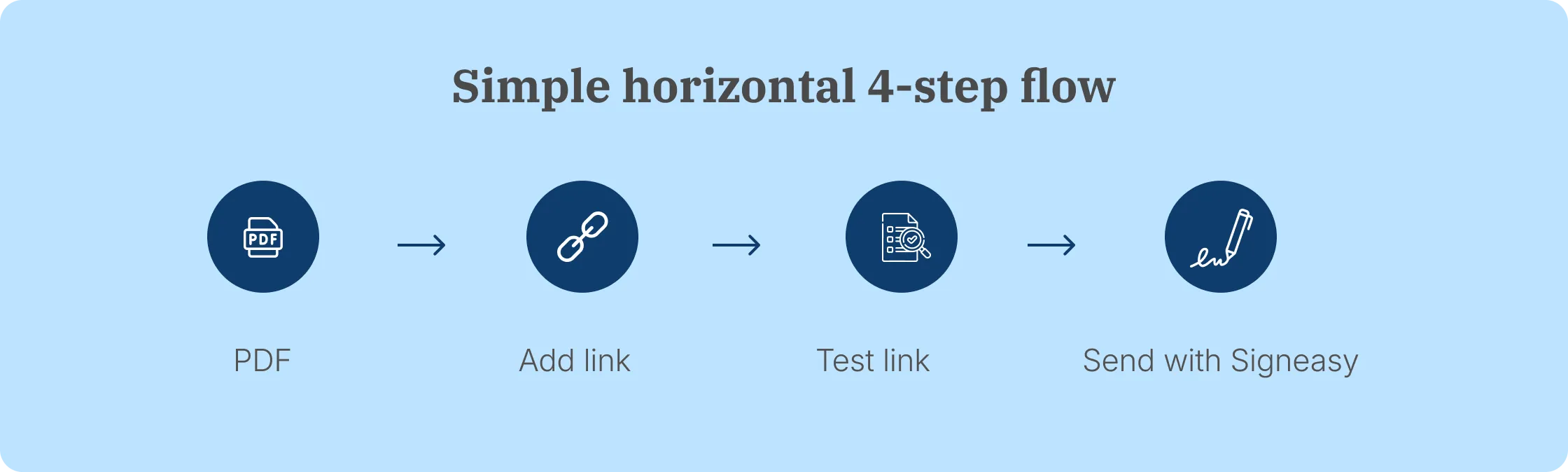
How to add a hyperlink to a PDF using Google Docs
Google Docs works best when you add the link before the document becomes a PDF. It is a source-document workflow, not a direct PDF hyperlink editor.
To add hyperlink to PDF content from Google Docs:
- Open or create the Google Doc.
- Select the words or image you want readers to click.
- Choose Insert link.
- Enter the destination and confirm it.
- Select File → Download and choose PDF as the file type.
- Open the downloaded PDF and click the links before sharing.
If the finished file also needs a signature, our guide to signing PDFs in Google Drive covers that next step.
Does your team export contracts from Google Docs before collecting signatures? We'll demonstrate the next steps in Signeasy, including recipients, reminders, and status.
Quick tips for PDF links
- Test every link in the saved PDF before sharing it.
- Enter complete web addresses, including https://.
- Use descriptive anchor text such as “View pricing” instead of “click here.”
- Keep clickable areas large enough to select on a phone or tablet.
- Make invisible links discoverable. If the clickable area sits over an image, include a visible label or another cue so readers know where to click.
- Export or save as PDF instead of relying on Print to PDF when preserving link data is important.
How to add a hyperlink to a PDF on iPhone or Android
On iPhone and iPad, PDF Expert supports direct hyperlink editing. Open the PDF, select Edit PDF and the Link tool, mark the clickable area, and choose a web or page destination. Android users can use a compatible browser-based editor or add links to the source document before exporting. Mobile editing menus vary between applications, so test the saved file on your phone.
The basic workflow stays short:
- Open the PDF in a mobile editor that supports links, or open the original document in Word or Google Docs.
- Select the link area or linked text.
- Enter the destination.
- Save or download the PDF.
- Open the downloaded file on your phone and tap the link.
A phone is especially useful for testing because a link that works with a mouse can still have a clickable area that is too small to tap comfortably. If you're also collecting signatures on Android, our PDF signing guide for Android walks through that separate workflow.
How to link to another page or section in a PDF
In large documents, page links take readers directly to a specific location without scrolling. They're especially useful in a linked table of contents, an appendix, or a reference guide. Decide which page and view the reader should see before creating the link.
In Adobe Acrobat, draw the clickable link area and choose Go to a page view as the link action. Move to the destination page, set the view, save the file, and test the jump. Adobe lists page-view links as one of the supported actions in Acrobat's current Link tool.
Finish any page management first, including merging, deleting, or reordering pages. If you're combining files, our PDF merging guide explains how to prepare them before adding internal links. Changing the page order afterward means checking the destinations again.
How to create a clickable table of contents in a PDF
A linked table of contents gives readers quick access to relevant content in a long PDF. Each entry points to a section of your PDF, so readers can find what they need without scrolling through the whole file.
If you still have the source document, apply heading styles first and build the table of contents from those headings. Add any necessary links there, export the document as a PDF, and test every table-of-contents entry.
If you only have the PDF, use a PDF editor to place link areas over the table-of-contents entries and point each one to the correct page.
Creating linked manuals or long contracts that later need approval signatures? We'll show how a prepared PDF moves through Signeasy's signing workflow.
How to keep hyperlinks when converting to PDF
To keep links working when you convert a source file, add the links before export, then use the application's PDF export or save function. If you need to add hyperlink to PDF after the conversion is already complete, use a PDF editor instead.
The exact behavior differs by Word, Excel, PowerPoint, and other applications, which is why the final PDF always needs to be tested.
Keep hyperlinks when converting Word to PDF
In Word, create the hyperlinks in the source document, then select Export or Save As and create the PDF.
If you first opened an existing PDF in Word, check the converted layout before export. Microsoft explains that Word creates an editable copy of the PDF and attempts to recreate the original layout, but the result can differ from the fixed PDF version.
After saving:
- Open the PDF.
- Click each external link.
- Check internal links or bookmarks separately.
- Review pages containing tables, graphics, or unusual formatting.
Keep hyperlinks when converting Excel or PowerPoint to PDF
Excel and PowerPoint need more careful checking because not every link type survives PDF conversion in the same way.
Excel: save a linked spreadsheet as a PDF
External website links can survive an Excel-to-PDF conversion, but Microsoft specifically notes that internal spreadsheet links are lost during conversion to PDF.
For external links:
- Add the link to the spreadsheet.
- Save the workbook.
- Choose File → Export → Create PDF/XPS or another supported PDF export option.
- Open the PDF.
- Test every external link.
Do not assume a sheet-to-sheet link will continue working in the PDF just because it works in the workbook.
PowerPoint: export a linked presentation
On Windows, export the presentation through File → Export → Create PDF/XPS and test the links in the result.
PowerPoint for macOS needs a separate export check. Standard desktop PDF export doesn't reliably preserve hyperlinks. Microsoft recommends saving the presentation to OneDrive and downloading the PDF through PowerPoint for the web. The desktop option Best for electronic distribution and accessibility also preserves supported hyperlinks by using Microsoft's online conversion service.
That is more reliable than repeatedly changing PDF settings in the Mac desktop app.
Are employees exporting documents from Word or PowerPoint for signature? We'll show a repeatable way to send and track those finished PDFs.
Keep hyperlinks when exporting from Google Docs and other tools
Different tools handle link metadata differently during export:
- Google Docs, Sheets, and Slides: Use the application's PDF download/export option and check the downloaded file.
- Canva and Figma: Use the appropriate PDF download option, then test each link.
- Pages, WPS, and LibreOffice: Review the PDF export settings for hyperlink support before saving.
No export option removes the need to test. A web link, internal document link, email link, and file link can behave differently once the document becomes a PDF.

Troubleshooting common hyperlink issues in PDFs
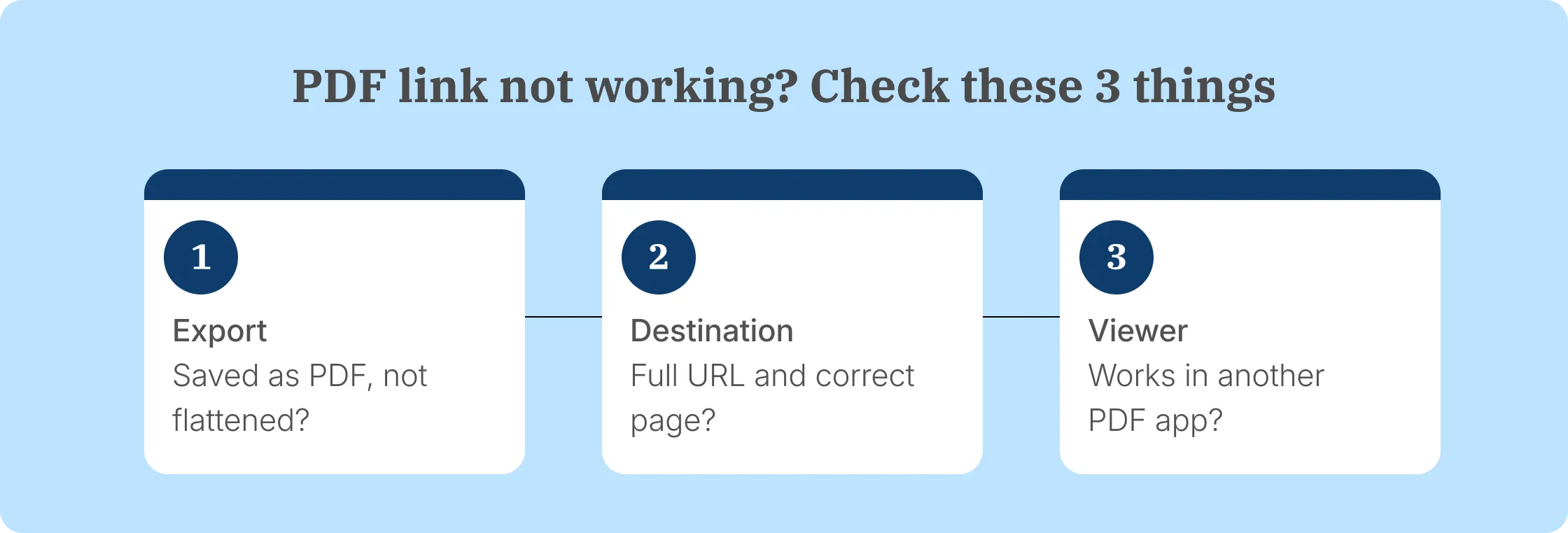
If a link fails after you add hyperlink to PDF files, start with the saved PDF rather than the editor. Click the link, check its URL and clickable area, then open the file in another viewer. If the PDF came from Word, Excel, PowerPoint, or another source app, check whether the link still works there too.
1. Broken or inactive hyperlinks
A hyperlink can stop working because the PDF was flattened, the destination was entered incorrectly, or the viewer cannot perform that link action.
Possible causes:
- The file was printed or flattened instead of exported.
- The URL is incomplete or contains an error.
- The clickable rectangle does not cover the intended text.
- The PDF viewer blocks or does not support that link action.
Try these fixes:
- Export or save a new PDF from the source document.
- Check that web URLs begin with https://.
- In Acrobat, reopen Edit → More → Link → Add or edit a link and repair the link.
- Open the saved PDF in another viewer.
- Click the repaired link before sending the document.
2. Formatting issues after hyperlink insertion
A hyperlink can look wrong even when it works correctly. The linked text may change style, or the clickable box may cover the wrong part of the page.
Check for:
- Font, size, or color changes copied from the source application.
- Manual formatting that overrides the normal hyperlink style.
- Link rectangles that overlap another link, image, or shape.
Keep similar links visually consistent, then reopen the saved PDF and check the actual clickable area rather than judging only by the text color.
Once you've checked the links and layout, we'll demonstrate how Signeasy handles signature requests on the finished PDF without editing its hyperlinks.
3. Compatibility problems across PDF viewers
A hyperlink that works in Acrobat can behave differently in a browser viewer or mobile PDF app.
For better compatibility:
- Use standard https:// web addresses.
- Use mailto: only for email links.
- Keep clickable areas within the visible content.
- Test the file in at least one desktop viewer and one phone viewer if mobile use is important.
If your PDF is going out for signatures, finish testing the links before uploading it to the signing workflow. For password-protected documents, check the editing permissions first. Our secured PDF signing guide explains the signature process once the document is ready.
4. How to edit or remove an existing hyperlink in a PDF
To edit a link in Adobe Acrobat:
- Open the PDF.
- Select Edit → More → Link → Add or edit a link.
- Select the existing clickable area.
- Open its properties or edit the assigned action.
- Replace the destination and save the PDF.
To remove a link, select its clickable rectangle while the Link tool is active and delete it.
After changing or removing a link, save another copy and test the remaining hyperlinks before sending the document. In Acrobat, you can also select several link areas and update the properties of multiple links together. This is useful when links across a longer PDF need the same appearance, although their destinations still need checking individually.
Send and sign your PDF with Signeasy
Once you've added and tested the hyperlinks, you can sign the PDF online or use Signeasy to send it to other people for signature. Hyperlink editing happens before the document enters the signing workflow.
Upload the finished file, identify your signers, place signature and other required fields, and send the request. Signeasy lets teams track the request and see when documents move from pending to completed. For PDFs that also need name, date, or signature fields, our fillable PDF signing guide explains how to complete those fields before signing.
Add or repair hyperlinks first, test the finished PDF, and then begin signing. Our guide to electronically signing a PDF explains the next steps. Once the signing process is complete, check the downloaded signed copy again if the hyperlinks need to remain clickable for recipients.
For teams that handle PDFs regularly, Signeasy's eSignature software can also keep signature requests, reminders, completed documents, and integrations in the same workflow.
Signeasy's reusable document templates help teams send recurring contracts without setting up signer fields and signing order each time. Prepare the document once, then reuse that signing setup for future requests.
Does your team regularly prepare PDFs for signatures? We'll show you how Signeasy handles templates, signer fields, reminders, and tracking using the contracts your team already sends.